

Documentation
HTML Macro+ for ConfluenceBrowse
Documentation
HTML Macro+ for ConfluenceMacro Usage Analytics
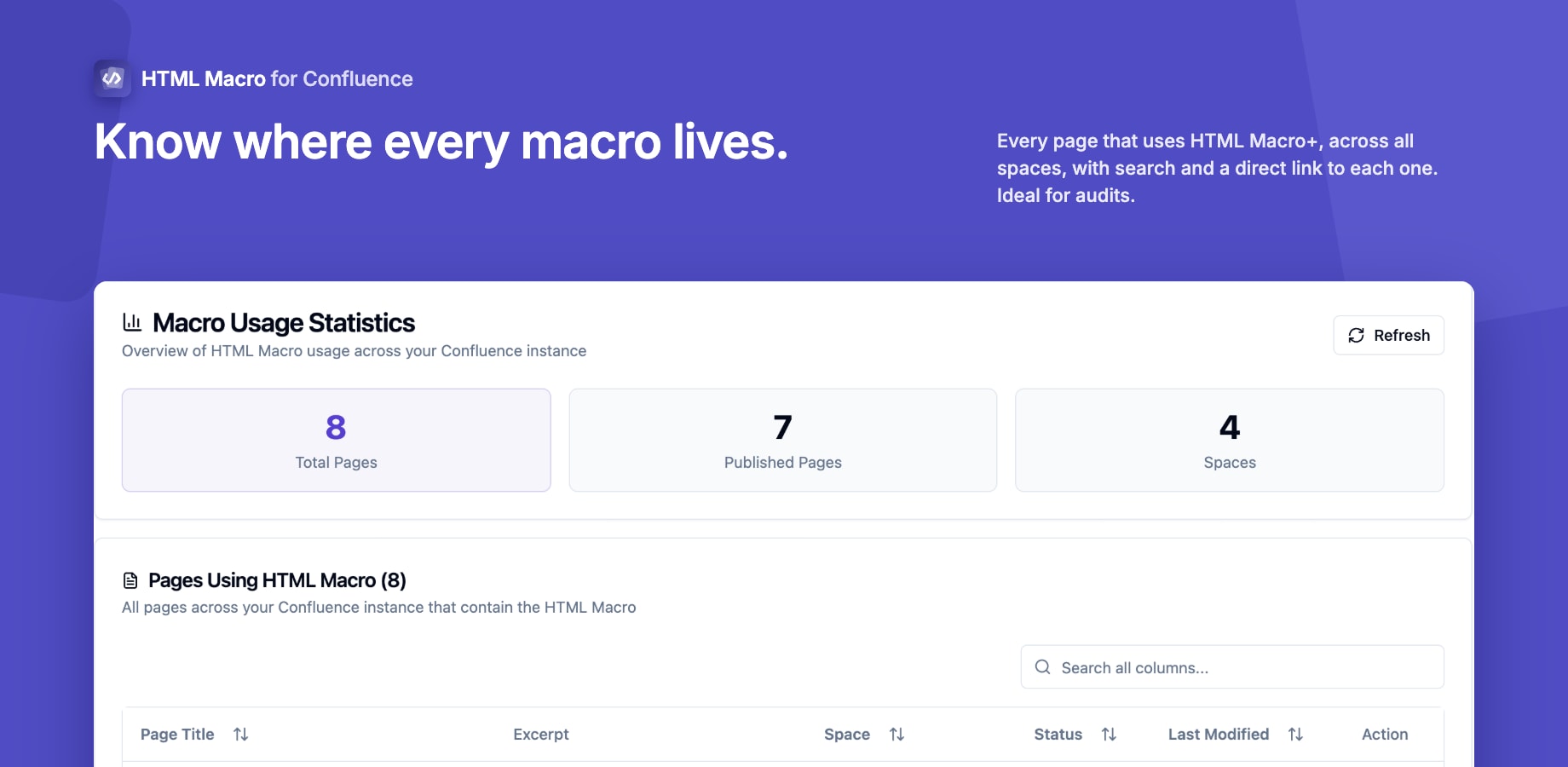
The Usage tab in the HTML Macro admin settings gives site administrators a complete view of every Confluence page that contains an HTML Macro. Use it to audit adoption, spot stale pages, or quickly navigate to any macro for review.
Accessing the Usage Tab
- Go to Confluence Administration → Manage Apps
- Find HTML Macro+ for Confluence and click Configure
- Click the Usage tab
Note: This tab is only visible to Confluence site administrators.
Stats Overview
At the top of the Usage tab, three summary cards give you an instant snapshot:
| Stat | What it shows |
|---|---|
| Total Pages | Number of Confluence pages that contain at least one HTML Macro |
| Published Pages | Pages in a published (non-draft) state |
| Spaces | Number of distinct Confluence spaces using the macro |
Usage Table
Below the stats, a full-page table lists every page using the macro. The table supports:
Columns
| Column | Description |
|---|---|
| Page Title | The title of the Confluence page |
| Excerpt | A short snippet of the page content |
| Space | The Confluence space the page belongs to |
| Status | Current page status (e.g. current, draft) |
| Last Modified | Date the page was last edited |
| Link | Button to open the page directly in Confluence |
Sorting
Click any column header to sort the table by that column. Click again to reverse the sort order.
Search & Filter
Use the search box above the table to filter rows across all columns at once. The filter is applied instantly as you type — no need to press Enter.
Pagination
The table loads 20 pages per request. Use the pagination controls at the bottom to navigate:
- First — jump to the first page of results
- Previous — go back one page
- Next — advance one page
- Last — jump to the final page of results
The current page and total count are shown between the navigation buttons.
Opening a Page
Click the external link icon (↗) in the Link column to open the page directly in Confluence. The page opens in Confluence's built-in viewer without leaving the admin settings panel.
Use Cases
- Adoption auditing — check how widely the macro is used across spaces
- Security review — identify pages with embedded HTML/JS for periodic audits
- Cleanup — locate old or stale pages that may need updating or removal
- Onboarding — share usage stats with your team to track rollout progress
Guides for HTML Macro+ for Confluence
Stuck on something this page does not cover? Ask the developers.