

Documentation
HTML Macro+ for ConfluenceBrowse
Documentation
HTML Macro+ for ConfluenceComponents
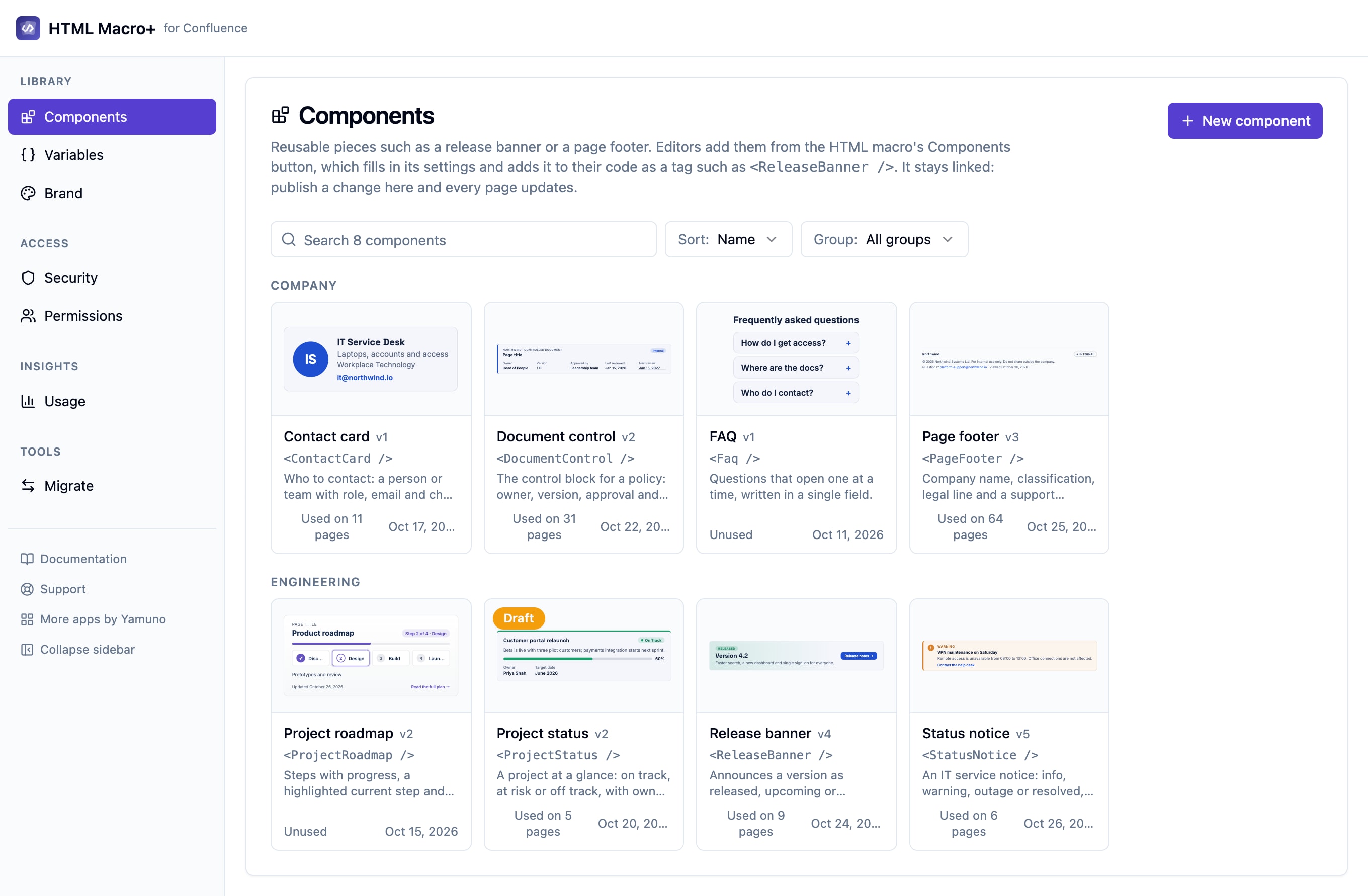
Components are reusable pieces of HTML, CSS and JavaScript, such as a release banner, a page footer or a contact card. An admin builds a component once in the library, and anyone writing a macro can add it with a single tag. When the component is updated and published, every page that uses it shows the new version on its next view.
Keys and tags
Every component has a key made of lower-case words joined by hyphens, for example release-banner. In a macro you use it as a tag written in PascalCase:
<ReleaseBanner />
Keys that would turn into the name of a standard HTML element are refused, so a component can never be confused with a built-in tag.
Settings (props)
A component can have settings, also called props, so each page can use it with its own values. Each setting has:
- A type: text, number, colour, link or list of options
- A label, and optional help text
- A default value
Set them per use as attributes on the tag:
<ReleaseBanner title="Version 5" />
Inside the component, a setting is available as {{title}} in its HTML and CSS, and as HTMLMacro.props.title in its JavaScript.
A component's CSS applies only to that component, so its styles never leak into the rest of the macro or into other components.
Components inside components
A component can include other components, up to 3 levels deep. A component that includes itself is shown as a notice instead of being repeated.
Limits
- Up to 25 components in one macro
- Up to 200 components per site
- Each component up to 200 KB
Create a component
- Open the app's settings and go to Library → Components. Only Confluence admins can do this.
- Create a component from a starter, or start from Blank.
- Write its HTML, CSS and JavaScript, and add its settings.
- Click Save draft to keep your work without changing any page.
- Click Publish when it is ready. Every page that uses the component shows the published version on its next view.
Each component keeps a version history, so you can see earlier versions.
A component that a page uses can't be deleted.
Starters
Starters give you a working component to adapt:
- Page footer
- Document control
- Status notice
- Release banner
- Contact card
- Project status
- FAQ
- Project roadmap
- Blank
Creating a component from a starter also adds the variables it reads, so it works straight away.
Set up a starter kit creates all the business starters in one go. Any that already exist on your site are skipped.
Groups
Give a component a group, such as Company, IT or HR, to sort it into a section in the settings and in the editor's Components picker.
Add a component to a macro
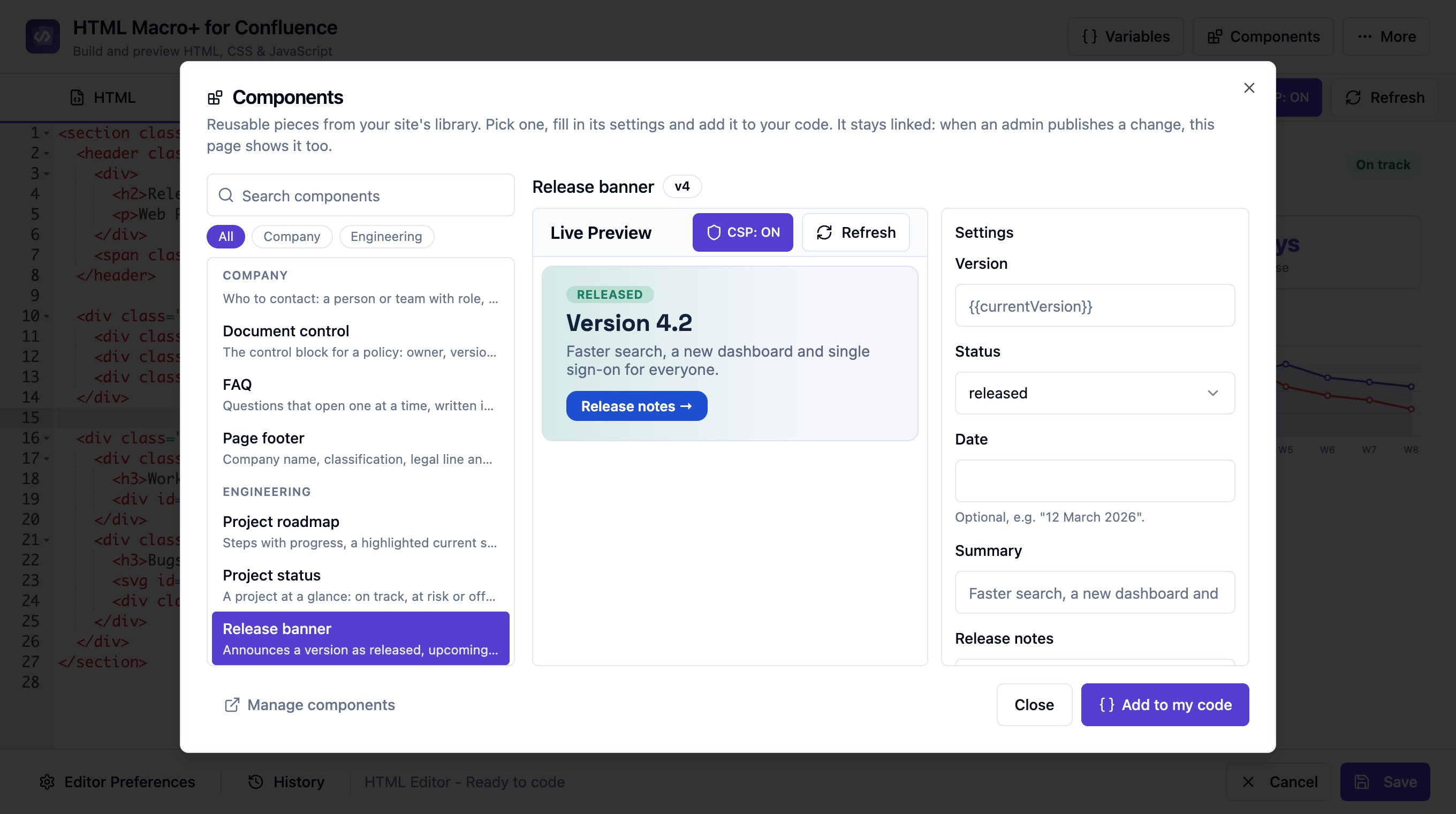
- In the macro editor, click Components in the header.
- Search, or use the group chips to narrow the list.
- Pick a component to see a live preview.
- Fill in its settings.
- Click Add to my code. The tag is inserted at the cursor.
You can also type < in the HTML tab to get suggestions for component tags.
Save a macro as a component
If you have built something in a macro that other pages should reuse, an admin can turn it into a component:
- In the macro editor, open the More menu and click Save as component. This is available to Confluence admins only.
- Give the component a name.
- Choose which
{{placeholders}}in the code become settings. - Click Continue in Settings.
- In the app's settings, Library → Components shows the component as waiting, with Review and Discard.
- Click Review, check it, and create it.
A waiting component is kept for one hour. After that, start again from the macro editor.
Related
Guides for HTML Macro+ for Confluence
Stuck on something this page does not cover? Ask the developers.