

Documentation
HTML Macro+ for ConfluenceBrowse
Documentation
HTML Macro+ for ConfluenceSecurity Settings
Security settings control how external content (images, iframes, scripts, stylesheets, media) is handled inside HTML macros across your Confluence site.
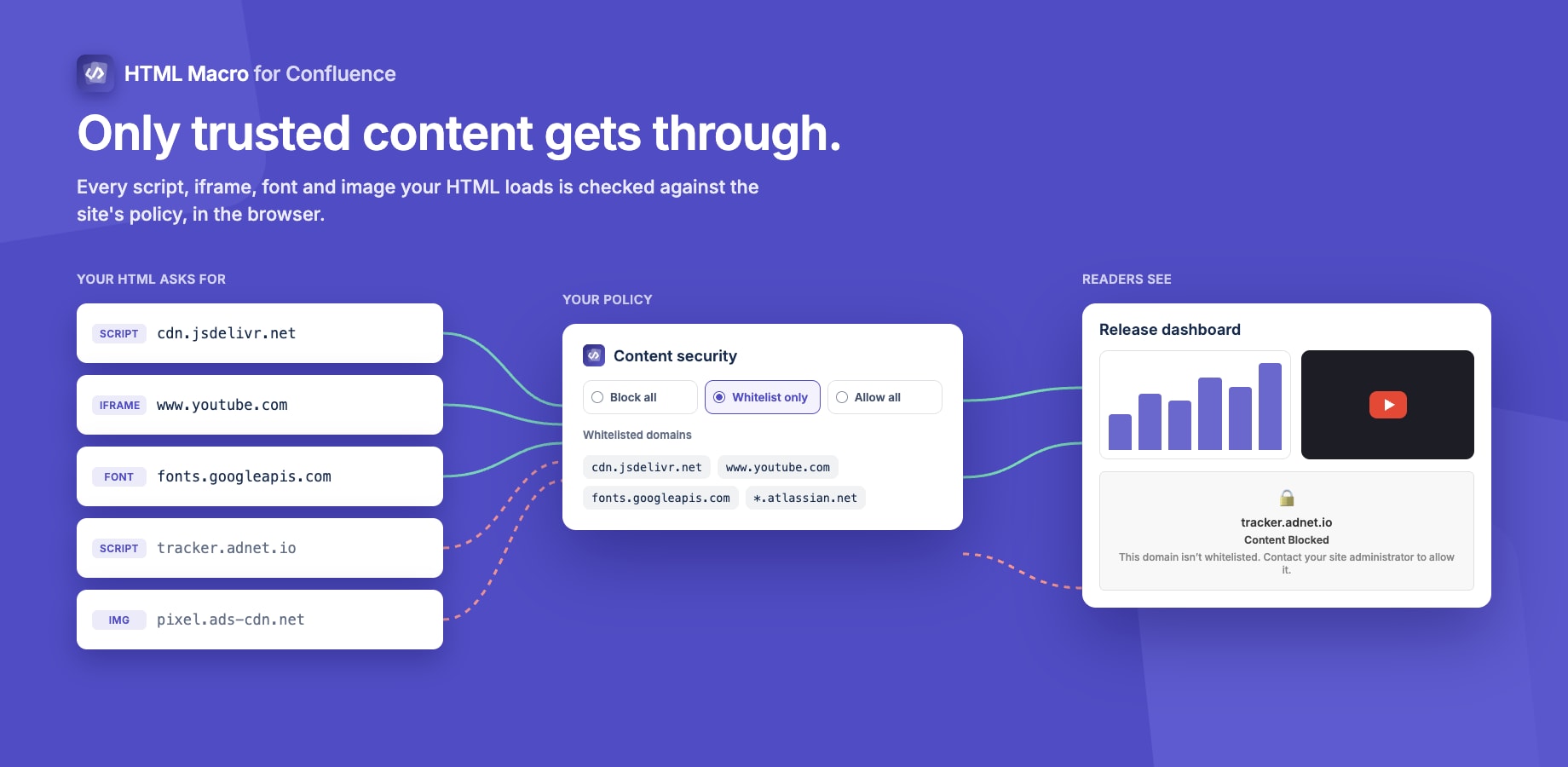
External Content Security Mode
Choose one of three modes to balance security and functionality.
Block All — Most Secure
No external resources are loaded. All external images, iframes, scripts, and stylesheets are blocked. Only inline content and data URIs are allowed.
Use this when:
- Maximum security is required
- Your HTML macros use only self-contained content
- You work in a regulated or high-security environment
Whitelist Only — Recommended
Only resources from domains you explicitly approve are allowed. Everything else is blocked.
Use this when:
- You want to allow specific CDNs (e.g. Chart.js, Google Fonts)
- You embed content from known, trusted sources
- You need security with flexibility
Allow All — Least Secure
All external resources from any domain are permitted, subject to the allowed protocols list.
Use this when:
- Development or testing environments
- Fully trusted internal users only
- Not recommended for production
Important: If Whitelist Only mode is selected but no domains have been added, the behaviour falls back to Block All — nothing external is loaded until you add at least one domain.
Managing the Domain Whitelist
When Whitelist Only mode is active, the whitelist section appears below the mode selector.
Supported Domain Formats
| Format | Example | What it matches |
|---|---|---|
| Exact domain + subdomains | example.com |
example.com and *.example.com |
| Subdomains only | *.example.com |
Only subdomains, not example.com itself |
| All domains | * |
Everything (same as Allow All mode) |
Adding Domains
- Type the domain in the input field (e.g.
cdn.jsdelivr.net) - Press Enter or click Add
- The domain appears as a badge in the whitelist
Quick Add — Common CDNs
Click the How to Add button for a quick-add panel with one-click buttons for popular CDNs:
cdn.jsdelivr.net— jsDelivr*.cloudfront.net— CloudFrontfonts.googleapis.com— Google Fontsunpkg.com— unpkgcdnjs.cloudflare.com— cdnjs
Removing Domains
Click the × on any domain badge to remove it. Click Clear All to remove the entire whitelist at once.
Allowed Protocols
Specify which URL protocols are permitted in HTML macros.
Default: https, http
| Protocol | Use case |
|---|---|
https |
Secure web resources (recommended) |
http |
Insecure web resources (not recommended) |
mailto |
Email links (mailto:[email protected]) |
tel |
Phone links (tel:+1234567890) |
data |
Inline data URIs |
blob |
Blob URLs for dynamic content |
To add a protocol, type it in the input field and press Enter. To remove one, click the × on its badge.
Content Size Limit
Set the maximum allowed size (in KB) for the combined HTML + CSS + JavaScript content of a single macro.
Default: 2048 KB (2 MB)
If a macro's content exceeds this limit, it displays an error instead of rendering:
Content Size Exceeded Content size exceeds the maximum allowed limit of X KB.
Increase this value if your team regularly builds large macros. Decrease it to protect page load performance.
How Security Is Enforced
Security is enforced at two layers:
- Sanitisation — Before rendering, the HTML is scanned and any resources that violate the policy are replaced with a friendly blocked placeholder
- CSP meta tag — A
Content-Security-Policyheader is injected into the iframe, so the browser itself enforces the policy at the network level
This two-layer approach means that even if a resource passes the regex sanitisation, the browser's CSP will still block it.
Guides for HTML Macro+ for Confluence
Stuck on something this page does not cover? Ask the developers.