

Documentation
HTML Macro+ for ConfluenceBrowse
Documentation
HTML Macro+ for ConfluenceLive Preview
The live preview panel shows you exactly how your HTML macro will render on a Confluence page — in real time, as you type.
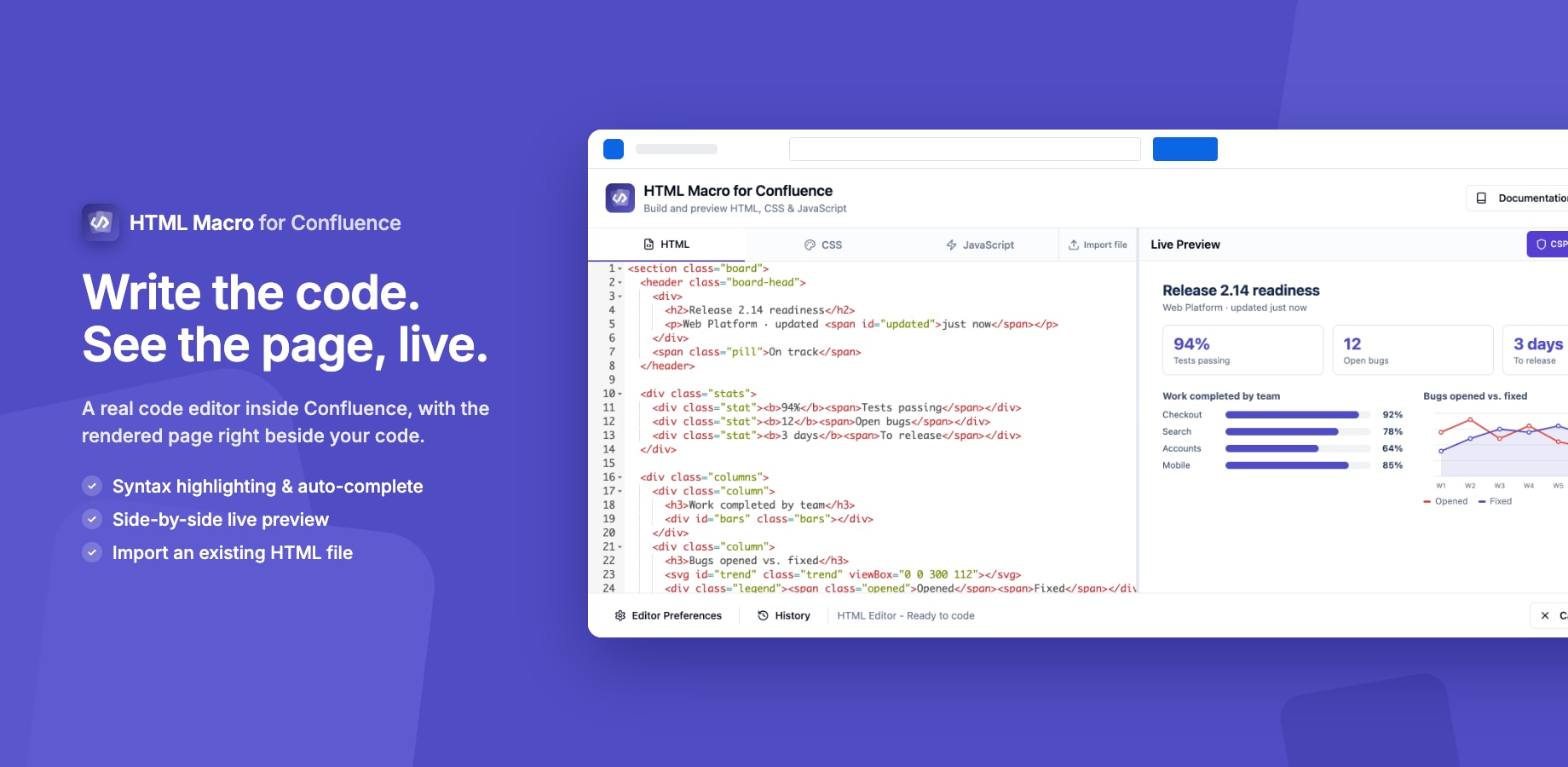
How It Works
The preview runs inside a sandboxed <iframe>. Your HTML, CSS, and JavaScript are combined and rendered exactly as they will appear to Confluence page visitors. There is no difference between the preview and the published output.
The preview re-renders automatically a short time after you stop typing (debounced), so it stays up to date without interrupting your flow.
Resizing the Panel
Drag the divider between the editor and the preview to resize both panels. This is useful when:
- Writing complex HTML — give the editor more space
- Fine-tuning styles — give the preview more space to see the full layout
- Working on mobile-responsive content — narrow the preview to simulate smaller screens
CSP Indicator
The CSP: ON button in the preview toolbar shows the current Content Security Policy mode. Click it to see:
- Whether external embeds are allowed or blocked
- Which domains are whitelisted (if in whitelist mode)
- Which protocols are permitted
Use the refresh icon next to the CSP button to reload the latest security settings without refreshing the entire page.
Refresh Button
The Refresh button re-fetches the latest security settings from the server and re-renders the preview. Use this after an admin has updated the CSP configuration and you want the preview to reflect the new rules immediately.
Blocked Content
If your HTML includes external resources that are blocked by the current security settings, the preview shows a friendly placeholder instead of the browser's default error icon:
🔒 Content Blocked This domain isn't whitelisted. Contact your site administrator to allow it.
This gives you a clear signal about what will be blocked on the live page, so you can adjust your content or ask your admin to whitelist the domain.
What the Preview Does Not Show
- Confluence page chrome (header, sidebar, breadcrumbs) — the preview shows only the macro output, not the surrounding page
- Other macros on the same page
- Confluence-specific CSS that may affect fonts or spacing on the real page
Tip: If your content looks slightly different on the published page versus the preview, it is likely due to Confluence's own page styles. Scope your CSS carefully using specific class names to avoid conflicts.
Guides for HTML Macro+ for Confluence
Stuck on something this page does not cover? Ask the developers.