

Documentation
HTML Macro+ for ConfluenceBrowse
Documentation
HTML Macro+ for ConfluenceLibrary
The library is a set of shared building blocks that every HTML macro on your Confluence site can use. Write a company name, a footer or a brand colour once, and every page that uses it picks up the change on its next view.
The library has three parts:
| Part | What it holds | How a macro uses it |
|---|---|---|
| Variables | Named values such as a company name, a support link or a release number | {{companyName}} in HTML and CSS, window.HTMLMacro.vars.companyName in JavaScript |
| Components | Reusable pieces of HTML, CSS and JavaScript, such as banners, footers and cards | A tag such as <ReleaseBanner /> |
| Brand | Colours, fonts, shape, logo, images and your own design tokens | CSS custom properties such as var(--brand-primary), and {{brand.logo}} for images |
What's new in this release
The library is the main addition in the paid release of HTML Macro+ for Confluence:
- Variables for values you repeat across pages, with built-ins for today's date, the page title and the space key
- Components with settings, drafts, publishing and version history, plus starters for common business pages
- Brand tokens with separate dark mode values, Google Fonts, uploaded images and token import
- Variables and Components buttons in the macro editor header, and Save as component in the editor's More menu
- A new licensing model: HTML Macro+ is now a paid app with a monthly or annual subscription through Atlassian
See the release notes for the full list.
Where to manage the library
- Go to Confluence Administration → Manage apps.
- Find HTML Macro+ for Confluence and click Configure.
- Open Library and choose Components, Variables or Brand.
Only Confluence admins can change the library, and only from the app's settings. Page editors use what is in the library from the macro editor, but they can't add, change or delete library items.
Using the library in the editor
The macro editor header has two buttons for the library:
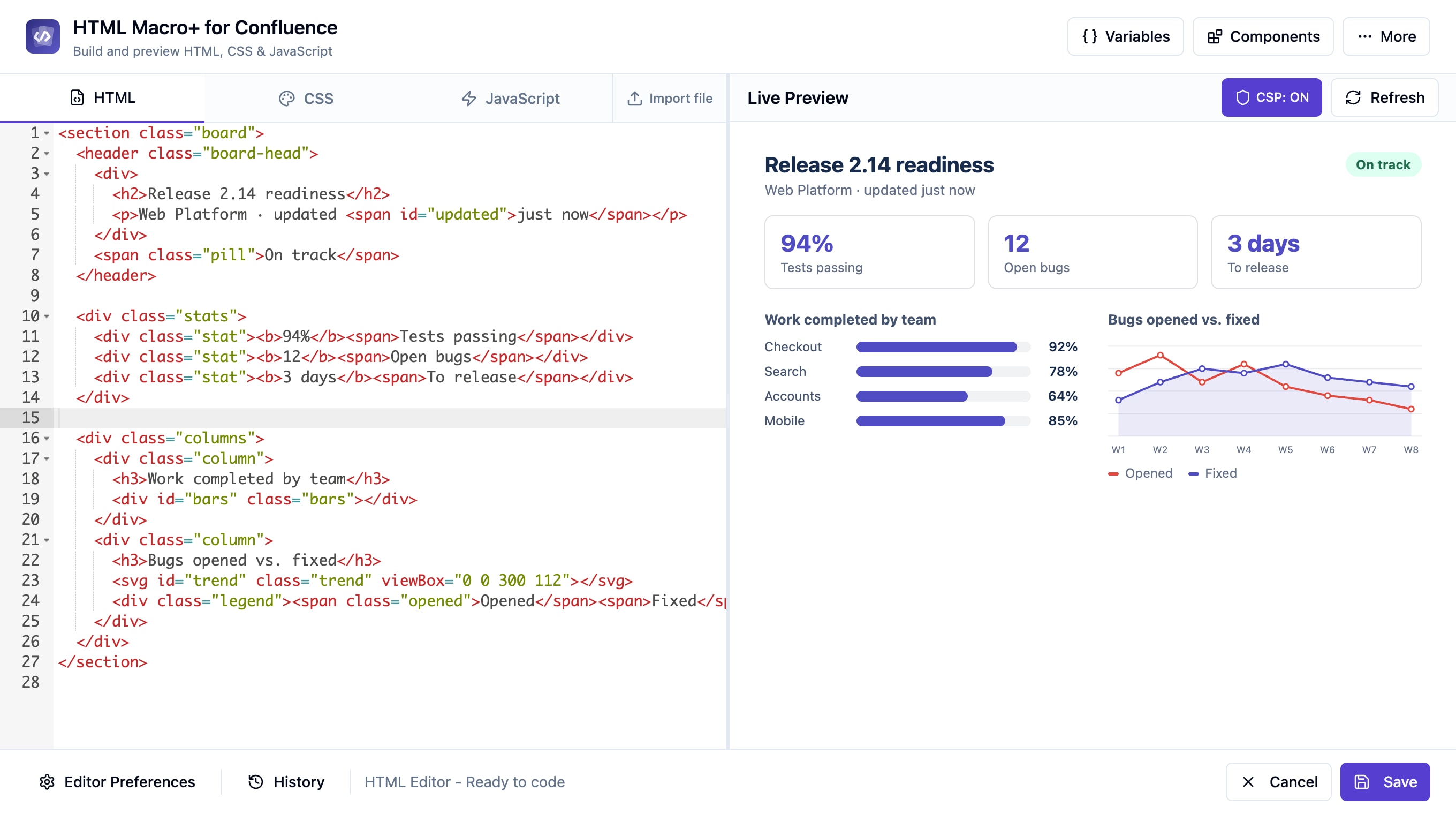
- Variables opens a menu with a search box, a chip for each group plus Built in and Brand, and one line per item. Click an item to insert it at the cursor.
- Components opens a picker where you search, filter by group, see a live preview, fill in the component's settings and click Add to my code to insert the tag at the cursor.
You can also type < in the HTML tab to get suggestions for component tags.
See HTML Editor for the rest of the editor.
Groups
Groups, such as Company, IT or HR, sort components and variables into sections. They appear in the library settings and in the editor's Variables menu and Components picker, so people can find the right item quickly on a site with many of them.
How changes reach pages
- A changed variable value, a newly published component and a replaced brand image show on every page that uses them the next time that page is viewed. You don't need to edit or republish the pages.
- A variable or component that a page uses can't be deleted. For variables, the library settings show which pages use each one.
- If two admins save variables at the same time, the second one is told to reload instead of overwriting the first one's change.
Related
Guides for HTML Macro+ for Confluence
Stuck on something this page does not cover? Ask the developers.