

Documentation
HTML Macro+ for ConfluenceBrowse
Documentation
HTML Macro+ for ConfluenceVariables
Variables are named values that every macro on your site can use, such as companyName, supportEmail or currentRelease. Change the value once in the library and every page that uses it shows the new value on its next view.
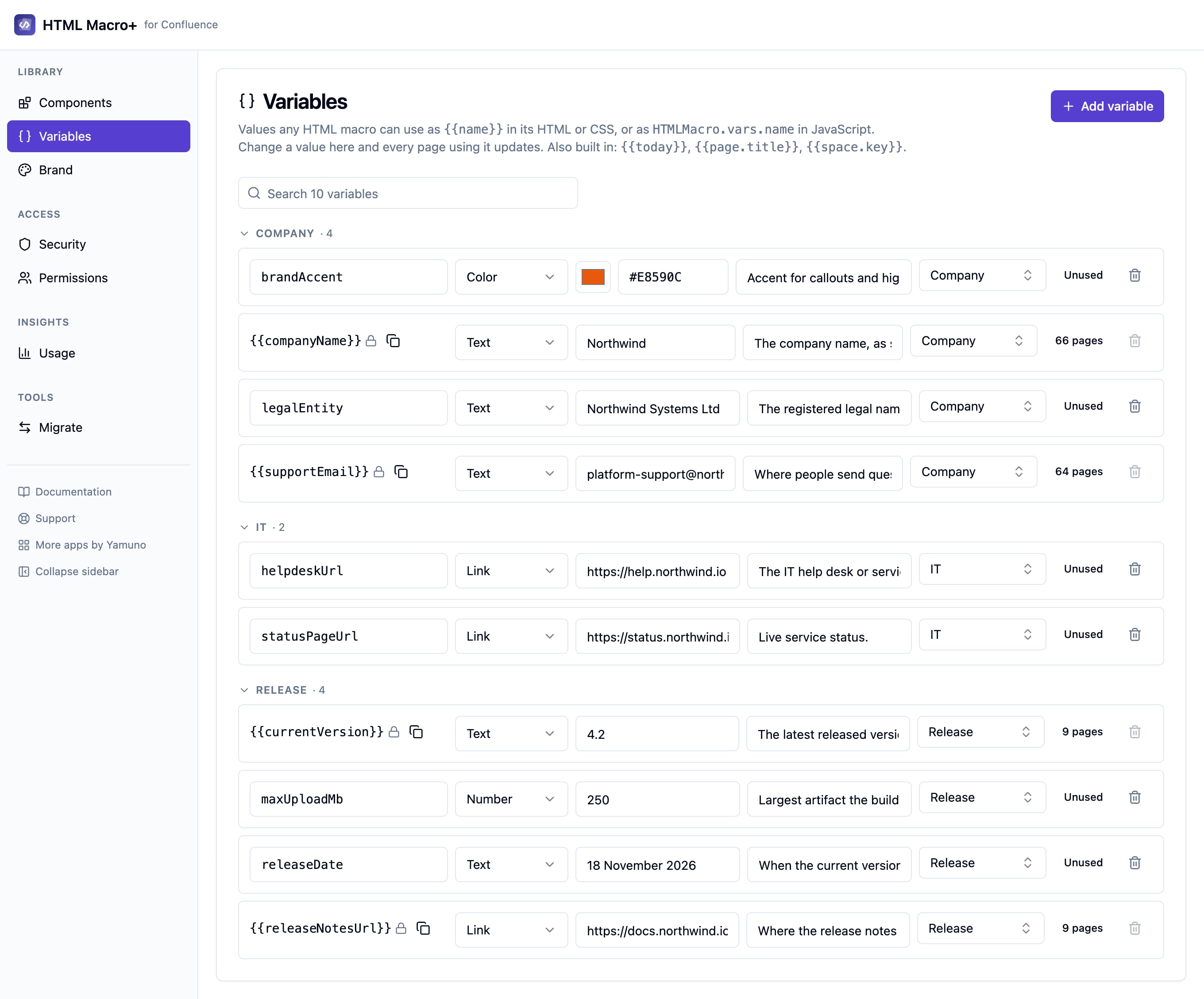
Create a variable
- Open the app's settings and go to Library → Variables. Only Confluence admins can do this.
- Add a variable and give it a name, a type and a value.
- Optionally add a description, so other people know what it is for, and a group, such as Company, IT or HR.
- Save.
Names
A name starts with a letter, followed by letters, digits or _, up to 50 characters. For example companyName, release_2 or hrEmail.
Types
| Type | Use it for |
|---|---|
| Text | Names, short phrases, labels |
| Number | Counts, prices, version numbers |
| Colour | A colour value you want to reuse |
| Link | A web address, email or phone link |
| List of options | A value picked from a fixed set of choices |
Limits
- Up to 200 variables per site.
- Each value can be up to 2000 characters.
Use a variable
In HTML and CSS
Write the name inside double curly braces:
<p>Welcome to the {{companyName}} handbook.</p>
<a href="{{supportLink}}">Contact support</a>
.notice {
  border-left: 4px solid {{accentColour}};
}
In JavaScript
Scripts are never rewritten, so {{name}} stays as it is in the JavaScript tab. Read the value from window.HTMLMacro.vars instead:
const company = window.HTMLMacro.vars.companyName;
document.querySelector('#title').textContent = company + ' handbook';
From the editor
Click Variables in the editor header to search your variables and insert one at the cursor. The menu has a chip for each group, plus Built in and Brand.
Built-in variables
These work in HTML and CSS without being added to the library:
| Variable | Value |
|---|---|
{{today}} |
Today's date, in the reader's language |
{{page.title}} |
The title of the page the macro is on |
{{space.key}} |
The key of the space the page is in |
Built-in variables are for HTML and CSS only.
Unknown placeholders
A placeholder the library doesn't know is left exactly as written. This means code that uses double curly braces for its own purposes, such as Vue or Handlebars templates, keeps working.
The editor warns you about placeholders it doesn't recognise, so a typo such as {{compnyName}} is easy to spot.
Safe values
Variable values are escaped before they reach the page:
- In HTML, a value is always shown as text. It can never add markup.
- In CSS, a value can't break out of the CSS it is used in.
- A link value must start with
https://,http://,mailto:,tel:,/or#.
Change or delete a variable
- A changed value shows on every page that uses the variable on that page's next view.
- A variable that a page uses can't be deleted. The settings show where it is used, so you can update those pages first.
- If two admins save at the same time, the second one is told to reload instead of overwriting the first one's change.
Related
Guides for HTML Macro+ for Confluence
Stuck on something this page does not cover? Ask the developers.