

Documentation
HTML Macro+ for ConfluenceBrowse
Documentation
HTML Macro+ for ConfluenceHTML Editor
The HTML editor is the authoring environment for your macro content. It opens in a full-screen panel when you add or edit an HTML macro on a Confluence page.
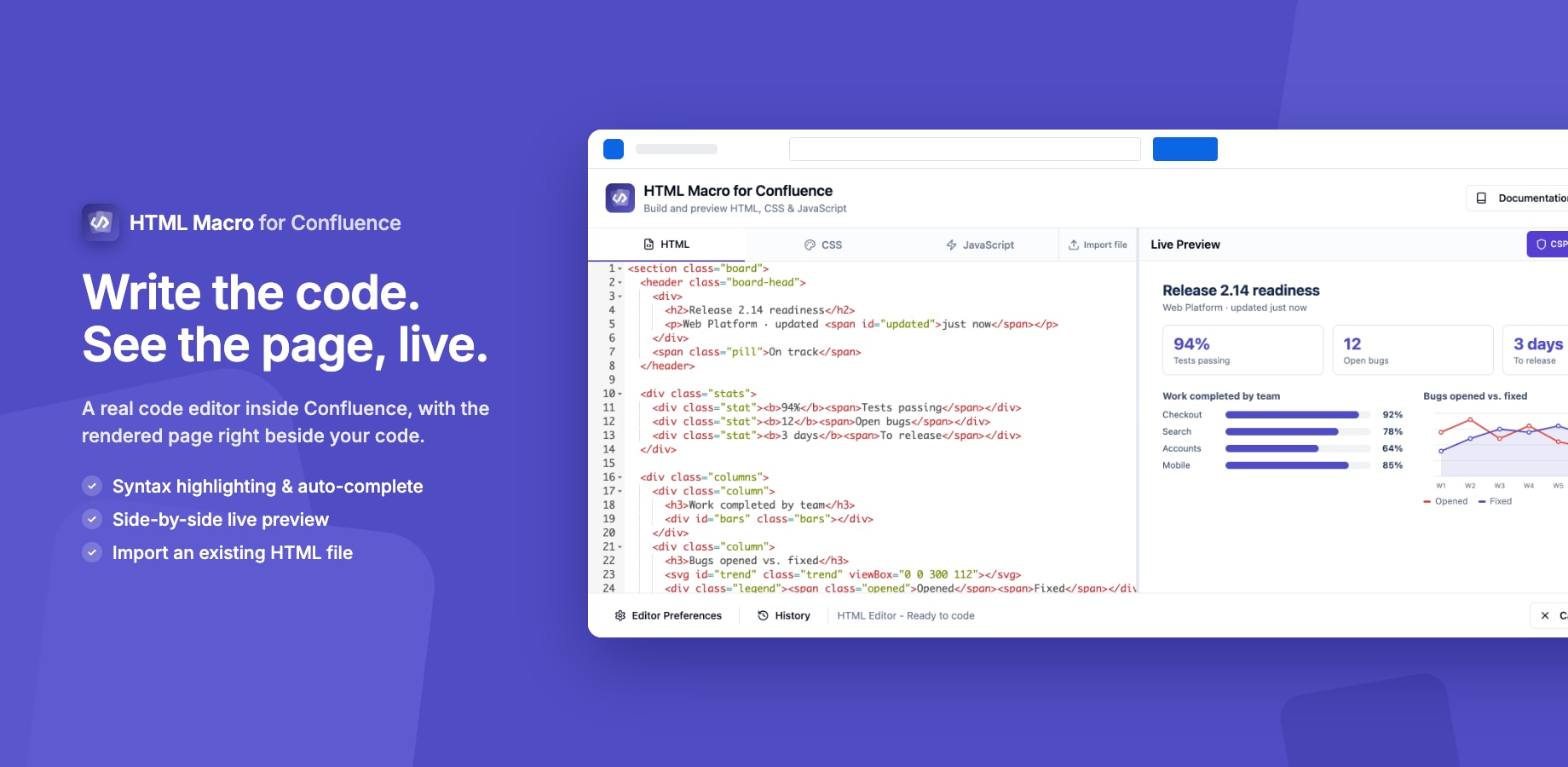
Editor layout
The editor is split into two resizable panels:
- Left panel: code editor with HTML, CSS, and JavaScript tabs
- Right panel: live preview of your rendered content
Drag the divider between panels to resize them to your preference.
Editor header
The header at the top of the editor gives you the library and the rest of the editor's tools.
| Button | What it does |
|---|---|
| Variables | Opens a menu of your site's variables, plus the built-in and brand values. Search, filter with the chips for each group, Built in and Brand, and click a line to insert it at the cursor. |
| Components | Opens the component picker. Search, filter with group chips, see a live preview, fill in the component's settings and click Add to my code to insert its tag at the cursor. |
| More | Opens a menu with the editor's other tools and links, listed below. |
The More menu has:
- Save as component: turns the macro's code into a library component. Confluence admins only. See Save a macro as a component.
- Embed templates: paste a YouTube, Figma, Google Docs or other link and get the embed code. See Embed Templates.
- Copy AI prompt: copies a ready-made prompt for your own AI assistant. See Build it with AI.
- Documentation: opens these docs.
- Support: opens the Yamuno support portal.
Component suggestions
Type < in the HTML tab to get suggestions for component tags from your library.
Code editor tabs
HTML tab
Write the markup for your content. Standard HTML5 is fully supported. You do not need to include <html>, <head>, or <body> tags. Just write the body content directly.
<div class="announcement">
  <h2>Team update</h2>
  <p>The Q2 roadmap has been published. <a href="/wiki/spaces/PROD">View it here.</a></p>
</div>
CSS tab
Write styles scoped to your macro. You have full access to CSS3 features including flexbox, grid, custom properties, animations, and media queries.
.announcement {
  background: #e3fcef;
  border-left: 4px solid #00875a;
  border-radius: 4px;
  padding: 16px 20px;
}

.announcement h2 {
  margin: 0 0 8px;
  font-size: 1rem;
  color: #006644;
}
JavaScript tab
Write vanilla JavaScript to add interactivity. Your script runs inside a sandboxed iframe. Standard browser APIs (document, fetch, localStorage, setTimeout, etc.) are all available.
document.querySelectorAll('.tab-btn').forEach(btn => {
  btn.addEventListener('click', () => {
    document.querySelector('.tab-btn.active').classList.remove('active');
    btn.classList.add('active');
  });
});
Note: External scripts loaded via
<script src="...">are subject to the CSP security settings configured by your admin.
Editor settings
Click the Settings icon in the bottom toolbar to configure:
| Setting | Description |
|---|---|
| Theme | Light (tomorrow) or dark (monokai) editor theme |
| Font Size | Code font size in pixels |
| Tab Size | Spaces per indentation level |
| Line Numbers | Show or hide line numbers |
| Auto-complete | Enable bracket/tag completion |
| Live Preview | Toggle real-time preview updates |
| Auto-save | Automatically save drafts on a timer |
Toolbar actions
| Button | Action |
|---|---|
| Save | Save content and close editor |
| Cancel | Discard changes and close editor |
| Export | Download all three files as a .zip |
| Settings | Open editor preferences |
Build it with AI
Open the More menu in the editor header and click Copy AI prompt to get a ready-made prompt for ChatGPT, Claude, Copilot or any other AI assistant you already use. No AI runs inside the app, and nothing is sent anywhere: you paste the prompt into your own assistant.
- Describe what you want to build (optional, you can also do it in the chat).
- Choose the options:
- Support Confluence dark mode: the macro follows the reader's light or dark theme. See Supporting Dark Mode.
- Follow this site's security rules: tells the AI which external domains your admin allows, so nothing gets blocked.
- Responsive layout and Accessible.
- Click Copy prompt and paste it into your AI assistant.
- Paste the three code blocks it returns into the HTML, CSS and JavaScript tabs, and check the preview.
The prompt always includes safety rules: no passwords or API keys in the code, no tracking, and safe handling of user input. It also explains how the macro works, so the AI doesn't produce code that breaks the automatic height or loads blocked libraries.
Keyboard shortcuts
| Shortcut | Action |
|---|---|
Ctrl/Cmd + S |
Save |
Tab |
Indent selected lines |
Shift + Tab |
Unindent selected lines |
Ctrl/Cmd + / |
Toggle comment |
Tips
- Use the CSS tab instead of inline
style=""attributes. Your CSS is applied globally to everything in the HTML tab. - Separate concerns: keep layout in HTML, styling in CSS, and behaviour in JavaScript. This makes your macro much easier to maintain.
- The preview is live: you don't need to save to see your changes. The preview pane updates as you type.
Guides for HTML Macro+ for Confluence
Stuck on something this page does not cover? Ask the developers.