

What changes for your hub pages
- Look
Each page author picks their own colours, and the hub drifts away from the brand.
Brand colours, fonts and the logo come from one place, with dark mode values.
- Shared pieces
A banner or footer is copied from page to page, and the copies stop matching.
Each piece is a component, added to a page as a tag such as <PageFooter />.
- Updates
A new support address or office means editing dozens of pages by hand.
Change the variable or component once, and every page shows it on its next view.
- Control
Anyone can paste HTML that loads scripts from anywhere.
Admins own the library, choose who can edit macros, and decide which outside sites can load.
How to build the hub
An admin sets up the library once. Page authors then add the pieces without writing code.
Set your brand
Add your colours, fonts and logo under Library, Brand. Macros and components use them as CSS custom properties such as var(--brand-primary).
 HTML Macro+ for Confluence
Create the components
Start from the starters, such as a page footer, status notice, release banner or contact card, or build your own navigation cards. Each component has settings, drafts and version history.
Add them to pages
Page authors open the macro editor, click Components, fill in the settings with a live preview and add the component to the page.
Keep it current
Store values that change, such as a support email or a release number, as variables. Change one and every page that uses it updates.
What teams put in their hub
Each of these is one component, used on as many pages as you like.
Navigation cards
A component you build once: a grid of cards linking to policies, guides and team spaces, in your brand colours.
<NavCards group="HR" />Status notice
A banner for planned maintenance or an outage, with its tone and message set per page.
<StatusNotice tone="warning" title="Planned maintenance" />Release banner
The current version and a link to the release notes, filled in from variables.
<ReleaseBanner version="{{currentVersion}}" status="released" />Page footer
Your company name, a classification label and who to contact, the same on every page.
<PageFooter classification="Internal" />
The apps
Each one installs on its own from the Atlassian Marketplace and runs on Atlassian Forge.
 HTML Macro+ for Confluence
Shared components, variables and brand for every page
- Markdown Macro+ for Confluence
Writes the guidance pages the hub links to, in Markdown
.png&w=96&q=75) PDF Exporter for Confluence
PDF Exporter for ConfluenceExports hub pages and handbooks as PDFs
Confluence Cloud on its own, and with the app
| Need | Confluence on its own | With the apps |
|---|---|---|
| Reuse a block on many pages | Page templates copy it once; the Include and Excerpt macros reuse page content | Components with settings, used as a tag |
| Company colours and fonts | Site logo and header colours | Brand tokens for every macro, with dark mode |
| Values that change | Edit each page | Variables such as {{supportEmail}} |
| Custom layouts | Layouts, panels and cards from the editor | Any HTML and CSS, with live preview |
| Who can change it | Page and space permissions | Admins own the library; editing limited to chosen people and groups |
Questions
Do page authors need to know HTML?
No. An admin builds the components once. Authors pick a component in the macro editor, fill in its settings and add it to the page.
What happens to pages when a component changes?
When an admin publishes a new version of a component, every page that uses it shows the new version on its next view. Drafts stay private until they are published.
Who can change the library?
Only Confluence admins, from the app's settings. Admins can also limit who can edit macros to chosen people and Confluence groups.
Does it load anything from outside Atlassian?
Only what a macro asks for, such as an outside image or font, and only if the admin's security settings allow it. With Block all, nothing loads from outside. See the data handling page for details.
Does it work in dark mode?
Yes. Brand colours can have a separate dark mode value, and macros can follow the reader's light or dark theme.
From the blog

5 Things You Can Build with HTML Macro+ for Confluence
Five practical things to build with HTML Macro+ for Confluence: status badges, countdowns, decision trees, sortable tables and banners, with code.
How to Build a Custom Status Dashboard in Confluence
Build a project status dashboard in Confluence with RAG cards, progress bars, a milestone countdown and metric tiles, using HTML Macro+ for Confluence.
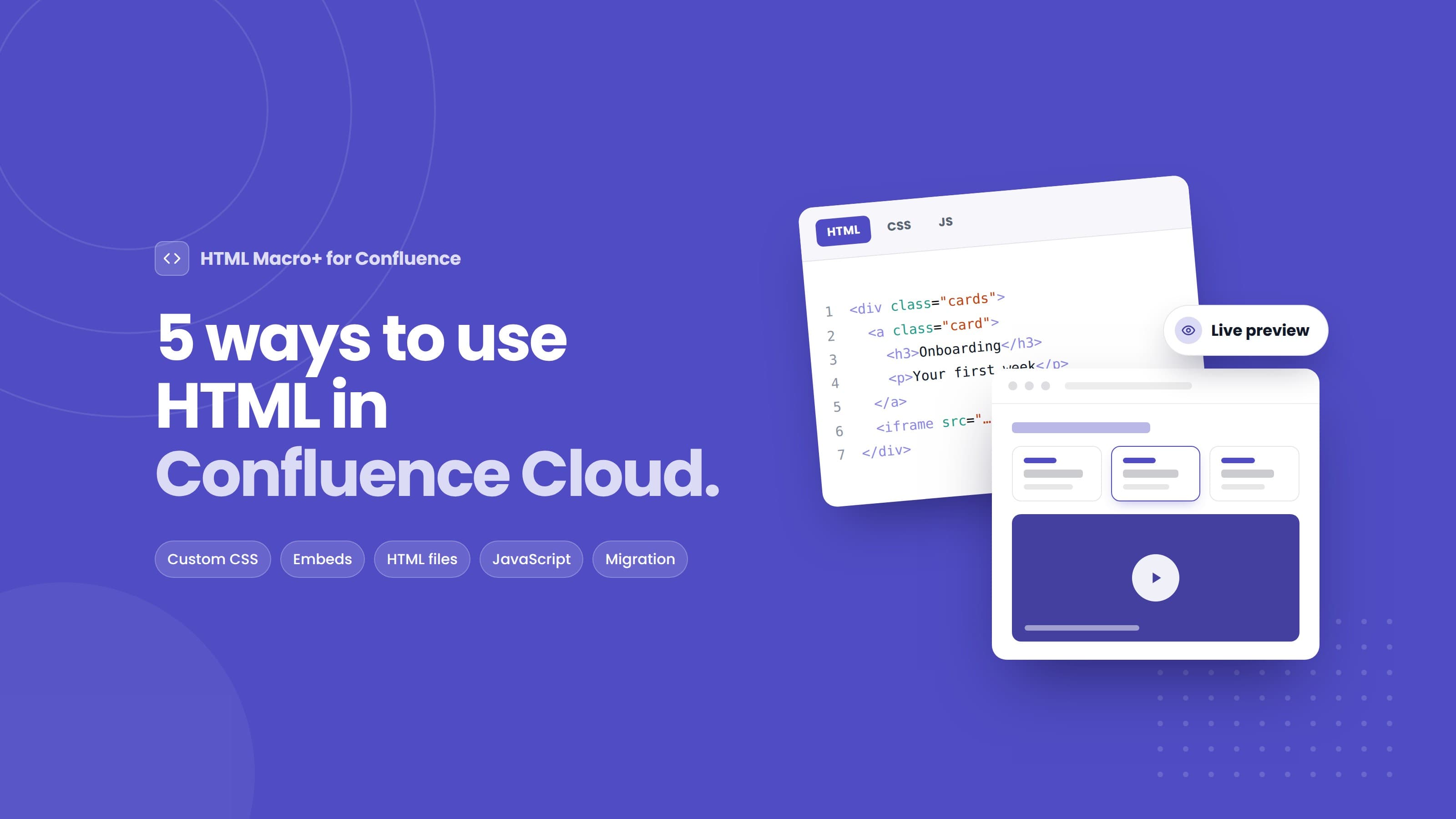
5 Ways to Use HTML in Confluence Cloud (With Examples)
Confluence Cloud has no built-in HTML macro. Five practical ways teams still use HTML, CSS and JavaScript in Cloud pages, with copy-paste examples.