

Documentation
Word Exporter for ConfluenceBrowse
Documentation
Word Exporter for ConfluenceTemplates
Templates are reusable Word export profiles. Each template stores a complete configuration: page setup, fonts, header and footer, cover page, watermark and more. Users apply templates at export time; admins manage them from Confluence Settings.
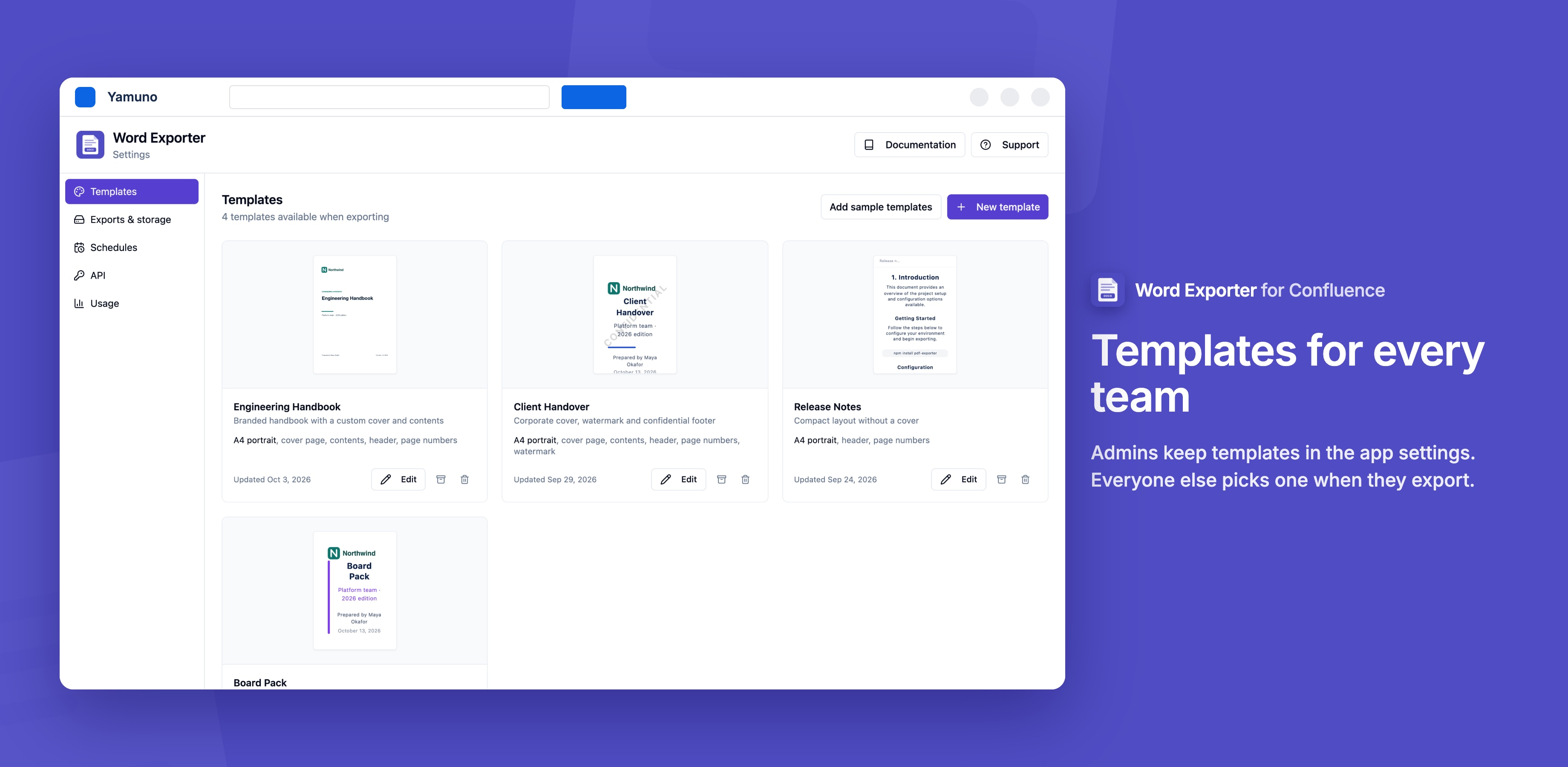
Built-In Templates
Three templates are set up automatically on install:
Default
A clean Word document with page numbers and no cover page.
Report
For formal documents and reports: a cover page, a table of contents, and page breaks before sections.
Minimal
No header, footer, or page numbers, just the content.
Applying a Template
When opening Word Exporter, select a template from the dropdown in the sidebar before exporting. The template is applied to all selected pages in that export.
Custom Templates
Admins can create any number of custom templates from Confluence Settings → Word Exporter. Custom templates are available to all users on the Confluence site.
See Template Management for full instructions on creating and editing templates.
Template Settings
Each template can configure:
| Setting | Options |
|---|---|
| Page size | A4, Letter, Legal |
| Orientation | Portrait, Landscape |
| Font size | Small, Medium, Large |
| Fonts and element styles | The look of text, headings and other elements |
| Cover page | Disabled, a ready-made design, or a custom cover built in the designer |
| Table of contents | Disabled, or 1 to 3 heading levels |
| Header | Text and position (left / center / right) |
| Footer | Text and position (left / center / right) |
| Page numbers | Disabled, or one of 3 formats and a position |
| Watermark | Text, opacity and colour |
| Page breaks before H1 | On / Off |
| Page breaks before H2 | On / Off |
Archived Templates
Admins can archive templates to remove them from the user-facing list without permanently deleting them. Archived templates can be restored at any time.
Stuck on something this page does not cover? Ask the developers.