

Documentation
Word Exporter for ConfluenceBrowse
Documentation
Word Exporter for ConfluenceTemplate Management
Admins create and manage Word export templates from Confluence Settings → Word Exporter. Templates are shared across the entire Confluence site.
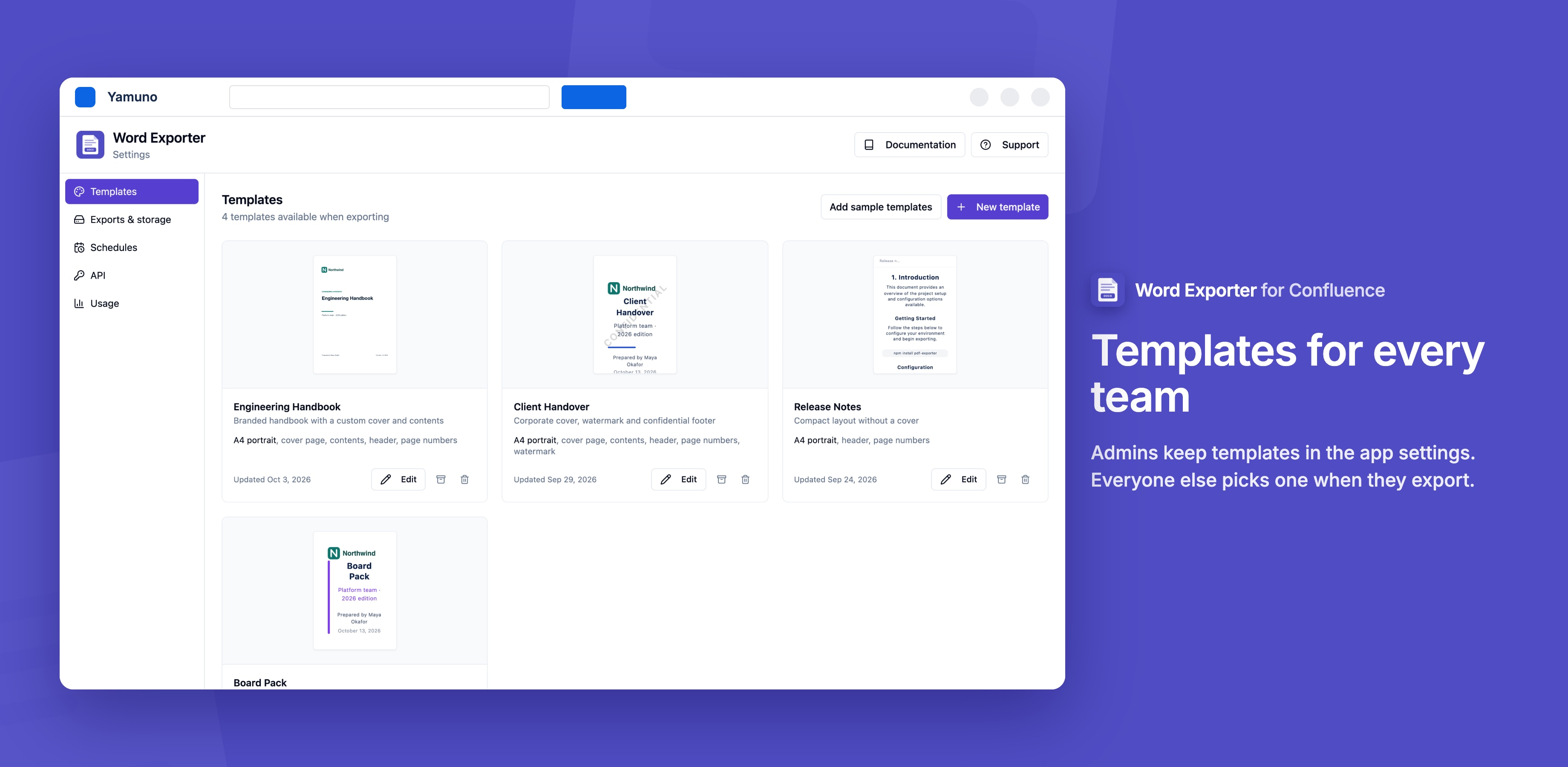
Creating a Template
- Open Confluence Settings → Word Exporter
- Click New Template
- Enter a Name (must be unique) and an optional Description
- Configure the template settings (see Template Settings below)
- Click Save
The template is immediately available to all users on the Confluence site.
Editing a Template
- Find the template in the list
- Click the Edit (pencil) icon
- Change any settings
- Click Save
Changes apply to all future exports using that template. Word files that were already downloaded are not affected.
Archiving a Template
Archiving hides a template from the user-facing dropdown without permanently deleting it. Use this to retire templates you no longer want used, while keeping the configuration available for reference or restoration.
- Find the template in the list
- Click the Archive icon
- Confirm the action
Archived templates appear in a separate Archived section in the admin list and are not visible to regular users.
Restoring an Archived Template
- Switch to the Archived tab in the template list
- Click the Restore icon next to the template
- The template moves back to the active list and becomes available to users
Deleting a Template
Deletion is permanent. Once deleted, a template cannot be recovered.
- Find the template in the list (active or archived)
- Click the Delete (trash) icon
- Confirm the action in the confirmation dialog
Tip: Archive instead of delete if there's any chance you'll want the template settings again.
Template Settings
When creating or editing a template, configure any combination of these settings:
Page Layout
| Setting | Options |
|---|---|
| Page Size | A4, Letter, Legal |
| Orientation | Portrait, Landscape |
| Font Size | Small, Medium, Large |
See Page Setup.
Fonts and Element Styles
Set the fonts and the styles of text, headings and other elements in the exported document.
Cover Page
| Setting | Options |
|---|---|
| Enabled | On / Off |
| Cover Style | A ready-made design, or Custom (drag-and-drop designer) |
| Accent Color | Hex color picker |
| Subtitle | Custom text (optional) |
| Author | Custom text (optional) |
| Logo | Image upload |
See Cover Page.
Table of Contents
| Setting | Options |
|---|---|
| Enabled | On / Off |
| Depth | 1, 2, or 3 heading levels |
See Table of Contents.
Header
| Setting | Options |
|---|---|
| Enabled | On / Off |
| Text | Custom text |
| Position | Left, Center, Right |
Footer
| Setting | Options |
|---|---|
| Enabled | On / Off |
| Text | Custom text |
| Position | Left, Center, Right |
Page Numbers
| Setting | Options |
|---|---|
| Enabled | On / Off |
| Format | 3 / 3 / 12 / Page 3 of 12 |
| Position | Left, Center, Right |
Watermark
| Setting | Options |
|---|---|
| Enabled | On / Off |
| Text | Custom watermark text |
| Opacity | How strongly the watermark shows behind the text |
| Colour | The watermark's colour |
The watermark is Word's own watermark (Design → Watermark in Word). Anyone with the document can remove it in Word with Design → Watermark → Remove Watermark. The preview in the export dialog doesn't draw it.
Page Breaks
| Setting | Options |
|---|---|
| Break before H1 | On / Off |
| Break before H2 | On / Off |
Template Metadata
Each template records:
- Created by: the Confluence user who created it
- Created at: timestamp
- Updated by: last editor
- Updated at: last modification timestamp
This metadata is visible in the template detail view.
Stuck on something this page does not cover? Ask the developers.