

Documentation
Word Exporter for ConfluenceBrowse
Documentation
Word Exporter for ConfluenceFeatures
Word Exporter for Confluence turns Confluence pages into Word documents you can keep editing. It is built on Atlassian Forge. Here's an overview of everything it can do.
Export Pages
Select individual pages, page trees, or entire spaces. The exporter keeps the content structure and the images on your pages.
An Editable Word Document
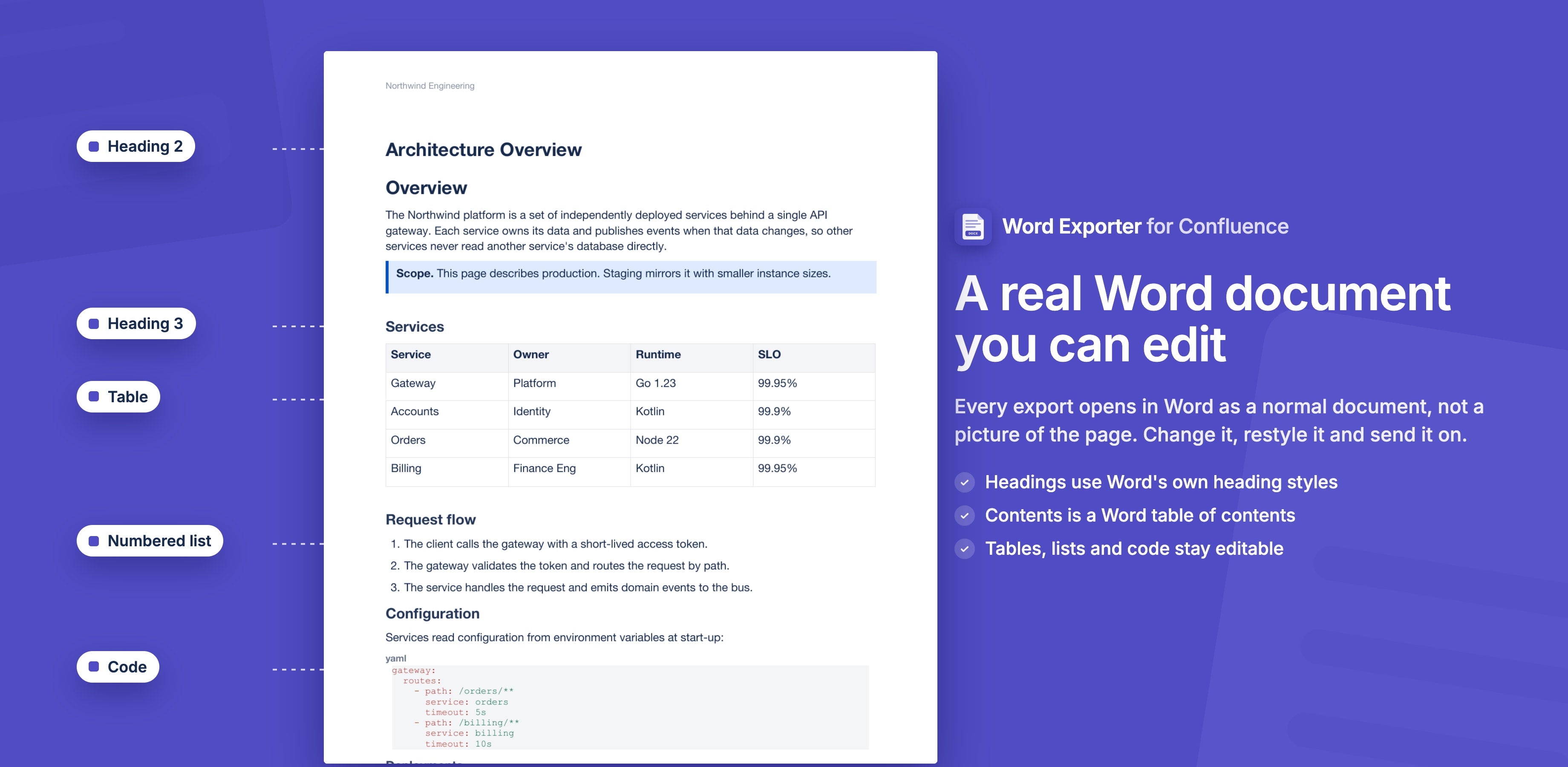
The export is a normal Word document, not a picture of your pages. Headings use Word's heading styles, the contents page is a Word table of contents, page numbers are Word page fields, lists use Word numbering and tables are Word tables.
Template System
Templates are reusable export profiles. Each template stores a complete set of settings: page setup, fonts, header and footer, cover page, watermark and more. Apply any template to any export in one click.
Admins create and manage templates from Confluence Settings. Users select from available templates at export time.
Cover Page
Add a title page to your document. Choose a ready-made design, or build your own in the drag-and-drop cover designer: place the title, logo, images and text anywhere on the page.
Table of Contents
Add a Word table of contents built from the headings in your exported pages. Control how many heading levels to include (1, 2, or 3 levels deep). Word fills in the entries and page numbers when the file is opened.
Headers & Footers
Add your own text to the top and bottom of every page. Choose the horizontal position (left, center, or right) for both header and footer independently.
Page Numbers
Insert page numbers into the header or footer. They are Word page fields, so they stay correct when you edit the document. Three formats are supported:
3: page number only3 / 12: page X of YPage 3 of 12: written out
Watermark
Add a text watermark to every page. It is Word's own watermark (Design → Watermark in Word), so it sits behind the text and can be removed in Word. The template sets the text, opacity and colour.
Page Breaks
Insert page breaks before H1 or H2 headings to keep sections cleanly separated in the output.
Page Setup
Control the physical layout of the output:
- Page size: A4, Letter, Legal
- Orientation: Portrait or Landscape
- Font size: Small, Medium, Large
Merged Document or ZIP
Export a page tree as One merged Word document, a single .docx with one table of contents and continuous page numbers, or as Separate Word files (ZIP) with one Word file for each page.
Background Exports & My Exports
Large exports are generated in the background inside Atlassian, so you can close the page while they run. Finished files wait in My exports. Small exports still build straight away in your browser, and Auto picks for you. Background exports run one at a time per site.
→ Background Exports & My Exports
Scheduled Exports
Export a space or page tree every week or month. Each run attaches a dated Word file to an archive page (or saves it to My exports) and can email people through a Confluence @mention, replying in one comment thread per schedule.
REST API
Start exports from scripts and CI/CD pipelines with an API token: export a page, page tree or space, attach the file to a page and notify people.
→ REST API
Usage Statistics
The Usage section of the admin page shows exports and pages per day over 30 days, 90 days or 12 months, which outputs people choose and where exports start. Only counts are kept, no user or page names.
Preview
The Export to Word dialog for a single page shows a preview of the document before you download it.
Stuck on something this page does not cover? Ask the developers.