

Documentation
Word Exporter for ConfluenceBrowse
Documentation
Word Exporter for ConfluenceExport Pages & Spaces
Export single pages, page trees, or entire Confluence spaces to Word.
Accessing the Exporter
There are three ways to open Word Exporter:
Under the page title: Click Export to Word below the page title. A page without child pages opens a compact dialog with a preview; a page with children opens the full exporter.
From a page:
- Open any Confluence page
- Click the ··· (More actions) menu
- Select Apps → Word Exporter for Confluence
From the Confluence sidebar:
- Click Apps in the Confluence sidebar
- Select Word Exporter for Confluence
Selecting Pages
The exporter displays a hierarchical page tree for the current space. Use it to select which pages to include in your export.
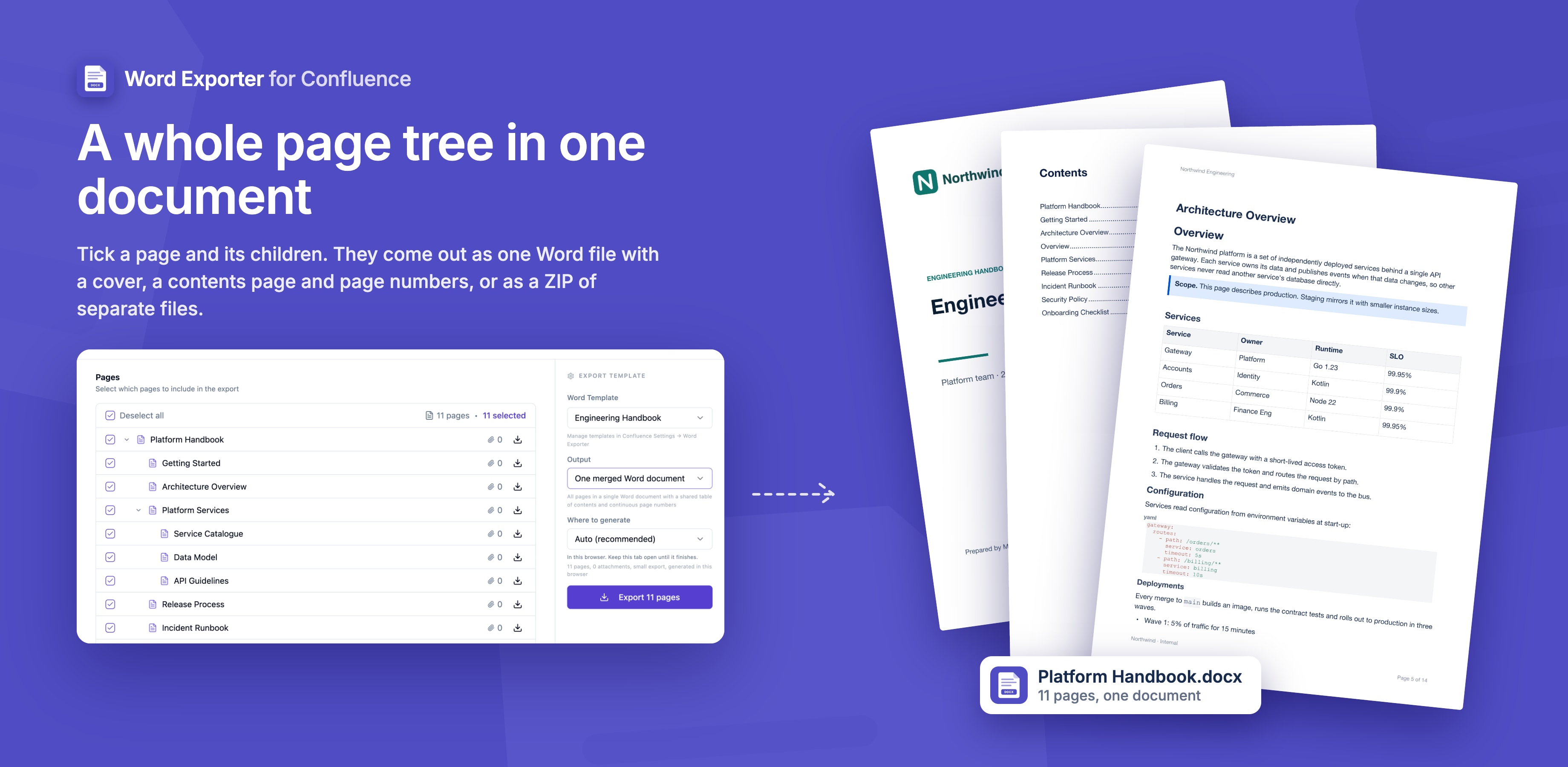
Selecting a single page:
- Check the checkbox next to the page name
Selecting a page and all its children:
- Check the parent page and all child pages are included
Selecting specific pages from a hierarchy:
- Expand a parent page and check individual children independently
Searching for pages:
- Use the search bar at the top of the tree to filter by page title
Choosing a Template
Select a template from the dropdown in the sidebar. The template sets the look of your document: page setup, fonts, header and footer, cover page, watermark and more.
If your admin hasn't created any custom templates, the three built-in templates are available:
| Template | Use Case |
|---|---|
| Default | Clean Word document with page numbers, no cover page |
| Report | Formal documents with a cover page, table of contents and page breaks before sections |
| Minimal | Just the content, with no header, footer or page numbers |
Exporting
Click Export to Word to start. The app:
- Fetches all selected pages and their images
- Builds the Word document using the selected template settings
- Packages the output
Single page: downloads directly as a .docx file.
Multiple pages: choose the Output next to the template:
- One merged Word document: every selected page in a single
.docx, with one table of contents and continuous page numbers. In the merged document, child pages sit one heading level below their parent page. - Separate Word files (ZIP): one Word file per page, bundled into a
.ziparchive
One merged Word document can hold up to 500 pages. For larger selections, choose Separate Word files (ZIP).
An empty page, for example a parent page with no content of its own, is exported too, as a page with just its title.
ZIP Exports
A ZIP export has one Word file for each selected page:
export.zip
├── Parent Page.docx
├── Child Page 1.docx
├── Child Page 2.docx
└── Grandchild Page.docx
Images
Images on your Confluence pages are fetched and embedded in the Word document as pictures. You do not need to download or re-insert them. Math formulas from LaTeX and MathJax macros come through as pictures too. See The Word Document.
Preview
When you export a single page, the dialog shows a preview of the document and updates it when you switch templates. Use it to check the cover page, template settings and layout before exporting.
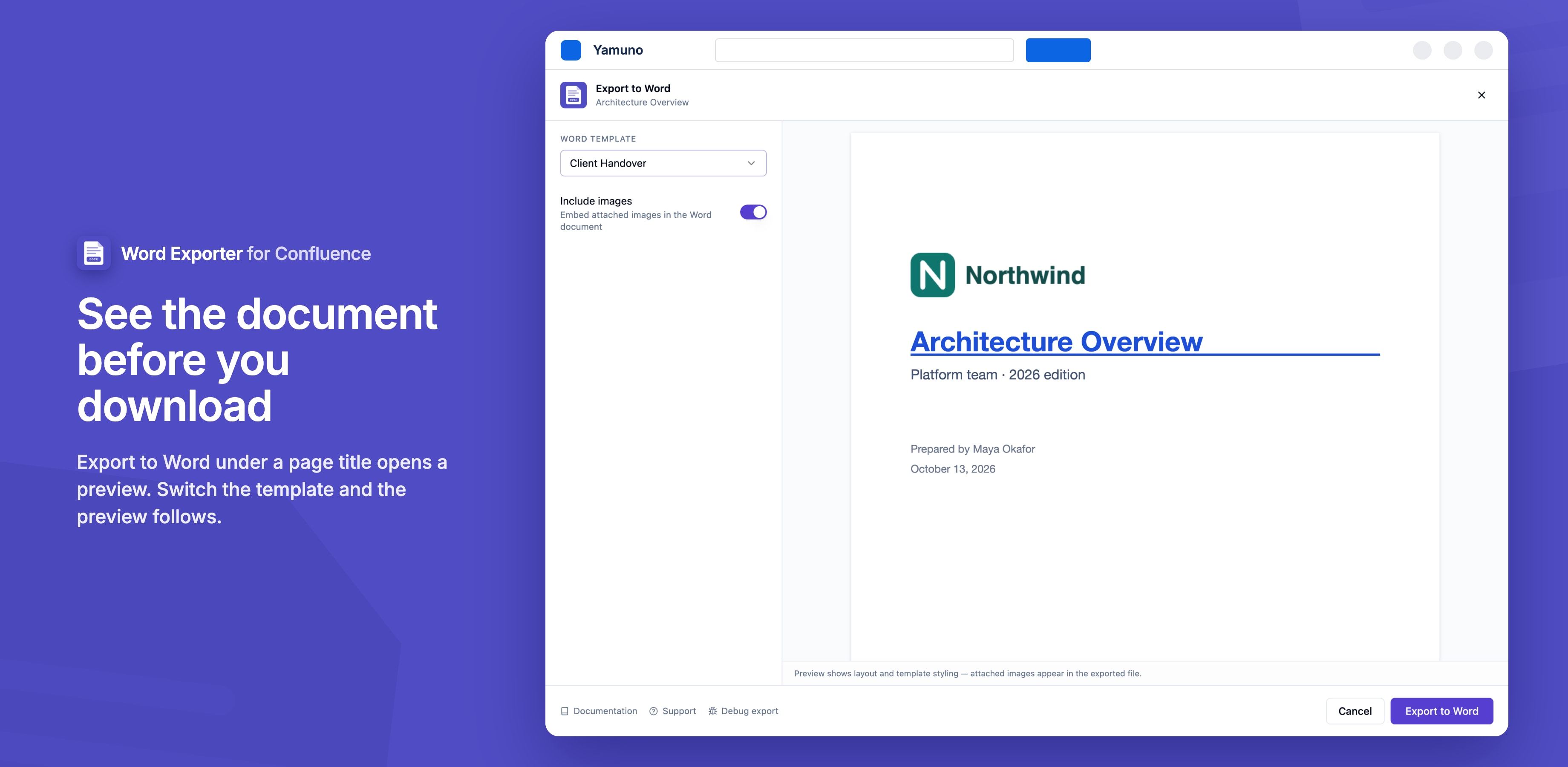
The preview is drawn in your browser and is close to, but not exactly, what Word shows:
- The table of contents and page numbers appear once the file is opened in Word
- The watermark isn't drawn in the preview, but it is in the downloaded file
Stuck on something this page does not cover? Ask the developers.