

Documentation
Word Exporter for ConfluenceBrowse
Documentation
Word Exporter for ConfluenceBackground Exports & My Exports
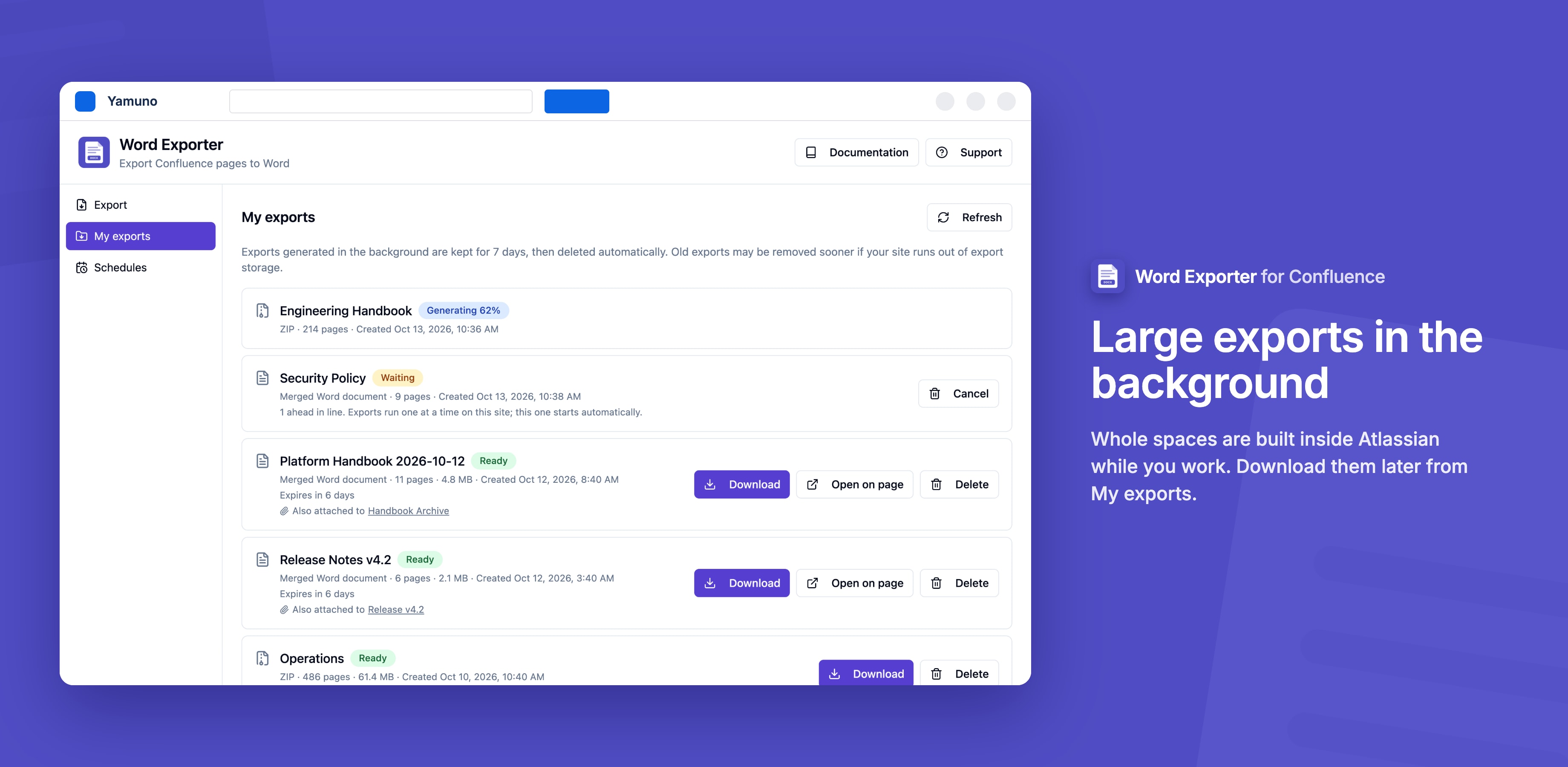
Small exports are generated right in your browser. Large ones, with hundreds of pages or many images, are generated in the background inside Atlassian instead. You can close the page while they run and download the result later from My exports.
Nothing leaves Atlassian: background exports run on Atlassian Forge and are stored in Atlassian's own storage.
Where an Export Is Generated
The Where to generate option in the exporter's sidebar decides where the Word document is built:
| Option | What happens |
|---|---|
| Auto (recommended) | Small exports are built in your browser; large ones run in the background. The exporter tells you which it picked and why. |
| This browser | Always build in your browser. Fastest for small exports; the page must stay open until it's done. |
| In the background | Always build in the background. You can leave the page; the file appears in My exports. |
Following a Background Export
When you click Export to Word, a Preparing Export card appears straight away while the app checks the selected pages and your access to them. The button stays disabled until the export has started, so a second click can't start it twice.
Then a progress card shows each step and updates live. When it's done, download the file straight from the card, or dismiss the card and find the file later in My exports.
If you close the exporter while an export runs, the card comes back the next time you open it.
One Export at a Time
Background exports run one at a time per site. When another export is already running, yours waits in line:
- The card says Waiting in Line and how many exports are ahead of yours
- It starts by itself when they finish; you can close the page in the meantime
- Cancel export on the card, or Cancel in My exports, removes it from the line before it starts
Scheduled runs and REST API exports wait in the same line.
My Exports
Open My exports from the sidebar on the Word Exporter page (Apps → Word Exporter for Confluence). It lists the exports generated in the background for you, including runs of your scheduled exports and exports started through the REST API.
For each export you can:
- Download the file
- Open on page, when the export was also attached to a Confluence page
- Cancel an export that is still waiting in line
- Delete it
Download links are created when you click Download, so they never go stale. Runs of schedules and API exports also say where their file went: Also attached to a page, or Saved here only.
Exports are kept for 7 days by default, then deleted automatically. Your admin can change this. Old exports may also be removed early when the site reaches its export storage limit; My exports says when that happened.
Limits
| Export | Limit |
|---|---|
| One merged Word document | Up to 500 pages. Larger selections must be exported as Separate Word files (ZIP). |
For Admins: Exports & Storage
Site admins manage background exports in Confluence Settings → Word Exporter → Exports & storage:
- See how much export storage the site uses, and every user's exports
- Set Keep exports for (1 to 90 days) and the Storage limit for this site
- Delete any export
Expired exports are cleaned up once a day.
Stuck on something this page does not cover? Ask the developers.