

Documentation
Word Exporter for ConfluenceBrowse
Documentation
Word Exporter for ConfluenceGetting Started
Export Confluence pages to editable Word documents in just a few steps.
Overview
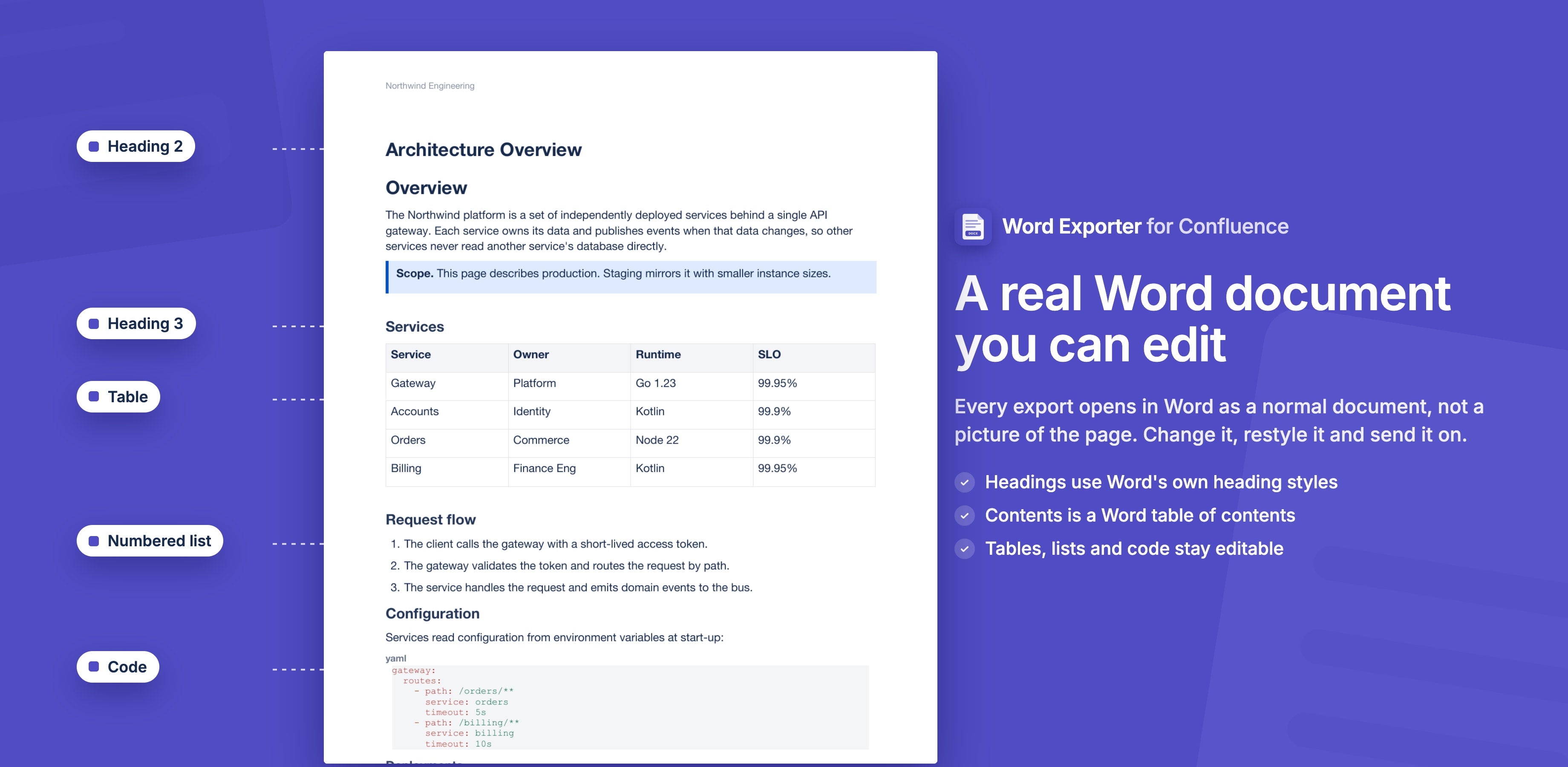
Word Exporter for Confluence turns any Confluence page, page tree or whole space into a Word document (.docx) you can keep editing. Pick a template, and the export gets your cover page, headers, footers, watermark and table of contents. Headings use Word's own heading styles, and lists and tables stay real Word lists and tables.
What You Can Do
| Feature | What it does |
|---|---|
| Export pages and spaces | Export one page, a page and everything under it, or a whole space |
| One merged document or a ZIP | One Word document with a shared table of contents and continuous page numbers, or a separate Word file for each page |
| An editable Word document | Word heading styles, a Word table of contents, Word lists, tables and page numbers |
| Templates | Reusable styles for page setup, fonts, headers, footers and watermarks |
| Cover designer | Ready-made cover designs, or drag the title, logo, images and text anywhere on the cover |
| Background exports and My exports | Large exports run in the background inside Atlassian while you do something else, and wait for you in My exports |
| Scheduled exports | Export a space or page tree every week or month, attach each file to an archive page and email people |
| REST API | Start exports from scripts and CI/CD pipelines with an API token |
Prerequisites
- Atlassian Confluence Cloud instance
- Word Exporter for Confluence installed on your site
- View permission on the pages you want to export
Step 1: Install the App
Word Exporter for Confluence is coming soon to the Atlassian Marketplace. See the Installation Guide for how to install it once it's available.
Step 2: Open the Exporter
To export the page you're on, click Export to Word under the page title. A page without child pages opens a dialog with a preview of the document; a page with children opens the full exporter.
To export several pages, a page tree or a space:
- Open any Confluence page
- Click the ··· (More actions) menu in the top-right toolbar
- Select Apps → Word Exporter for Confluence
You can also open the full exporter from Apps → Word Exporter for Confluence in the Confluence sidebar. That's also where you find My exports and Schedules.
Step 3: Select Pages
Use the hierarchical page tree to select the pages you want to export:
- Check a single page to export just that page
- Check a parent page to include it and all its children
- Use the search bar to quickly find pages across the space
Step 4: Choose a Template
Select a template from the sidebar dropdown. Templates define the look of your Word document: font size, header and footer, cover page, watermark and more.
Three default templates are available out of the box:
| Template | Description |
|---|---|
| Default | Clean Word document with page numbers, no cover page |
| Report | Cover page, table of contents, page breaks before sections |
| Minimal | No header, footer, or page numbers, just content |
Admins can create additional custom templates. See Template Management.
Step 5: Export
Click Export to Word. For multi-page exports, choose One merged Word document for a single file or Separate Word files (ZIP) for one file per page.
Small exports are built in your browser and download straight away. Large ones are built in the background inside Atlassian: a Preparing Export card appears while the app checks the pages and your access, then a progress card follows the export. You can close the page and download the file later from My exports. See Background Exports & My Exports.
Step 6: Open the File in Word
The table of contents and page numbers are Word fields, which Word fills in when it opens the document. If Word asks "This document contains fields that may refer to other files. Update the fields?", choose Yes. See Table of Contents.
What's Next?
- Export Pages & Spaces
- The Word Document
- Cover Page Customization
- Table of Contents
- Manage Templates
- Background Exports & My Exports
- Scheduled Exports
- REST API
Need Help?
Stuck on something this page does not cover? Ask the developers.