

Documentation
Markdown Exporter for ConfluenceBrowse
Documentation
Markdown Exporter for ConfluenceScheduled Exports
Keep a fresh Markdown copy of your Confluence docs without doing anything by hand. A schedule exports a whole space, or a page and everything under it, to Markdown every week or every month. Each run saves a dated ZIP (or one .md file) to an archive page in Confluence, or to your My exports, and can notify people when it's done.
Use it for a regular Markdown backup of a space, a weekly snapshot for a Git repository or static site, or a monthly copy your AI tools and search index can read. Nothing leaves Atlassian.
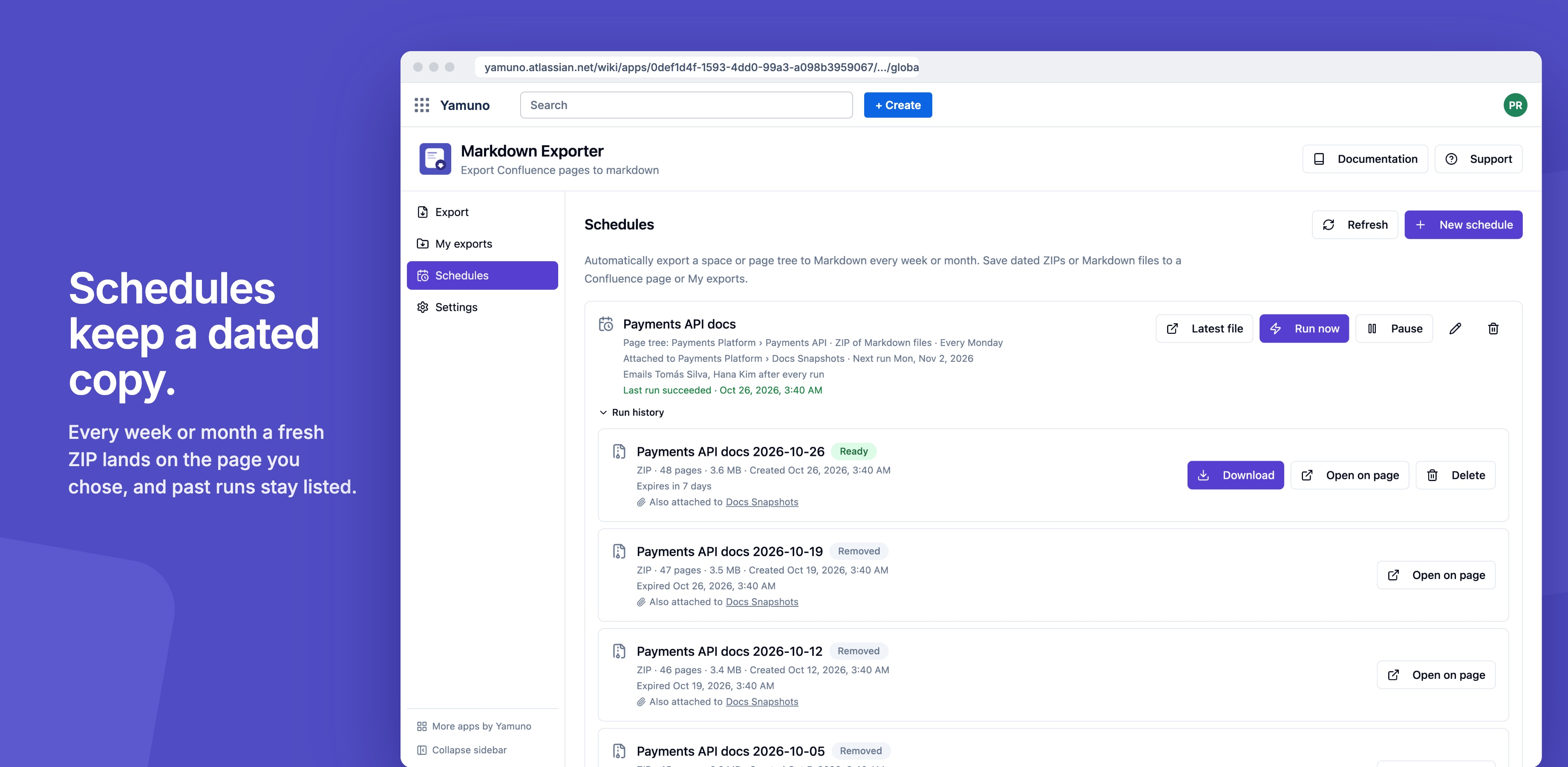
Creating a Schedule
- Open Apps → Markdown Exporter
- Select Schedules in the sidebar, then create a new schedule
- Fill in the form:
| Setting | What it does |
|---|---|
| Schedule name | Used in the file names, for example Docs snapshot 2026-11-01.zip |
| What to export | A page and its children, or A whole space. New pages are included automatically. |
| Output | ZIP of Markdown files or One Markdown file |
| Markdown options | The same options as a normal export: attachments (ZIP only), YAML front matter, Obsidian mode, panel style and filename pattern |
| Repeat | Weekly on a weekday, or Monthly on a date from 1 to 28 |
| Save exports to | Attach to a page (an archive page you can edit), or Keep in My exports only |
| Notifications | Every run, Only failures, or Off, and who to notify (up to 10 people) |
The form shows when the first run is due.
When Schedules Run
Schedules run once on their day. Confluence picks the time of day, so a schedule says "every Monday", not "every Monday at 9:00". Dates are in UTC.
What's exported is worked out again at every run, so pages added since the schedule was created are included.
Where the Files Go
Attach to a page: each run's file is attached to the archive page you chose, named with the run date, so the page's attachments list every run in order. These files stay until someone deletes them. You need permission to edit the archive page.
Keep in My exports only: each run's file appears in your My exports and is deleted after the retention period (7 days by default). Choose an archive page if you need to keep every run.
Notifications
With notifications on, the app comments on the archive page after a run and @mentions the people you chose. Confluence then emails them, following their own notification settings. Recipients must be able to view the archive page, so notifications need an archive page.
Each schedule keeps one comment thread on the archive page and adds later runs as replies. Only failures keeps the thread quiet unless something goes wrong.
Permissions and Failures
Every run uses the schedule owner's access, the person who created it. Only pages the owner can view are exported, and the owner must still be able to edit the archive page. If the owner is no longer active on the site, the schedule pauses.
A failed run shows the reason on the schedule. After three failed runs in a row the schedule pauses; resume it once the problem is fixed. Deleting a schedule keeps the files it already produced.
Admins see every schedule on the site in Confluence Settings → Markdown Exporter → Schedules.
Guides for Markdown Exporter for Confluence
Stuck on something this page does not cover? Ask the developers.