How to Export Confluence to Obsidian (With Wikilinks)
Short answer: Confluence's built-in exports (PDF, Word, HTML) don't produce Obsidian notes. Use Markdown Exporter for Confluence: open a page's ••• menu, select Export to Markdown, turn on Obsidian mode so internal links become [[wikilinks]], keep the filename pattern as {title}, export, and extract the ZIP into a folder in your vault.
Confluence and Obsidian serve different needs. Confluence is where teams collaborate on documentation. Obsidian is where individuals build a personal knowledge base, connect ideas, and think in networks of linked notes.
If you use both, you've probably felt the friction: Confluence content doesn't transfer cleanly to Obsidian. Copy-pasting loses formatting. Downloading HTML is useless. Internal links between pages become broken references.
Markdown Exporter for Confluence solves this with a dedicated Obsidian mode that converts Confluence page links to [[wikilinks]] automatically.
The Problem With Standard Confluence Export
Confluence's built-in exports produce formats like PDF, Word and HTML. None of them work well with Obsidian:
- HTML: Obsidian works with Markdown notes, so you'd need to convert or strip the HTML first.
- PDF and Word: fine for reading, but not notes you can edit, link or see in Obsidian's graph.
Even if you extract text, internal links ([See also: Architecture Overview](/wiki/spaces/PROJ/pages/...) become long URLs that Obsidian doesn't recognise as note links. Your knowledge graph breaks.
What Obsidian Mode Does
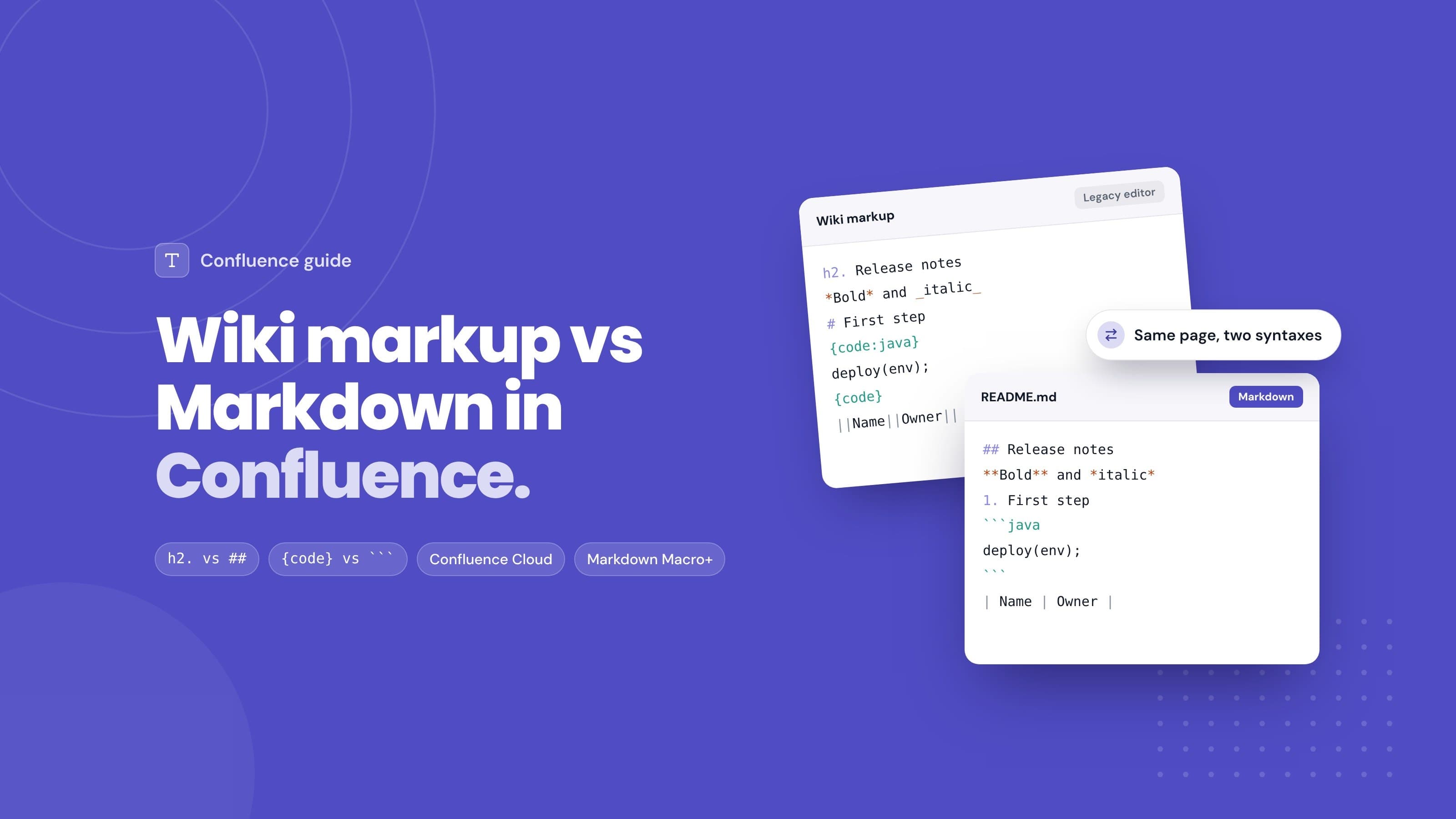
A standard export from Markdown Exporter already converts internal Confluence links into relative Markdown paths between the exported files. Obsidian mode goes one step further and writes them as wikilinks using the page title:
Standard export (Obsidian mode off):
See the [Architecture Overview](./architecture/architecture-overview.md) for context.
Obsidian mode on:
See the [[Architecture Overview]] for context.
Obsidian resolves wikilinks against the notes in your vault, so when the linked page is part of the export, the link works and shows up in the graph view.
Step-by-Step: Export Confluence to Obsidian
Step 1: Install Markdown Exporter
Install Markdown Exporter for Confluence from the Atlassian Marketplace. It runs on Confluence Cloud and is free.
Step 2: Open the Exporter
Navigate to the Confluence page you want to export, click ••• (More actions) and select Export to Markdown. The exporter opens with that page's tree loaded.
To start from a space instead, open Markdown Exporter from the Apps menu in the top navigation and use the space selector to choose the space and parent page.
Step 3: Turn On Obsidian Mode
In the configuration panel on the right, turn on Obsidian mode. This switches internal link output from relative Markdown paths to [[Page Title]] wikilinks.
Tip from the docs: keep the filename pattern set to {title} (the default) so filenames line up with the wikilink targets. Patterns that add {date} or {id} change the filenames and make it harder for links to resolve. After your first export, click a few links in Obsidian to confirm they open the right notes.
Leave Panel / Callout Style on its default, Callout. Confluence info, note, warning and tip panels then come out as callouts such as > [!NOTE], which Obsidian renders natively.
Step 4: Configure YAML Front Matter (Optional)
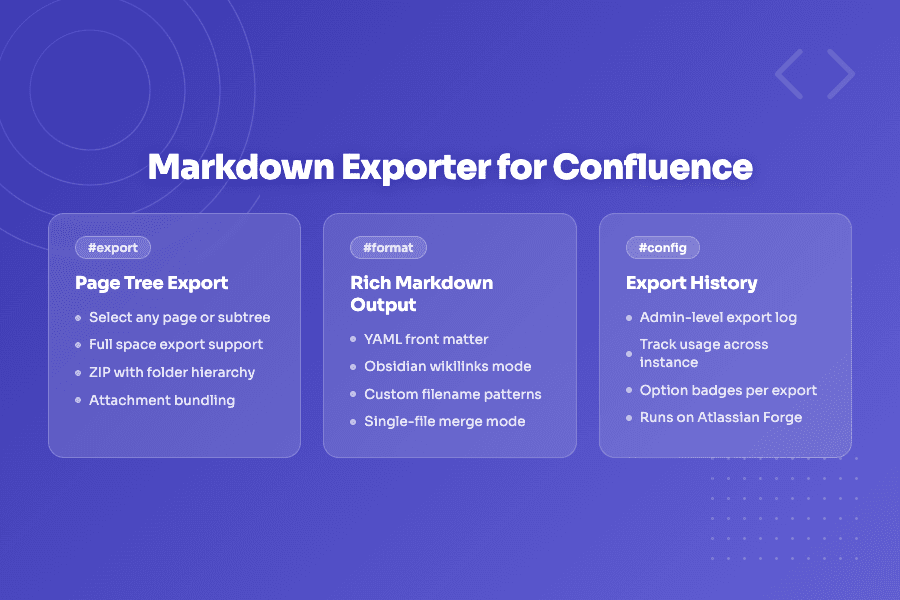
Turn on Add YAML front matter to include metadata at the top of each exported note. You can toggle each built-in field and add your own key-value fields:
---
title: Architecture Overview
author: Jane Smith
date: 2026-04-23
space: PROJ
confluence_id: "123456"
---
Obsidian shows these as note properties. This is useful if you use plugins like Dataview to query notes, or want to track which Confluence page each note came from. author is the last editor and date is the date of the last edit.
Step 5: Select Pages and Export
There's no separate scope setting. You choose what to export with the checkboxes in the page tree:
- Tick a page to include it
- Tick a parent to include it and all of its children
- Untick anything you don't need
- Use the search bar above the tree to find pages by title
Then click Export Selected. The exporter builds a ZIP with your pages in folders that mirror the Confluence hierarchy. To grab just one page, use the download button on that page's row in the tree.
Step 6: Add to Your Obsidian Vault
Extract the ZIP into a folder inside your Obsidian vault. Obsidian picks up the new notes, and with Obsidian mode on, links between the exported pages appear in the graph view.
What the Export Preserves
| Content Type | Obsidian Output |
|---|---|
| Headings | #, ##, ### |
| Bold / Italic | **bold**, *italic* |
| Tables | Standard Markdown tables |
| Code blocks | Fenced with language tag |
| Lists | Ordered, unordered, nested, and task lists |
| Images & attachments | Downloaded, referenced with relative paths |
| Internal page links | [[Page Title]] wikilinks |
| External links | Standard [text](url) |
| Info / note / warning / tip panels | Callouts like > [!NOTE] (default), or blockquotes or plain text |
Tips for Obsidian Users
Use a dedicated folder. Keep your Confluence imports in a subfolder like confluence/ so they don't mix with your personal notes. You can still link across folders.
Re-export when content changes. If your team's Confluence content changes often, re-run the export with the same settings and replace the vault folder. Wikilinks keep working as long as page titles stay the same. If you want scheduled exports into a Git repo instead, see exporting Confluence to Markdown for docs as code.
Combine with Dataview. If you include YAML front matter, you can build Dataview queries over your Confluence notes : for example, all pages from a specific space, or notes last edited after a certain date.
Check complex macros. Most Confluence content converts cleanly. Jira issue macros come through as the issue key, inline comments aren't included, and third-party macros may need a quick review after export. The known issues list the details.
Getting Started
Install Markdown Exporter for Confluence free from the Atlassian Marketplace.
The Obsidian mode documentation covers the settings in more detail, and the launch post gives a tour of the whole app.
Questions? Reach out via our support portal.