.png&w=64&q=75)
By Yamuno Team
03 May 2026
5 min read
Docs as Code: How to Export Confluence to Git-Ready Markdown
Docs-as-code treats documentation like source code: written in plain text, versioned in Git, reviewed in pull requests, and deployed through a CI/CD pipeline. The format is almost always Markdown.
Confluence doesn't fit this model natively. Its export produces HTML or PDF — neither of which belongs in a Git repository. But for many teams, Confluence is where the documentation actually gets written and reviewed. Replacing it isn't always an option.
The practical solution: use Confluence as the editing surface and Git as the source of truth. Export Confluence to Markdown on a cadence, commit the output, and let your pipeline handle the rest.
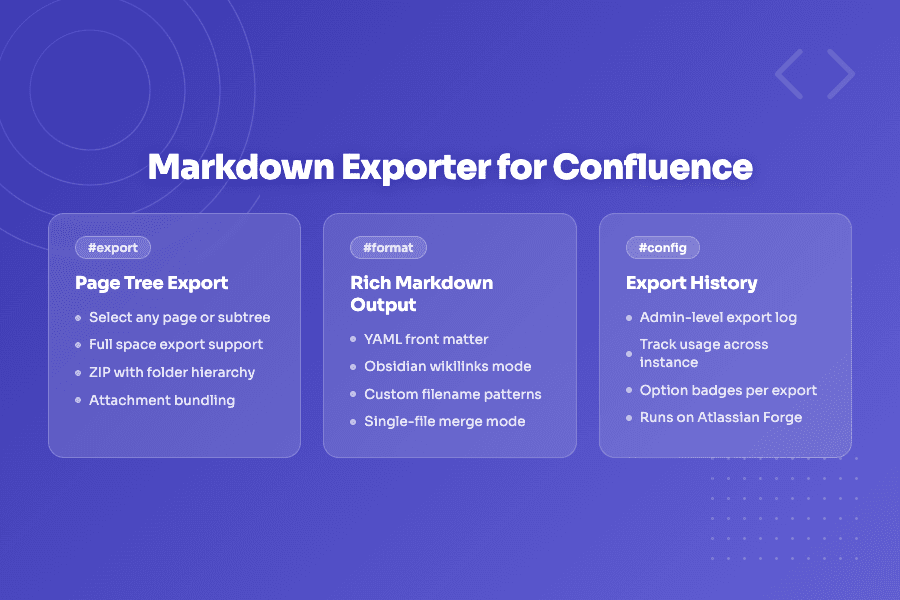
Markdown Exporter for Confluence is built for exactly this workflow.
What You Need
- Confluence Cloud (the app requires Forge and runs on Cloud only)
- Markdown Exporter for Confluence installed on your Confluence instance
- A Git repository with a
docs/folder (or equivalent) - Optionally: a static site generator like MkDocs or Docusaurus
Step 1 — Structure Your Confluence Space for Export
The exporter preserves your Confluence page hierarchy as a folder structure. If your pages are organised logically in Confluence, the output will be organised logically on disk.
A Confluence structure like this:
Documentation (space root)
├── Getting Started
│   ├── Installation
│   └── Quick Start
├── Architecture
│   ├── Overview
│   └── API Reference
└── Operations
    └── Runbooks
Becomes this folder structure in the exported ZIP:
docs/
├── Getting Started/
│   ├── Installation.md
│   └── Quick Start.md
├── Architecture/
│   ├── Overview.md
│   └── API Reference.md
└── Operations/
    └── Runbooks.md
Most static site generators — MkDocs, Docusaurus, Jekyll, Eleventy — can work directly with this structure.
Step 2 — Configure Filename Patterns
Consistent filenames matter in a Git repo. If file names change between exports, Git treats the old file as deleted and the new one as added — losing commit history.
Markdown Exporter lets you define a filename pattern using tokens:
| Token | Value |
|---|---|
{title} |
The Confluence page title |
{date} |
Export date in YYYY-MM-DD format |
{id} |
The Confluence page ID |
For a stable docs-as-code workflow, use {title} only — so filenames stay consistent across exports as long as page titles don't change. If you need uniqueness guarantees even when titles change, add {id}.
Step 3 — Enable YAML Front Matter
Most static site generators read metadata from YAML front matter at the top of Markdown files. Enable it in the exporter and configure which fields to include:
---
title: API Reference
author: Platform Team
date: 2026-04-23
space: DOCS
confluence_id: "789012"
---
You can also add custom key-value fields — useful for tagging pages with a category, product, or version that your site generator uses to build navigation or filter content.
Step 4 — Export and Commit
Run the export from the Confluence space or page tree you want to publish:
- Click ••• → Export to Markdown on the root page, or open from the Apps menu
- Set scope to Include Child Pages or Full Space
- Enable YAML front matter and set your filename pattern
- Click Export and download the ZIP
- Extract the ZIP over your
docs/folder in the repository - Commit:
git add docs/ && git commit -m "docs: sync from Confluence 2026-04-23"
On the next CI run, your pipeline picks up the updated Markdown and publishes the new docs.
Works With MkDocs and Docusaurus
MkDocs
The exported folder structure maps directly to MkDocs nav. A minimal mkdocs.yml:
site_name: Platform Docs
docs_dir: docs
nav:
  - Getting Started:
    - docs/Getting Started/Installation.md
    - docs/Getting Started/Quick Start.md
  - Architecture:
    - docs/Architecture/Overview.md
    - docs/Architecture/API Reference.md
Or let MkDocs auto-generate nav from the folder structure with the awesome-pages plugin.
Docusaurus
Place the extracted folder under docs/ in your Docusaurus repo. Docusaurus reads YAML front matter natively — the title and date fields will be picked up automatically. Enable autogenerated sidebars and the folder hierarchy becomes the sidebar structure.
Keeping Content in Sync
For a lightweight sync loop:
- Export on a schedule — run a full space export weekly, or per-section after each sprint
- Review the diff —
git diff docs/shows exactly what changed since the last export - Commit and push — let CI build and deploy the updated site
For more frequent syncs, you can automate around the export step using browser automation or Confluence webhooks that trigger a reminder to re-export. The exporter itself is UI-driven and doesn't currently expose a REST API — so fully automated pipelines work best when paired with a scheduler that prompts the export step.
What the Export Handles
- Text formatting — headings, bold, italic, strikethrough, inline code
- Tables — column alignment and header rows preserved
- Code blocks — fenced with language tag for syntax highlighting
- Lists — ordered, unordered, nested, task lists
- Images and attachments — downloaded and referenced with relative paths
- Internal links — converted to relative Markdown links between files
- Info / note panels — converted to blockquotes
Getting Started
Install Markdown Exporter for Confluence free from the Atlassian Marketplace.
Full documentation at /docs/markdown-exporter-for-confluence.
Questions or feedback? Reach out via our support portal.
Featured App
Markdown Importer
Convert Between Markdown Files and Confluence Pages Effortlessly
Stay in the loop
Get product updates and tips straight to your inbox.
No spam, ever.



Related Articles
How Compliance Teams Export Confluence Content to PDF
Compliance and legal teams need audit-ready, consistently formatted PDF exports from Confluence — with watermarks, consistent headers, and a full record of what was exported. Here's how to set that up.
How to Bulk Import Markdown Files into Confluence
Importing one markdown file at a time into Confluence is tedious. Here's how to import dozens or hundreds of markdown files at once — with folder hierarchy, images, and frontmatter preserved.
How to Build a Custom Status Dashboard in Confluence
Confluence doesn't have a built-in project status dashboard. Here's how to build one that shows RAG indicators, progress bars, countdown timers, and key metrics — using HTML Macro for Confluence.