


.png&w=64&q=75)
Quick Start Guide
This guide walks you through exporting your first Confluence page tree to Markdown in just a few steps.
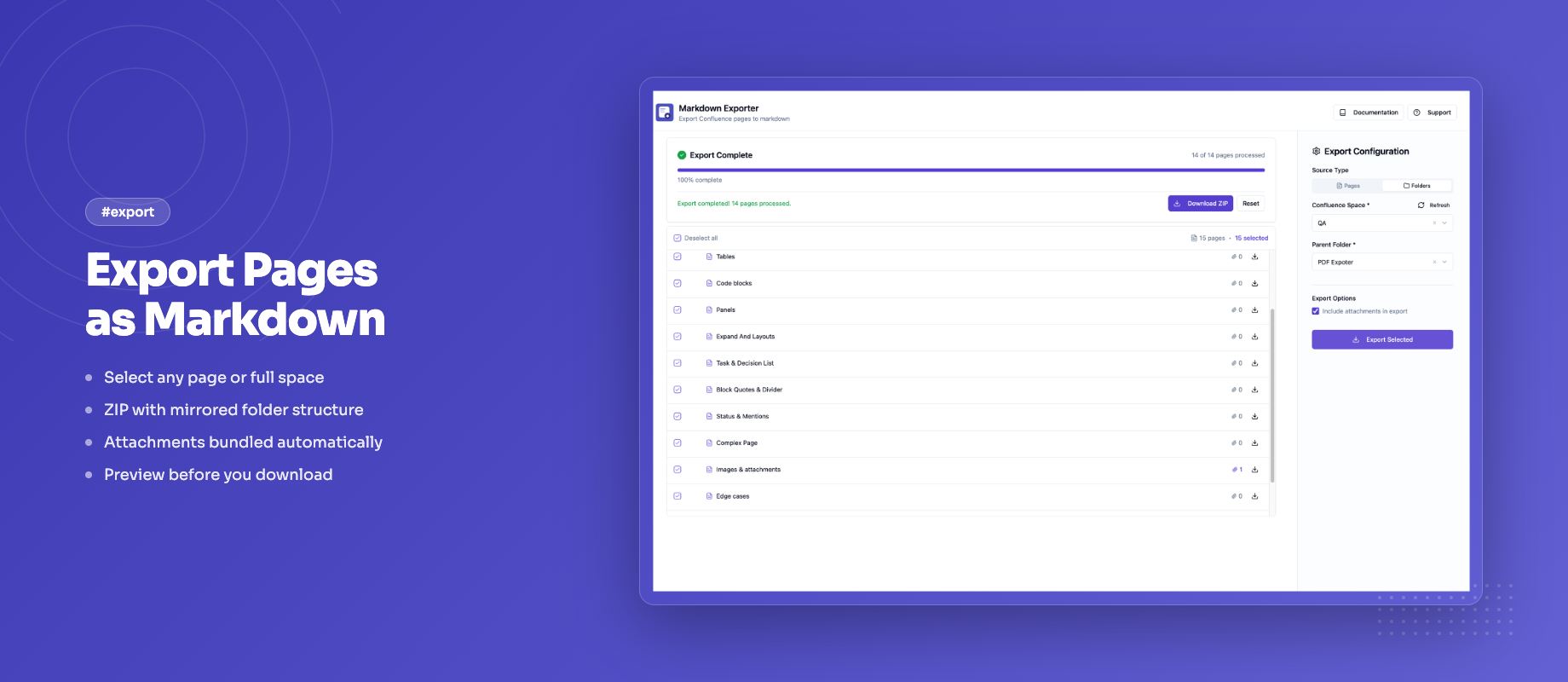
Step 1 — Open the Exporter
Navigate to any Confluence page, click the ••• (More actions) menu in the top-right corner, and select Export to Markdown.
The exporter opens as a full-page app. The left panel shows the page tree starting from the page you launched from. The right panel contains the export configuration.
Step 2 — Select Pages
The page tree shows all pages and child pages under your selected parent. Use the checkboxes to select which pages to export.
- Click a checkbox to select or deselect a single page
- Clicking a parent's checkbox selects or deselects all its children too
- Use the search bar at the top of the tree to find pages by title
Step 3 — Configure Export Options (Optional)
In the right-hand panel, configure the export to your needs:
| Option | What it does |
|---|---|
| Include attachments | Downloads and packages attachments in the ZIP |
| Add YAML front matter | Prepends metadata to each exported file |
| Filename pattern | Controls how each .md file is named |
| Obsidian mode | Converts internal links to [[wikilink]] format |
| Panel / Callout style | How Confluence info panels are rendered |
For a first export, the defaults work well — just leave everything as-is.
Step 4 — Export
Click Export Selected at the bottom of the right panel. A progress bar shows each page being processed.
When complete, your browser downloads a ZIP file containing .md files in a folder structure mirroring your Confluence page hierarchy, plus an attachments/ folder if attachments were included.
Step 5 — Done
Open the ZIP and you'll find clean Markdown files ready to use in any editor, static site generator, or tool like Obsidian.
Next Steps
- Learn about YAML front matter to add structured metadata to every file
- Set up filename patterns for organized, predictable filenames
- Enable Obsidian mode if you're exporting to an Obsidian vault