

Documentation
Issue Templates & Recurring Tasks for JiraBrowse
Documentation
Issue Templates & Recurring Tasks for JiraScheduler
The Scheduler creates recurring tasks in Jira: a work item from a template, on a schedule. The Monday stand-up, the monthly report and the quarterly access review create themselves.
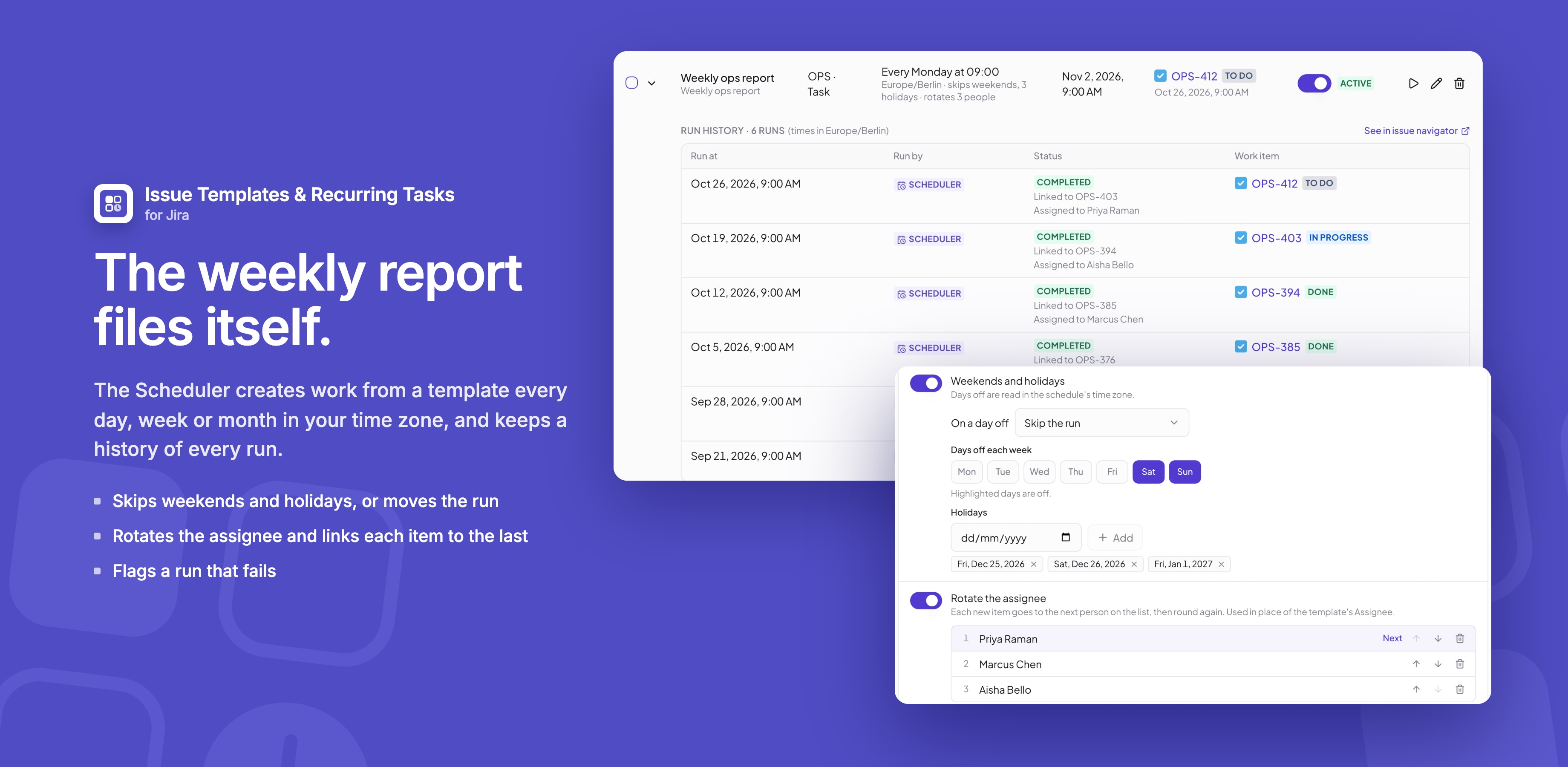
Creating a schedule
- Open Apps → Issue Templates & Recurring Tasks for Jira → Scheduler and click New schedule, or choose Schedule this template from a template's ••• menu.
- Fill in the form:
| Setting | What it does |
|---|---|
| Name | Follows the template's name until you type your own |
| Template | What to create. Its questions are answered here, once. |
| Creates in | Any space and work type you can create in |
| Repeats and At | Every few hours, daily, every weekday, weekly on chosen days, monthly, yearly, or Advanced (cron) |
| Time zone | Runs and dates follow this time zone |
| Starts and Ends | Start now or on a date; end never, on a date, or after a number of items |
- Check Upcoming runs and the preview of the next work item.
- Click Save. The switch next to it pauses or resumes the schedule.
Each work item is created as if someone used the template: variables filled in, fields set and child items added. For working weeks, holidays, rotation and alerts, see Schedule options.
When schedules run
- Schedules are checked every 5 minutes, so a work item due at 9:00 appears within a few minutes of 9:00.
- After an outage, a schedule creates one work item for the latest run it missed, looking back at most a day.
- Run now creates one straight away and leaves the schedule as it is.
- The reporter is a person: whoever last saved the schedule, or whoever pressed Run now, unless the template sets a reporter.
The Scheduler list
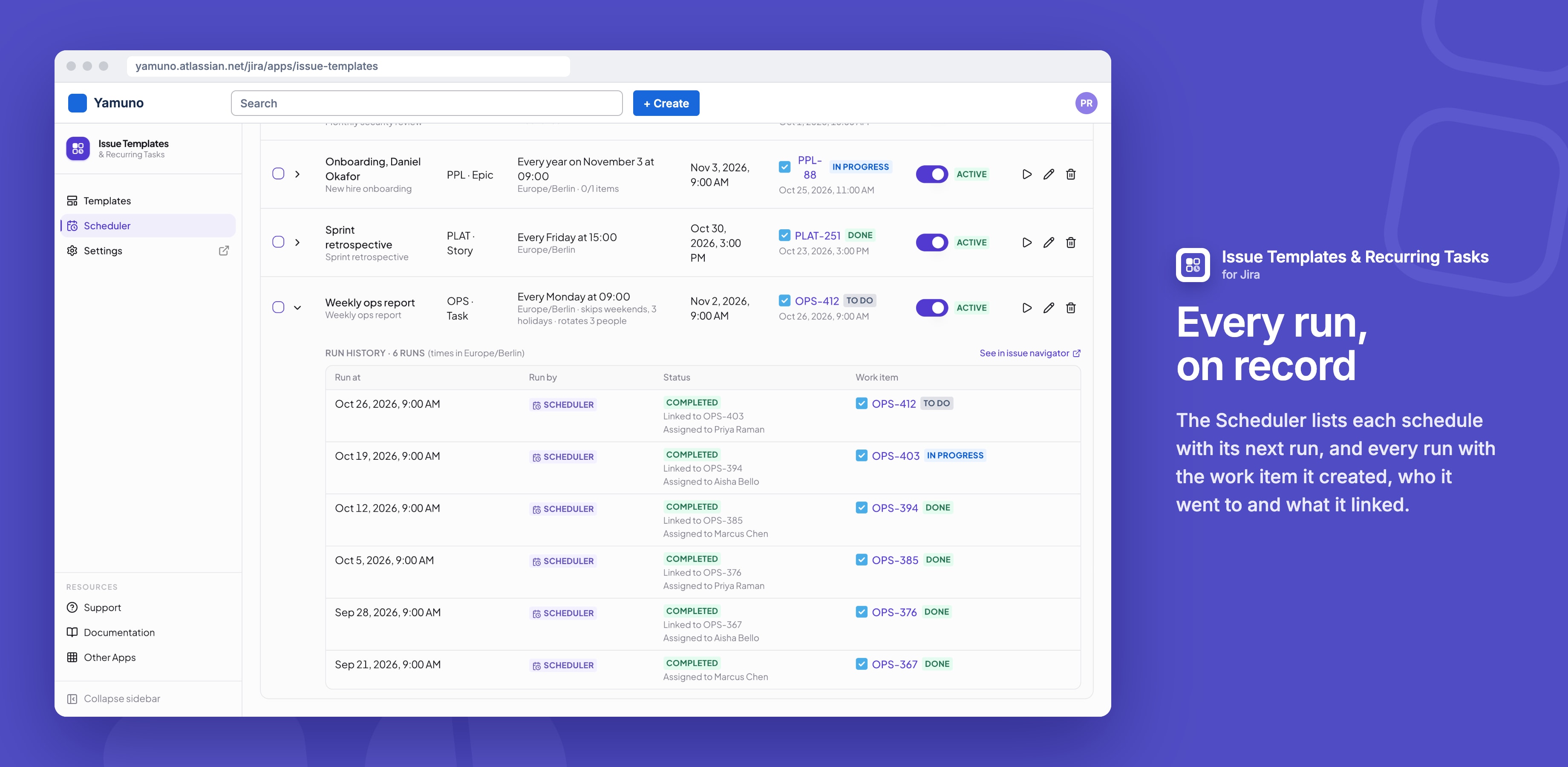
- Each row shows where it creates work, when it runs, the next run, and the last work item with its status.
- Expand a row for its history: the last 50 runs, with the work item, child items, who it was assigned to, and why a run was skipped or failed.
- Select several schedules to Resume, Pause, Run now or Delete them.
- Search by name and filter by space and status.
Good to know
- Ends after a number of items counts scheduled runs only, not Run now.
- A site can have up to 200 schedules.
- Who can use the Scheduler is set in Permissions.
Related
Stuck on something this page does not cover? Ask the developers.