

Documentation
Issue Templates & Recurring Tasks for JiraBrowse
Documentation
Issue Templates & Recurring Tasks for JiraSchedule Options
Options under the schedule form make recurring tasks fit how your team works. Turn on the ones you need.
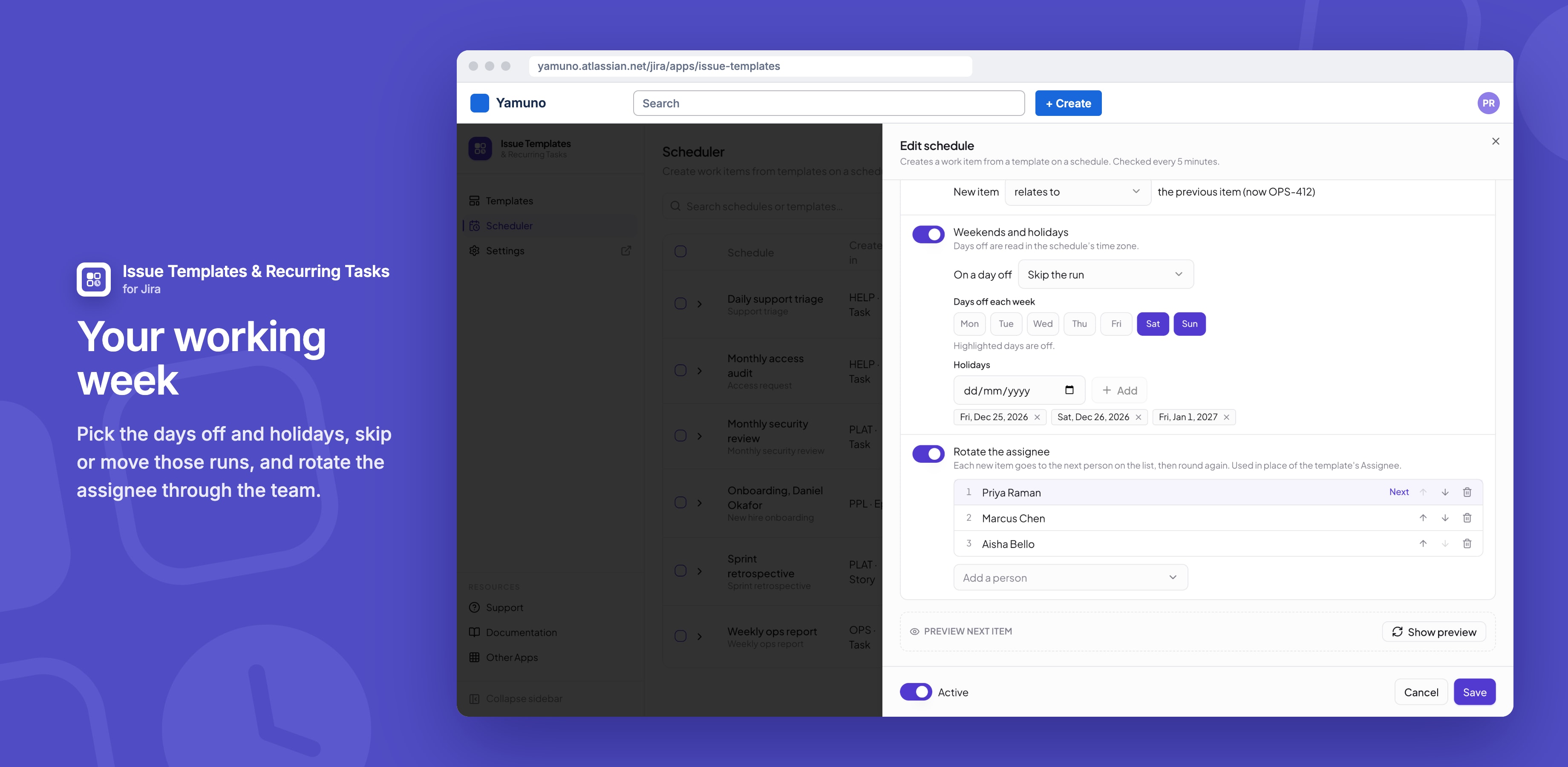
Weekends and holidays
- Turn on Weekends and holidays.
- Under Days off each week, choose your days off. Saturday and Sunday are picked to start with; any days work, as long as one working day is left.
- Under Holidays, pick a date and click Add.
- Under On a day off, choose Skip the run, or Move it to the next working day at the same time.
Holidays are read in the schedule's time zone. Run now ignores days off.
Skip while the previous item is still open
No new work item until the last one this schedule created is done. A skipped run shows in the history.
Link each item to the previous one
Each new work item is linked to the last one, with the link type you choose (for example "relates to"), so the series is easy to follow in Jira. If the link can't be made, the work item is still created and the history says why.
Rotate the assignee
- Turn on Rotate the assignee.
- Use Add a person to add people in the order they take turns, and the arrows to reorder them.
Each new work item goes to the next person, and the list marks who is next. The rotation wins over the template's own assignee. Run now takes a turn too.
Alert when a run fails
When a run fails, the app comments on the last work item the schedule created and mentions whoever last saved the schedule, so Jira notifies them. On a service space the comment is internal.
- It comments once per run of failures, not on every failed run.
- Failing schedules also show in a red banner on the Scheduler, and as a count on Scheduler in the app's sidebar. Show them filters the list to them.
- The banner clears once each has a run that works.
Related
Stuck on something this page does not cover? Ask the developers.