

Documentation
Issue Templates & Recurring Tasks for JiraBrowse
Documentation
Issue Templates & Recurring Tasks for JiraGetting Started
Create your first issue template and see Jira fill it in for you, in a few minutes.
Overview
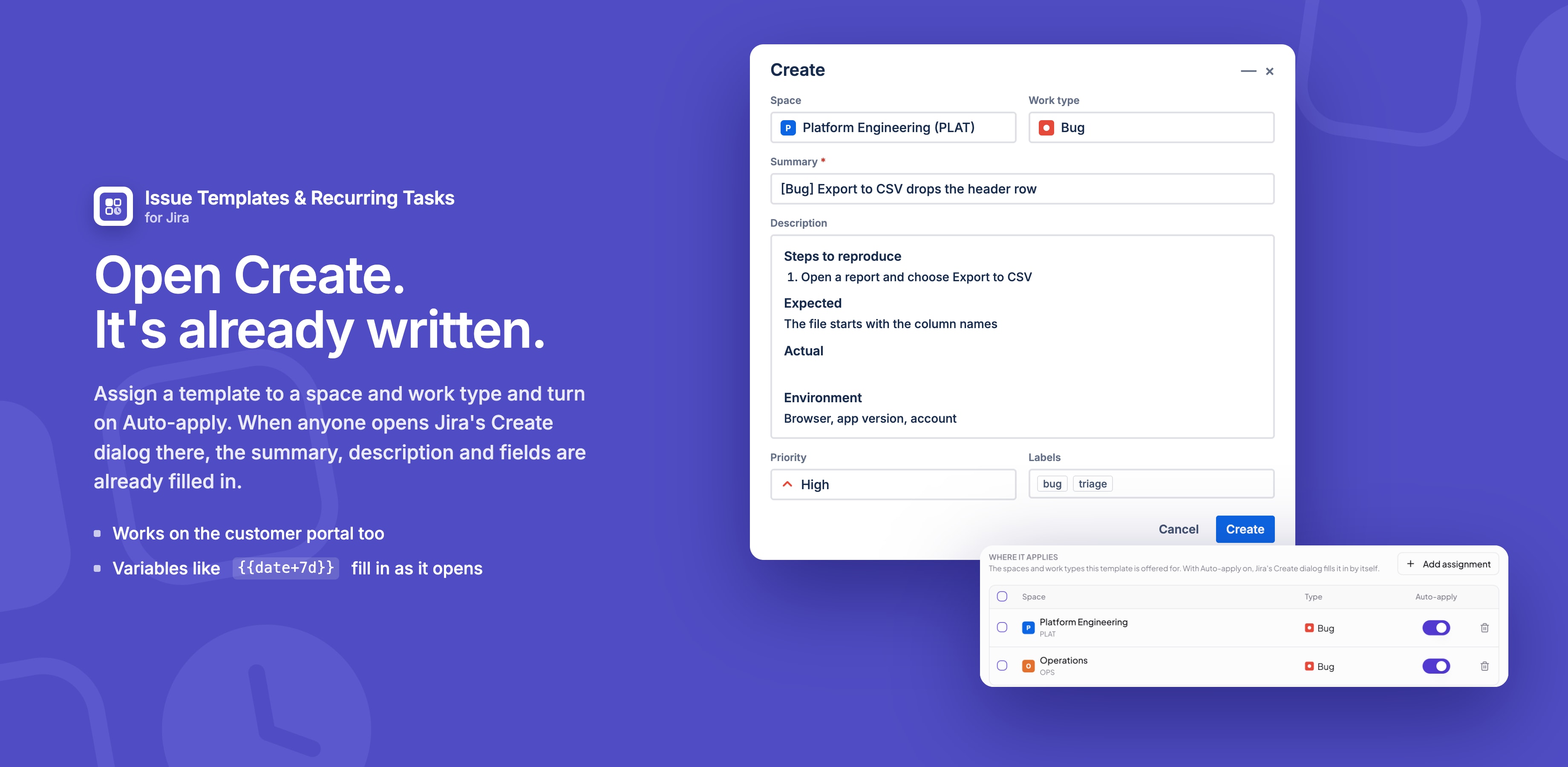
Issue Templates & Recurring Tasks for Jira gives your team reusable templates for work items. A template holds the summary, the description, the fields to set and the sub-tasks to add. Assign it to a space and work type, and Jira's Create dialog opens with it already filled in. The same templates can create recurring tasks on a schedule.
The app is free, and it runs on Atlassian Forge, inside your Jira site.
What You Can Do
| Feature | What it does |
|---|---|
| Templates | Write the summary, description and fields once, in an editor that looks like Jira's |
| Auto-apply | Jira's Create dialog and the service portal open with the template filled in |
| Variables | Dates, people and the space fill in when the work item is created |
| Fill-in questions | Ask the person creating the work for what changes each time |
| Child items | Templates with sub-tasks, or tasks under an epic |
| Creating work | Create from a template, apply one to a work item, or save a work item as a template |
| Scheduler | Recurring tasks every day, week or month, in your time zone |
| Import and export | Move templates between Jira sites |
Prerequisites
- Jira Cloud
- Issue Templates & Recurring Tasks for Jira installed. See Installation.
- Permission to create work items in the space you want to use
- Jira admin, only to change the app's permissions
Step 1: Create a template
- Open Apps → Issue Templates & Recurring Tasks for Jira.
- Click New Template. On a new site you can click Add starter templates instead, for five worked examples.
- Fill in a Template name, a Summary such as
Weekly report {{date}}, and a Description. - Under Additional fields, click the fields you want set, for example Priority or Labels.
Step 2: Assign it and turn on Auto-apply
- Open the Assignments tab.
- Click Add assignment, pick a Space and a Work type.
- Turn on Auto-apply and click Save.
- Click Create to save the template.
Step 3: Open Jira's Create dialog
- Click Create in Jira's top bar.
- Choose the space and work type you assigned.
The summary, description and fields are already there, with {{date}} replaced by today's date. Anything you type yourself is kept.
To add the template's child items as well, create the work item from the template instead: open its ••• menu in the templates list and choose Create work item from template.
Step 4: Schedule it (optional)
- In the templates list, open the template's ••• menu and choose Schedule this template.
- Pick Creates in, how often it Repeats, the time At and the Time zone.
- Click Save.
A work item is created on each run, checked every 5 minutes. See Scheduler.
What's Next?
Need Help?
Stuck on something this page does not cover? Ask the developers.