

Documentation
Issue Templates & Recurring Tasks for JiraBrowse
Documentation
Issue Templates & Recurring Tasks for JiraAuto-apply
Auto-apply makes a template fill in Jira's Create dialog, or a service portal form, by itself. Nobody has to remember the template exists.
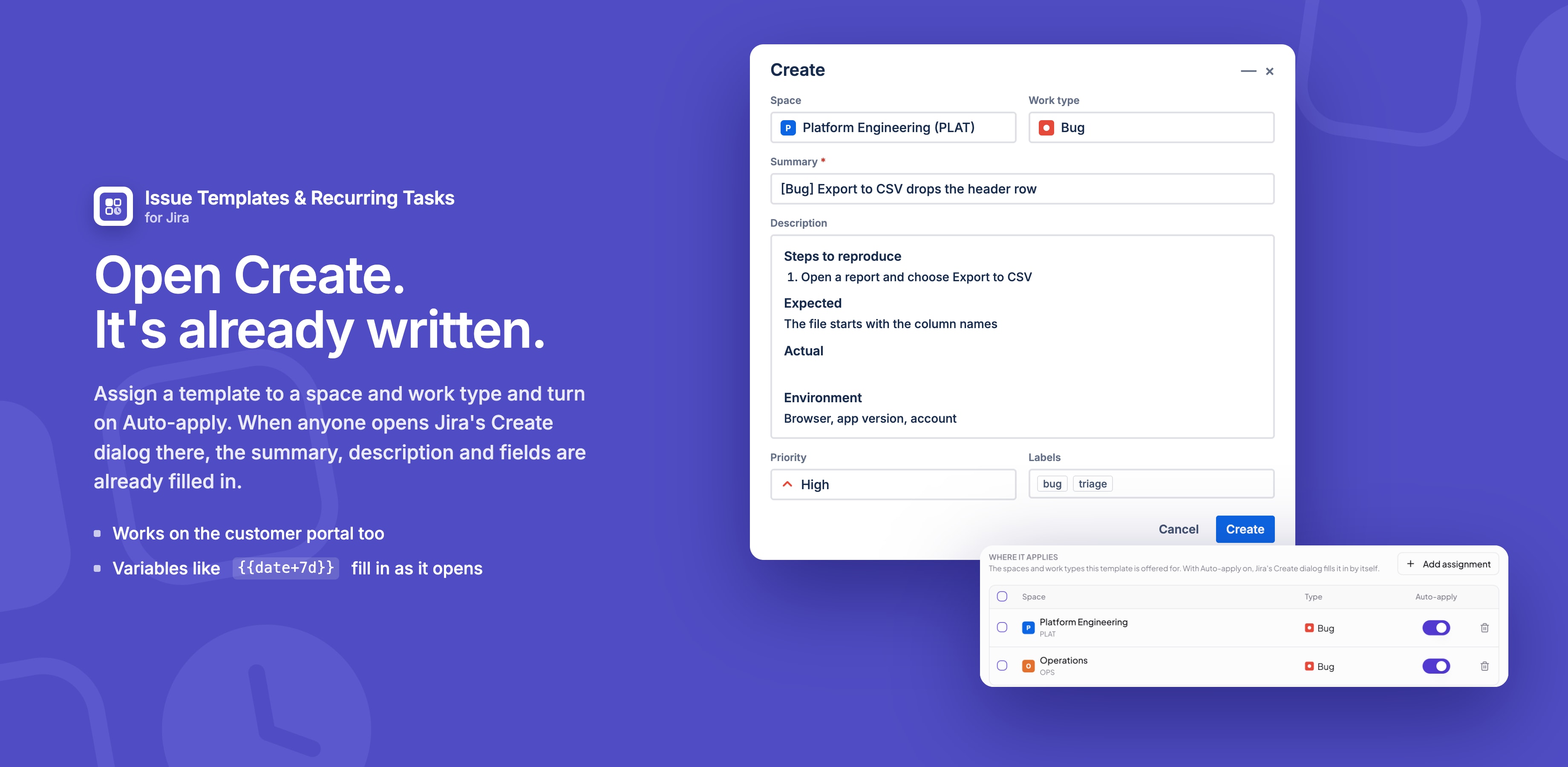
Assigning a template
- Open the template and its Assignments tab.
- Click Add assignment.
- Pick a Space and a Work type. For a service space, pick the Request type instead: the template applies on the Jira Service Management portal.
- Turn on Auto-apply and click Save.
With Auto-apply off, nothing fills in by itself. The template stays available to apply from a work item's ••• menu, listed first.
In Jira's Create dialog
When someone opens Create for that space and work type, the template's summary, description and fields are already there.
- Text they have already typed in the summary or description isn't overwritten.
- Changing the space or work type in the dialog applies that work type's template instead.
- Only one template can auto-apply to a space and work type. Turning it on where another template already does tells you which one it replaces.
Jira Service Management portal templates
Assign a template to a portal request type and customers see the form already structured, so requests arrive with what you need. Jira allows fewer fields there:
| Field | Create dialog | Portal |
|---|---|---|
| Summary, Description, Labels, Priority, Due date | Yes | Yes |
| Assignee, Reporter | Yes | No |
| Environment | No | No |
The template form marks these fields not on portal and manual only.
Good to know
- A field fills in only if it is on that space's create screen. No Priority field on the screen, no priority.
- Child items and questions need the app's own sheet: Jira's Create dialog can't add work items, and shows a question as
[Question]for the person to replace. - Create work item from template and Apply template set every field, Environment included.
Related
Stuck on something this page does not cover? Ask the developers.