

Documentation
Markdown Macro+ for ConfluenceBrowse
Documentation
Markdown Macro+ for ConfluenceMigrate from Data Center
Markdown Macro+ picks up Markdown macros that come over from Confluence Server or Data Center. This covers the Markdown macro of Just Add+ and other Data Center apps that store their Markdown in a macro named markdown.
The migration has two parts:
- The Cloud Migration Assistant (CCMA) moves your pages. The Markdown is stored inside each page, so it moves with the page. Markdown Macro+ renders it straight away.
- You convert the macros in Cloud. Converting turns each Data Center macro into a Markdown Macro+ macro, so it can be edited in the Confluence editor. You can convert one macro from the page, or every page at once from the app's settings.
Before you migrate
- Install Markdown Macro+ on your Cloud site first. If the app is installed after the migration, the pages still have the Markdown, and it renders once the app is installed.
- In the CCMA app assessment, mark the Data Center Markdown app as not needed in Cloud. CCMA has no automatic path from another vendor's app to Markdown Macro+, and none is needed: there is no app data to move, only pages.
- Run a test migration first on a sandbox or test site, then check a few pages as described below.
Step 1: Migrate the pages with CCMA
Run the Cloud Migration Assistant as usual. When it finishes, open a migrated page. The Markdown renders as it did on Data Center: headings, tables, code blocks, task lists and quotes.
At this point the macros render, but the Confluence editor can't open them. They are still stored as Data Center macros. Step 2 fixes that.
Step 2a: Convert one page from the macro
Use this for a few pages, or to check a page before converting the rest.
-
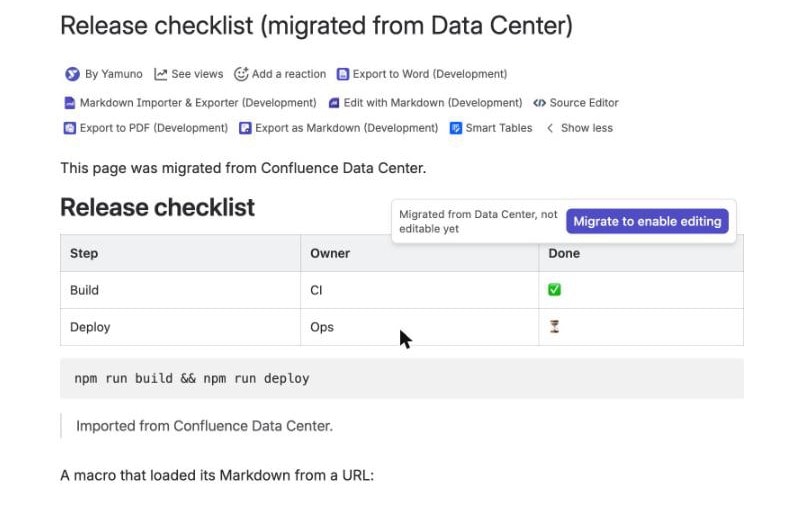
Open the page (not the editor) and hover over the Markdown.
-
A bar shows Migrated from Data Center, not editable yet. Click Migrate to enable editing.
-
Choose what to convert:
- Migrate this macro converts only the macro you hovered over.
- Migrate all N on this page converts every Data Center Markdown macro on the page. It shows only when the page has more than one.
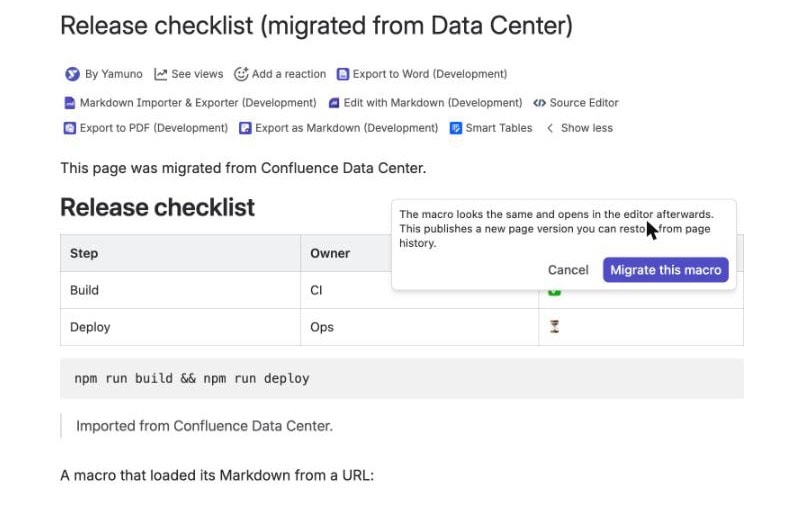
The page reloads with the converted macro. It looks the same, and it now opens in the Markdown Macro+ editor.
The bar shows only to people who can edit the page. Anonymous viewers and people with view-only access don't see it.
Step 2b: Convert every page from the settings
Use this after the migration to convert all pages at once. You need to be a Confluence admin or site admin.
-
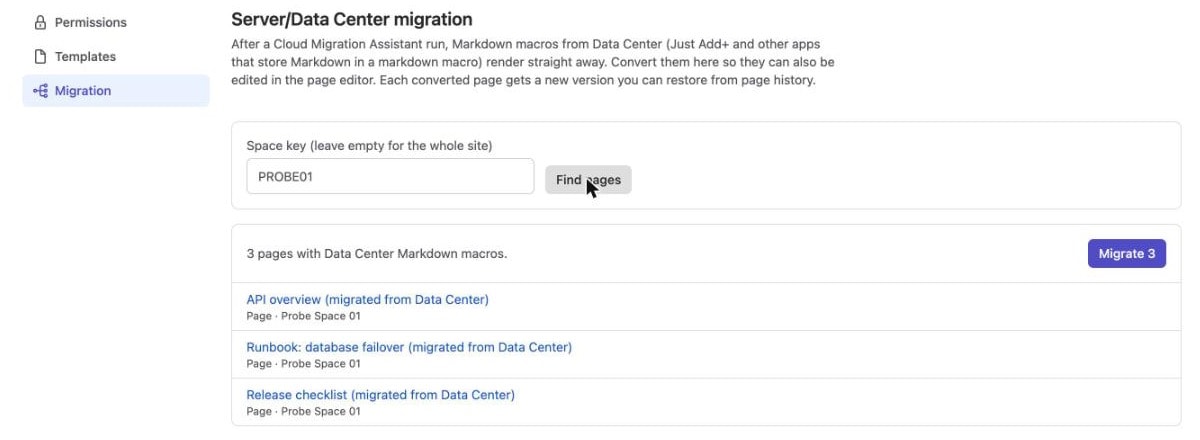
Open the app's settings (see Open the settings) and click the Migration tab.
-
Enter a space key to convert one space, or leave it empty for the whole site. Click Find pages.
-
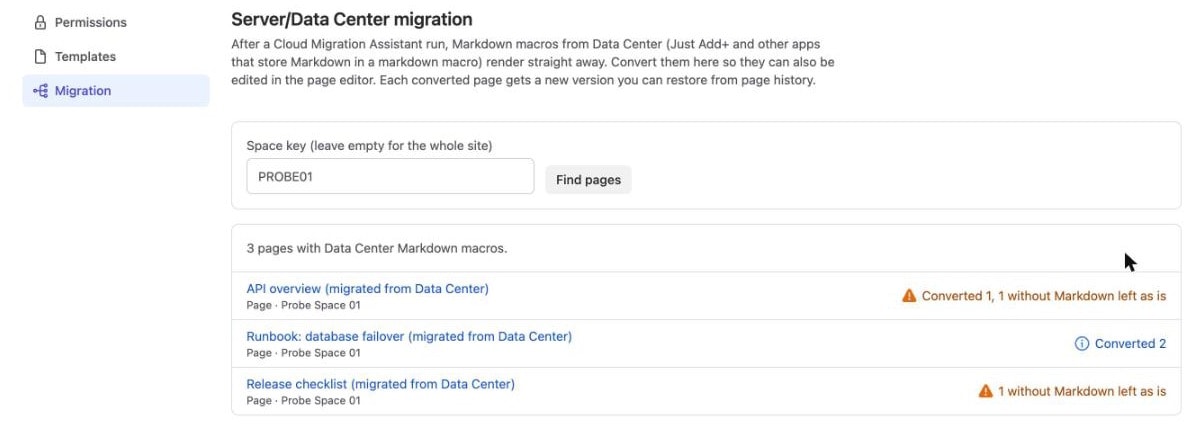
Check the list, then click Migrate. Pages are converted one at a time, and each row shows its result.
-
Click Find pages again. A page drops out of the list once all its macros are converted, so anything still listed needs a look. See What each result means.
The list loads 50 pages at a time. Click Load more at the bottom to load the next 50 before you migrate.
Step 3: Check a converted page
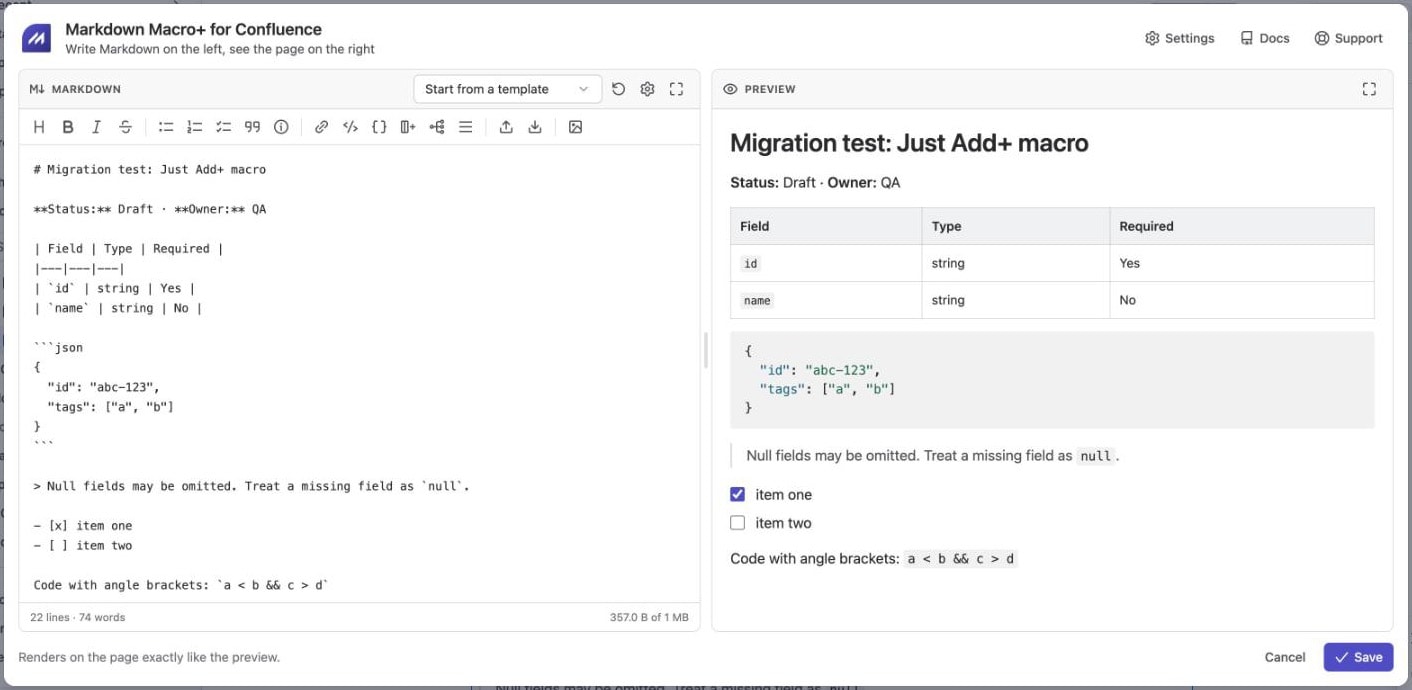
Open a converted page in the Confluence editor and click the macro. It is labelled Markdown Macro+ for Confluence and has the edit (pencil) button. Click the pencil to open the Markdown with its live preview.
What each result means
| Result | What happened | What to do |
|---|---|---|
| Converted N | N macros were converted, and a new page version was published. | Nothing. |
| Converted N, M without Markdown left as is | N macros were converted. M macros on the page had no Markdown in them (see below). | Recreate those M macros by hand. |
| M without Markdown left as is | The page only has macros without Markdown in them. Nothing was changed. | Recreate those macros by hand. The page stays in the list until you do. |
| Skipped: unpublished edits | Someone has unpublished changes to the page in the editor. Converting now would be undone when they publish. | Ask them to publish or discard their changes, then click Migrate again. |
| The page was changed by someone else | The page was published while it was being converted. | Click Find pages and Migrate again. |
| You do not have permission to edit this page | The page is restricted, and you can't edit it. | Ask someone who can edit the page, or lift the restriction. |
Macros without Markdown in them
Some Data Center Markdown macros didn't hold the Markdown themselves. They loaded it from a URL, a Git repository or an attachment. That content isn't on the page, so CCMA doesn't move it, and it can't be converted. In Cloud such a macro shows Migrated from Data Center without its content, and where possible it says where the Markdown came from.
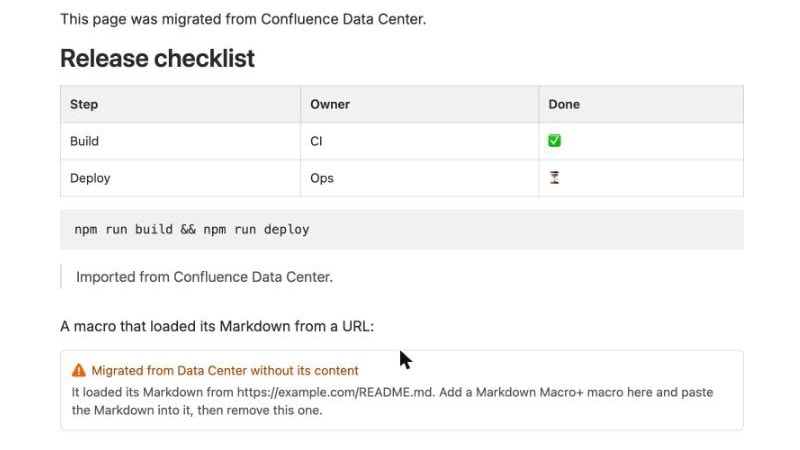
To replace it, add a Markdown Macro+ macro in the same place, paste in the Markdown from the original source, and delete the old macro.
What is converted
| On Data Center | In Cloud |
|---|---|
| Markdown typed into the macro: text, headings, tables, code blocks, lists, quotes, links | Converted as is. The Markdown is not changed. |
| Markdown loaded from a URL, a repository or an attachment | Not converted. See Macros without Markdown in them. |
| Other macros of the same app (diagrams, code from Git, and so on) | Not converted. They are separate macros. |
Converting doesn't change how the Markdown is written. Markdown Macro+ renders GitHub-flavoured Markdown, so a few details can look different from the Data Center app. See Markdown syntax.
Undo a conversion
Every conversion publishes a new page version with the note "Migrated N Markdown macros from Data Center to Markdown Macro+". To undo it, open the page's Version history and restore the version before it.
Permissions
Converting needs the app's permission to read and update pages and blog posts and to search content. If a Confluence admin hasn't approved the latest app update yet, the Migration tab says so and the hover bar doesn't appear. See Updates waiting for approval.
The conversion runs as the person who clicks Migrate, so Confluence's page permissions and restrictions apply.
Data residency
Markdown Macro+ runs on Atlassian Forge and makes no external calls. The Markdown is stored in your Confluence pages, before and after converting, so it follows your Confluence data residency location.
Guides for Markdown Macro+ for Confluence
Stuck on something this page does not cover? Ask the developers.