

Documentation
Markdown Macro+ for ConfluenceBrowse
Documentation
Markdown Macro+ for ConfluenceThe macro editor
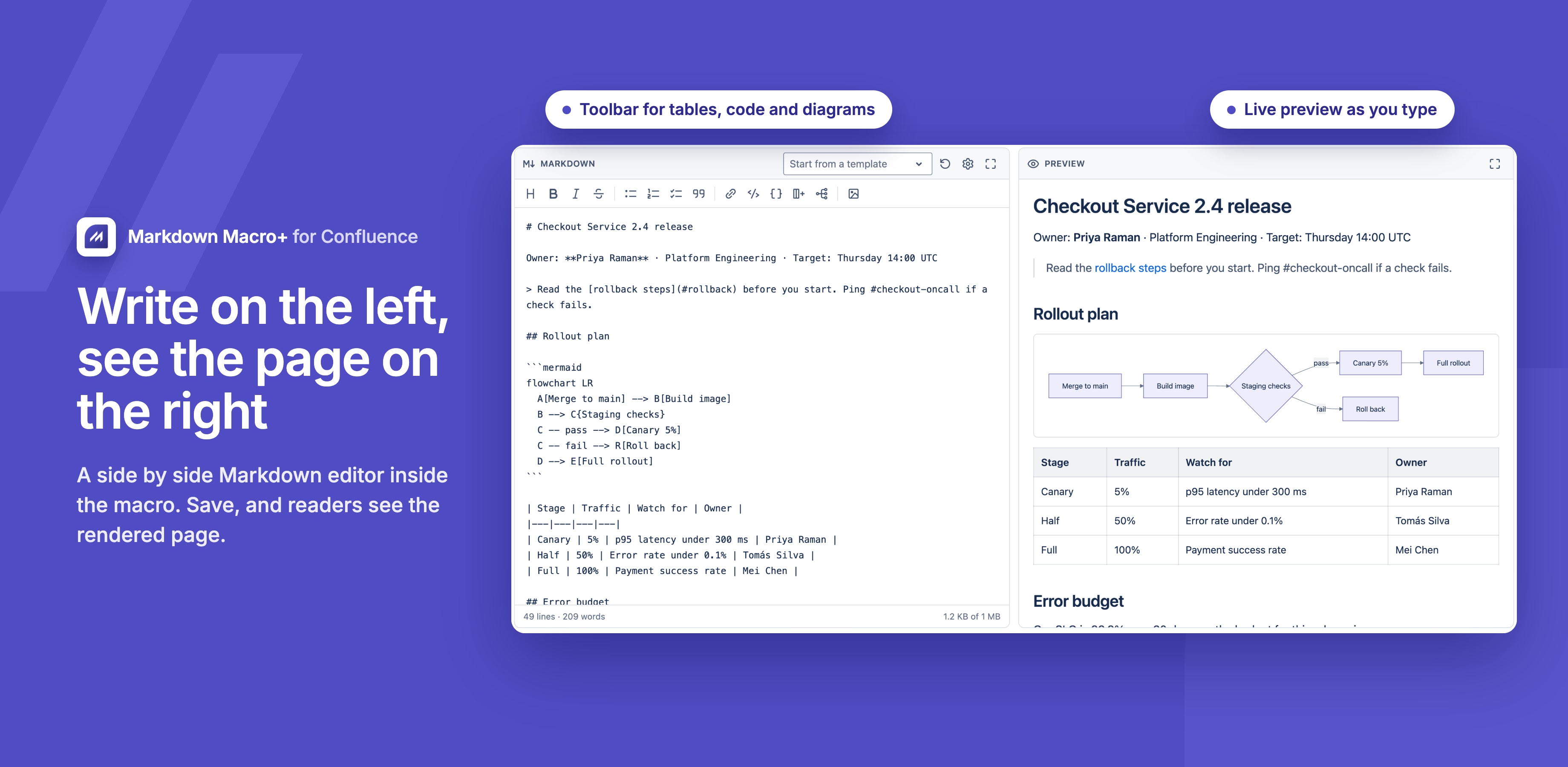
The macro editor opens when you insert Markdown Macro+ on a page or edit an existing macro. Markdown is on the left, the preview on the right, and the page shows exactly what the preview shows.
Insert the macro
- Edit a Confluence page.
- Type
/markdownand choose Markdown Macro+ for Confluence. - Write in the left pane and check the preview on the right.
- Click Save, then publish the page.
To change it later, edit the page and open the macro again.
Toolbar
| Button | What it does |
|---|---|
| Heading | Makes the line a ## heading |
| Bold, Italic, Strikethrough | Wraps the selection in **, _ or ~~ |
| Bulleted list, Numbered list, Task list | Starts a -, 1. or - [ ] list item |
| Quote | Starts a > quote |
| Callout | Inserts a > [!NOTE] callout |
| Link | Inserts [link text](https://) |
| Inline code, Code block | Inserts inline code or a fenced code block |
| Table | Inserts a two-column table |
| Mermaid diagram | Inserts a sample flowchart |
| Table of contents | Inserts [[toc]] |
| Insert a .md file | Inserts a .md, .markdown, .mdx or .txt file at the cursor |
| Download as .md | Downloads the Markdown, named after the first heading |
| Insert an attachment | Opens the attachment picker |
Preview
- The preview updates as you type and scrolls along with the editor.
- Drag the handle between the panes to resize them. Each side can take between a quarter and three quarters of the width, and the split is remembered on your device.
- Fullscreen editor and Fullscreen preview show one pane on its own.
- The footer shows the line and word count and the size of the content. A macro can hold up to 1 MB.
Start from a template
Pick a template under Start from a template at the top of the Markdown pane. In the macro editor a template replaces what is in the editor, so pick it before you start writing. Manage templates opens the template settings in a new tab. See Templates and variables.
On the page
The rendered macro looks like native Confluence content: the same fonts, spacing, panels and code colours, in light and dark mode. Code highlighting, math and diagrams load only when a macro uses them, so pages stay fast.
Who can save
By default anyone who can edit the page can add and edit the macro. An admin can limit this to admins; see the Admin guide.
Guides for Markdown Macro+ for Confluence
Stuck on something this page does not cover? Ask the developers.