.png&w=64&q=75)
By Yamuno Team
06 Oct 2026
9 min read
Inline Code and Code Blocks in Confluence
If you write anything technical in Confluence, you need two things: a way to mark a command or file name as code in the middle of a sentence, and a proper block for anything longer than one line. Confluence Cloud has both, but the options for inline code and code blocks are spread over a toolbar menu, a few shortcuts and some Markdown that only works when you type it.
Short answer:
- Inline code: type text between two backticks, like
`npm install`, or select text and press Ctrl+Shift+M (Cmd+Shift+M on a Mac). - Code block: type three backticks (
```) at the start of a line, or type/codeand pick Code snippet.
The rest of this guide covers every way to add each one, the settings a Confluence code block has, what changed from the old Code Block macro, and how to fix the things that usually go wrong.
When to use inline code vs a code block
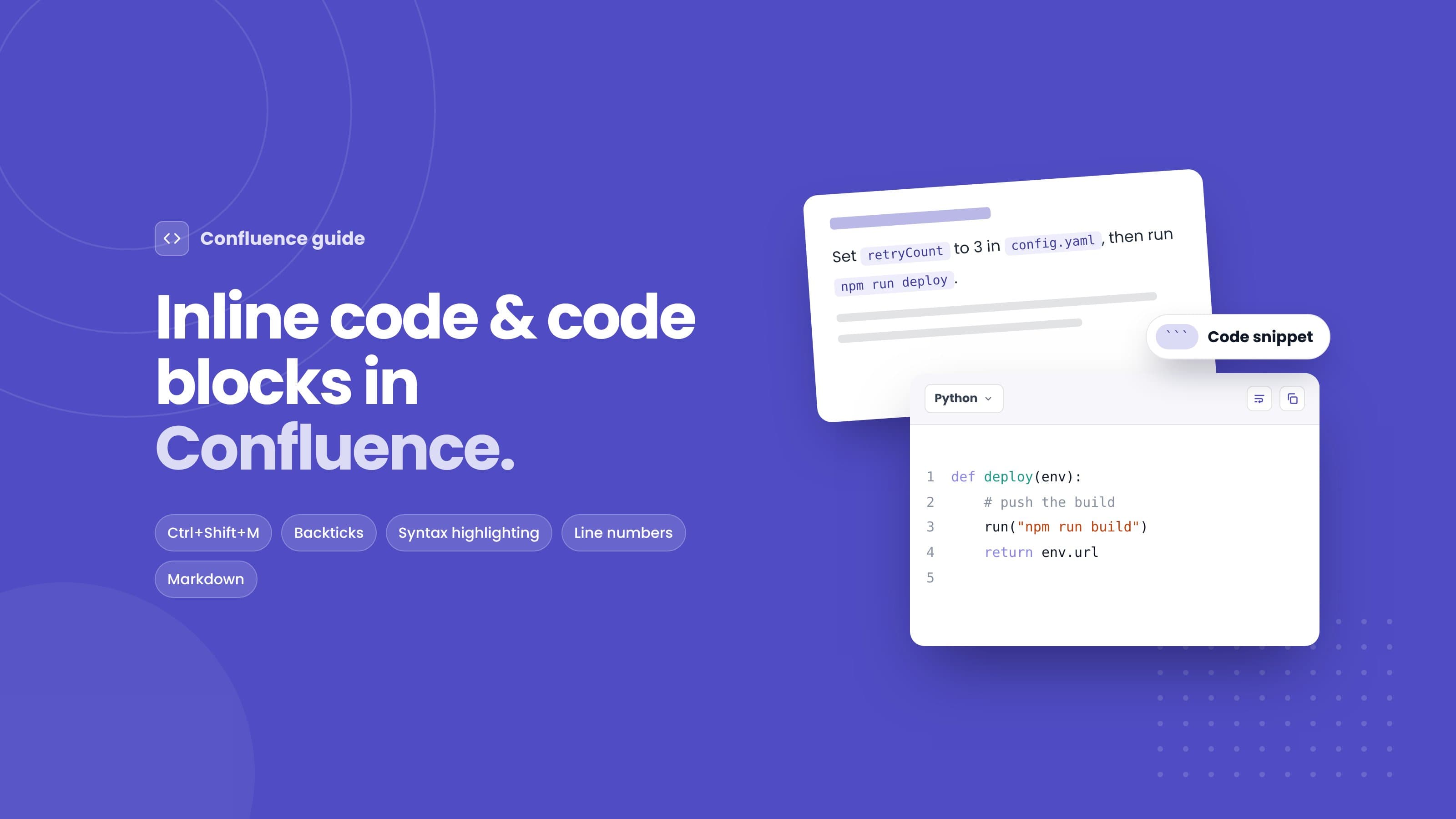
Use inline code in Confluence for short things that sit inside a sentence: a command, a function name, a file path, a config key, an error message. For example: "Set retryCount to 3 in config.yaml."
Use a code block for anything you'd copy and run, anything longer than a line, and anything where indentation matters. Code blocks keep whitespace, get syntax highlighting and have a copy button, so readers don't pick up stray characters from the page.
A simple rule we use: if someone will paste it into a terminal or editor, it goes in a block.
How to add inline code in Confluence
There are three ways to add Confluence inline code formatting. They all produce the same result, so pick whichever fits how you type.
Type backticks
Type a backtick, your text, and a closing backtick: `kubectl get pods`. Confluence converts it to inline code the moment you type the closing backtick. This is the fastest way if you already write Markdown elsewhere.
It only works when you type it. If you paste text that already contains backticks, they stay as plain characters. In that case use the shortcut below.
Use the keyboard shortcut
Select the text and press:
| Shortcut | |
|---|---|
| Windows / Linux | Ctrl + Shift + M |
| Mac | Cmd + Shift + M |
Press the same shortcut again to remove the formatting.
Use the toolbar
Select the text, open the Format text menu in the editor toolbar (the ... next to bold and italic) and choose Code.
To stop typing in code format, press the right arrow key at the end of the inline code, or toggle the shortcut off.
How to add a code block in Confluence
There are four ways to insert a code block. Atlassian's editor calls it a code snippet, so that's the name you'll see in menus.
- Three backticks. On an empty line, type
```and a code block appears. You can type the language right after the backticks, like```python, before pressing Enter. - Slash command. Type
/codeand choose Code snippet from the list. - Insert menu. Click + in the toolbar and choose Code snippet.
- Convert existing text. Paste your code, select it, and use one of the methods above. For multi-line code it's usually cleaner to insert the empty block first and paste into it, so the indentation stays intact.
Code blocks work in pages, live docs, templates and inside most other elements, including table cells and expand sections.
Confluence code block options
Click inside a code block and a small toolbar appears with its settings.
Language and syntax highlighting
New code blocks detect the language automatically for CSS, Go, HTML, Java, JavaScript, JSON, Python, Ruby, Rust, Shell, SQL and TypeScript. For anything else, or when detection guesses wrong, pick the language from the dropdown. Once you choose one manually, auto-detection is switched off for that block.
Setting the language explicitly is worth the extra second. It gives correct highlighting, and readers can see at a glance whether a snippet is Bash or PowerShell.
Line numbers
Line numbers are on by default. Select the block and choose Hide line numbers to turn them off, which is handy for one-line commands. Choose Show line numbers to bring them back.
Wrapping long lines
Long lines scroll sideways by default. Select Wrap code to wrap them instead, or Unwrap code to go back. The setting you choose while editing is saved with the page. When a reader toggles wrapping in view mode, it only changes their view.
Formatting code
For JavaScript and JSX, JSON and SQL, Confluence can tidy spacing and indentation for you. This is useful for minified JSON from an API response or a long one-line SQL query.
What changed from the old Code Block macro
If you've used Confluence Server, Data Center or the legacy Cloud editor, you'll remember the Code Block macro. It had a few settings the new code snippet doesn't:
| Old Code Block macro | New code snippet | Workaround |
|---|---|---|
| Title shown in a header row | No title | Put a short heading or bold line above the block |
| Collapsible | Not collapsible | Wrap the block in an Expand element (/expand) |
| First line number setting | Always starts at 1 | Add a note above the block, or use a comment for context |
| Themes (Midnight, Eclipse, RDark and others) | Follows the Confluence theme, including dark mode | Use an app if you need a custom look |
| Language picked by hand | Auto-detect plus manual picker | None needed |
Collapsible code snippets are an open feature request with Atlassian (CONFCLOUD-71495), so the Expand element is the practical answer for now. Atlassian is also retiring the legacy editor, so old pages will move to the new code snippet over time.
Common problems and how to fix them
| Problem | Why it happens | Fix |
|---|---|---|
| Backticks stay as text | The shortcut only converts text as you type it, not pasted text | Select the text and press Ctrl/Cmd+Shift+M |
| Indentation is lost after pasting | Code was pasted into a normal paragraph first | Insert an empty code block, then paste into it |
| Wrong colours in the block | Auto-detect guessed the wrong language | Pick the language from the dropdown |
| Readers scroll sideways forever | Long lines with wrapping off | Turn on Wrap code, or break lines in the code itself |
| Can't type normal text after inline code | Cursor is still inside the code formatting | Press the right arrow key, or toggle the shortcut off |
| Page is a wall of code | Whole files pasted into one block | Split into short blocks with a sentence before each one |
Writing code in Markdown inside Confluence
Some teams would rather write docs in Markdown and keep the same files in Git. Confluence's editor accepts Markdown shortcuts while you type, but it doesn't store or render a Markdown document as a whole. If you paste a README full of fenced code blocks, it won't come out as you expect. We cover the options in more detail in how to write Markdown in Confluence.
If that's your workflow, Markdown Renderer for Confluence renders GitHub-flavoured Markdown inside a macro, including fenced code blocks with syntax highlighting and inline code in single backticks:
## Install

Run `npm install` first, then start the server:

```bash
npm run dev -- --port 3000
```
The source stays as plain Markdown, so you can copy it between Confluence, GitHub and your editor without reformatting. For fully custom styling, such as a branded code block or a tabbed example, you can also build it yourself with HTML Macro+ for Confluence.
Tips for readable code in Confluence
- Keep blocks short. One block per step reads better than one block for the whole procedure.
- Explain before you show. Add a sentence above each block saying what it does and where to run it.
- Always set the language when auto-detect isn't sure. It's the quickest readability win.
- Use inline code for names, not emphasis. If it isn't something you'd type, it doesn't need code formatting.
- Never paste secrets. API keys and passwords in code blocks end up in page history, exports and search.
- Mark placeholders clearly, for example
<your-api-key>, so nobody runs a command with a dummy value.
For bigger documentation projects, see our guides on documenting APIs in Confluence and using Confluence as a developer wiki.
Frequently asked questions
How do I format inline code in Confluence?
Type the text between backticks, like `this`, or select it and press Ctrl+Shift+M (Cmd+Shift+M on a Mac). You can also choose Code from the Format text menu in the toolbar.
What is the keyboard shortcut for inline code in Confluence?
Ctrl+Shift+M on Windows and Linux, Cmd+Shift+M on a Mac. Press it again to remove the formatting.
How do I insert a code block in Confluence?
Type three backticks on an empty line, or type /code and choose Code snippet. You can also click + in the toolbar and pick Code snippet.
Can I make a Confluence code block collapsible?
Not directly. The new code snippet has no collapse option. Put the code block inside an Expand element instead, so readers click to open it.
Can I hide line numbers in a Confluence code block?
Yes. Select the code block and choose Hide line numbers from its toolbar.
Do these shortcuts work in Jira?
Jira Cloud uses the same editor for descriptions and comments, so backticks, three backticks and /code work there too.
Wrapping up
For Confluence inline code, type backticks or press Ctrl/Cmd+Shift+M. For a code block, type three backticks or /code, set the language, and decide on line numbers and wrapping. If your team lives in Markdown, render it with a Markdown macro instead of fighting the editor.
Have a Confluence formatting question we didn't cover? Ask us through our support portal.
Featured App
Markdown Importer
Convert Between Markdown Files and Confluence Pages Effortlessly
Stay in the loop
Get product updates and tips straight to your inbox.
No spam, ever.



Related Articles
5 Ways to Use HTML in Confluence Cloud (With Examples)
Confluence Cloud has no built-in HTML macro. Five practical ways teams still use HTML, CSS and JavaScript in Cloud pages, with copy-paste examples.
What Confluence's Built-In PDF Export Can't Do
Confluence Cloud's built-in PDF export handles single pages and space exports. Here is where it gets hard, so you know when you've outgrown it.
How Compliance Teams Export Confluence Content to PDF
How compliance and legal teams set up consistent, watermarked PDF exports of Confluence policies for audits, submissions and point-in-time archives.