
Confluence REST API: Create and Update Pages
Short answer: To create a Confluence Cloud page from code, send a POST to https://your-site.atlassian.net/wiki/api/v2/pages with the numeric space ID, a title, an optional parent page ID, and the content in Confluence's storage format. Authenticate with Basic auth using your Atlassian account email and an API token. To change the page later, send a PUT with the full content and a version number one higher than the current one.
That is the whole idea, but a few details trip up almost everyone the first time: space keys versus space IDs, the storage format, and version numbers. This guide walks through each step with working curl and Python examples, then shows a shorter route for teams whose content already lives in Markdown.
What you need
- A Confluence Cloud site, such as
your-site.atlassian.net. The examples use the REST API v2, which lives under/wiki/api/v2. - An API token. Create one at
id.atlassian.com/manage-profile/security/api-tokenswith Create API token. Tokens expire: you choose a lifetime from 1 to 365 days when you create one. Copy it right away, because Atlassian won't show it again. - Permission to add pages in the target space. The API acts as you, so it can do exactly what your account can do in the browser and nothing more.
Authentication is HTTP Basic auth with your email as the username and the token as the password. With curl that is -u "[email protected]:$CONFLUENCE_API_TOKEN". Keep the token in an environment variable or your CI system's secret store, never in the script.
Atlassian also offers API tokens with scopes, which limit what the token can do. Scoped tokens are called through https://api.atlassian.com/ex/confluence/{cloudId} instead of your site URL; the rest of this guide works the same way.
Find the space ID and parent page ID
The v2 API identifies spaces by a numeric ID, not the short space key you see in URLs. To look one up, ask the API for the space by key:
curl -s -u "[email protected]:$CONFLUENCE_API_TOKEN" \
  "https://your-site.atlassian.net/wiki/api/v2/spaces?keys=DOCS"
The id field in the result is the space ID. The parent page ID is easier: open the page in Confluence and take the number from the URL, for example 123456789 in /wiki/spaces/DOCS/pages/123456789/Engineering+handbook.
Create a page
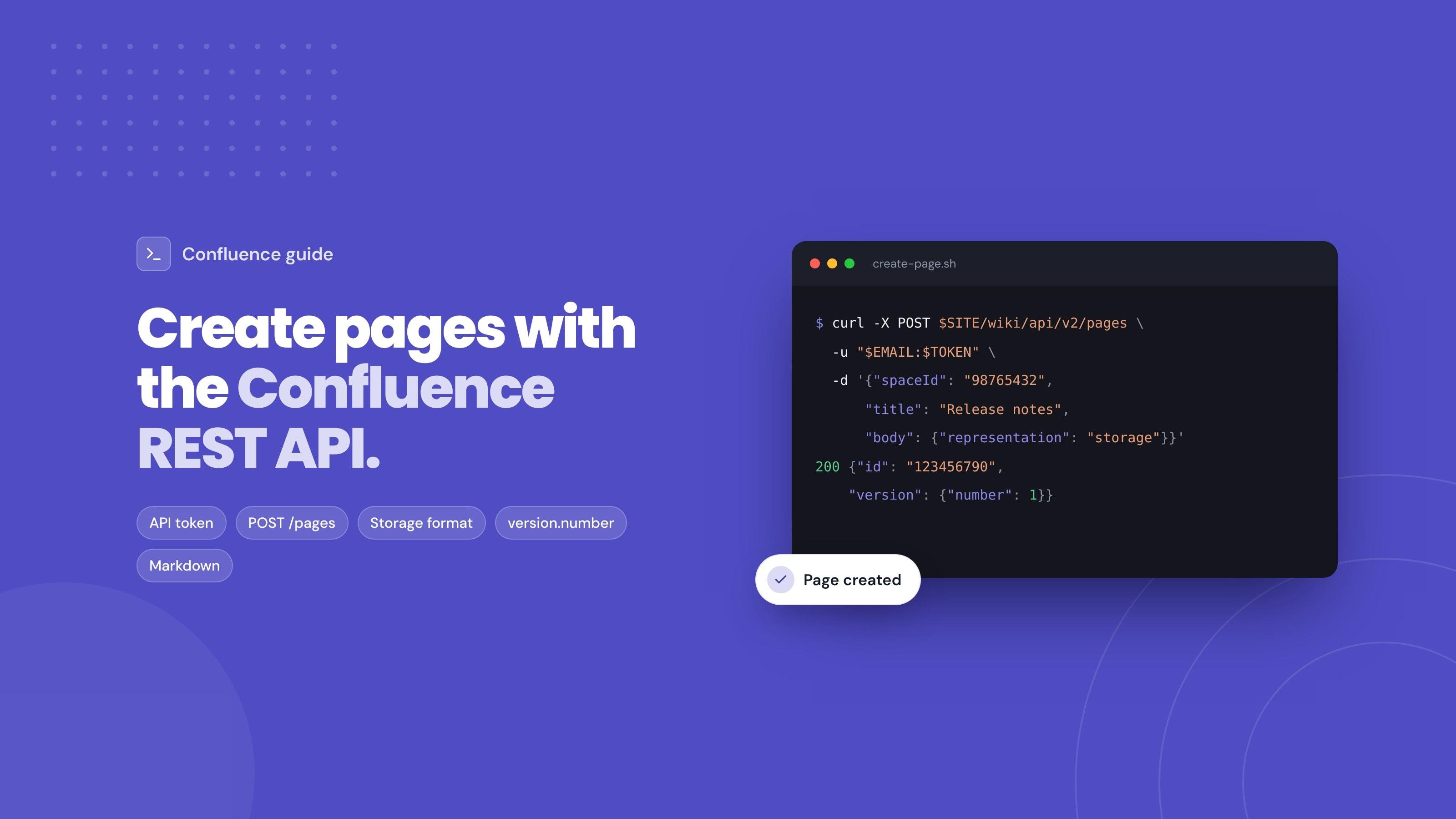
Here is a complete request that creates a page under a parent:
curl -s -X POST "https://your-site.atlassian.net/wiki/api/v2/pages" \
  -u "[email protected]:$CONFLUENCE_API_TOKEN" \
  -H "Content-Type: application/json" \
  -d '{
    "spaceId": "98765432",
    "status": "current",
    "title": "Release 4.2 notes",
    "parentId": "123456789",
    "body": {
      "representation": "storage",
      "value": "<h2>What changed</h2><p>Faster search and a new export button.</p>"
    }
  }'
What each field does:
| Field | Meaning |
|---|---|
spaceId |
The numeric space ID from the previous step |
status |
current publishes the page; draft saves it as a draft |
title |
Page titles must be unique within a space |
parentId |
Optional. Without it, the page is created under the space's home page |
body.representation |
The format of value. storage is Confluence's XHTML-based format |
body.value |
The page content |
The response is the new page as JSON. Keep its id, because you need it for every update, and note version.number, which starts at 1.
The same request in Python:
import os
import requests

SITE = "https://your-site.atlassian.net/wiki/api/v2"
AUTH = (os.environ["CONFLUENCE_EMAIL"], os.environ["CONFLUENCE_API_TOKEN"])

page = {
    "spaceId": "98765432",
    "status": "current",
    "title": "Release 4.2 notes",
    "parentId": "123456789",
    "body": {
        "representation": "storage",
        "value": "<h2>What changed</h2><p>Faster search and a new export button.</p>",
    },
}

r = requests.post(f"{SITE}/pages", json=page, auth=AUTH, timeout=30)
r.raise_for_status()
created = r.json()
print(created["id"], created["version"]["number"])
Update a page
Updates replace the whole page body, and they must carry the next version number. That stops two scripts, or a script and a person, from silently overwriting each other. The usual pattern is read, then write:
page_id = created["id"]

current = requests.get(f"{SITE}/pages/{page_id}", auth=AUTH, timeout=30).json()

update = {
    "id": page_id,
    "status": "current",
    "title": current["title"],
    "body": {
        "representation": "storage",
        "value": "<h2>What changed</h2><p>Faster search, a new export button and a dark theme.</p>",
    },
    "version": {
        "number": current["version"]["number"] + 1,
        "message": "Updated from CI",
    },
}

r = requests.put(f"{SITE}/pages/{page_id}", json=update, auth=AUTH, timeout=30)
r.raise_for_status()
The message shows up in the page history, so it is worth saying where the change came from. If someone edits the page between your read and your write, the version number is stale and Confluence rejects the update. Read the page again and retry.
Find a page by title
Scripts that run on every build usually need "create the page if it doesn't exist, otherwise update it". Since titles are unique within a space, you can look the page up by title first:
r = requests.get(
    f"{SITE}/pages",
    params={"space-id": "98765432", "title": "Release 4.2 notes"},
    auth=AUTH,
    timeout=30,
)
results = r.json()["results"]
page_id = results[0]["id"] if results else None
If page_id is None, create the page; otherwise update it as above. Storing the page ID in your repository after the first run is even more reliable, because a title search breaks as soon as someone renames the page.
Storage format in practice
Storage format is XHTML with Confluence-specific elements for macros. Plain HTML elements such as <h2>, <p>, <ul>, <table> and <a> work as you would expect. Macros use ac: elements. A code block, for example, looks like this:
<ac:structured-macro ac:name="code">
  <ac:parameter ac:name="language">bash</ac:parameter>
  <ac:plain-text-body><![CDATA[npm install our-cli]]></ac:plain-text-body>
</ac:structured-macro>
The easiest way to learn the format is to build a page by hand in the editor, then fetch it with GET /wiki/api/v2/pages/{id}?body-format=storage and copy what you need. Our guide to code blocks in Confluence covers the code macro's options.
Two things to watch: the value must be well-formed XML, so escape & as & and close every tag, and CDATA is the safe way to include code that contains < or &.
Errors and rate limits
| Status | Usual cause | Fix |
|---|---|---|
| 400 | Malformed body, invalid storage format, or a title that already exists in the space | Validate the XHTML; search by title and update instead |
| 401 | Wrong email, expired token or a typo in the header | Create a new token and check the Basic auth string |
| 403 | Your account can't add or edit pages there | Check space and page permissions |
| 404 | Wrong space ID or page ID, or no permission to see it | Look the IDs up again |
| 429 | Too many requests | Wait for the time in the Retry-After header, then retry |
For bulk jobs, run requests one at a time or with a small concurrency limit, and back off on 429 responses.
When your content is Markdown
Most teams that automate Confluence don't start from storage format. They have Markdown: READMEs, docs folders, changelogs, generated API references. Converting Markdown to valid storage format yourself, including code blocks, tables and images, is where most of the work in these scripts goes.
Markdown Importer for Confluence has its own REST API for this case. You send Markdown and a title, and the app creates the page, or updates it when you set overwrite:
curl -X POST "$CONFLUENCE_API_ENDPOINT" \
  -H "Authorization: Bearer $CONFLUENCE_API_TOKEN" \
  -H "Content-Type: application/json" \
  -d '{
    "spaceId": "98765432",
    "parentId": "123456789",
    "pageTitle": "Release 4.2 notes",
    "content": "## What changed\n\nFaster search and a new export button.",
    "overwrite": true
  }'
The differences from calling Confluence directly:
- No conversion and no version numbers. The body is Markdown, and
overwrite: trueupdates the existing page with that title in the space. - Its own tokens. You create them in the app's API tab, which also shows your endpoint URL. They last from 1 day to 30 days and can be revoked there.
- The same IDs.
spaceIdis the numeric space ID (a key such asDOCSreturns a 400), andparentIdis the parent page. - Pages only. Attachments still need to be uploaded separately.
The API reference lists every field and response code, and the launch post has more background. If your Markdown lives in GitHub, our guide to syncing GitHub docs to Confluence automatically has a ready GitHub Actions setup.
Use the Confluence API directly when you generate rich pages with macros, layouts or labels, or need to read and search content. Use the Markdown route when you publish documentation that is written as Markdown and should stay that way. For how to organise API reference pages once they are in Confluence, see how to document APIs in Confluence and our technical documentation setup.
Frequently asked questions
Which Confluence REST API version should I use?
Use v2 (/wiki/api/v2) for pages, spaces and most content in Confluence Cloud. Atlassian is moving endpoints from v1 to v2, and the v2 page endpoints are simpler to work with.
How do I authenticate to the Confluence Cloud REST API?
Create an API token for your Atlassian account and use Basic auth with your email address as the username and the token as the password. Apps built on Atlassian Forge or Connect use their own authentication instead.
Why does my page update fail?
Most often the version number. Each update must send the current version plus one, so fetch the page first and increment version.number. A stale or repeated number is rejected.
Can I use the space key instead of the space ID?
Not in the v2 page endpoints. Look up the numeric ID with GET /wiki/api/v2/spaces?keys=YOURKEY and use that.
Can I send Markdown or plain HTML to Confluence?
The page endpoints expect Confluence's storage format, which accepts many plain HTML elements but not Markdown. To publish Markdown, convert it first or send it to the Markdown Importer REST API, which does the conversion.
How do I add attachments with the API?
Attachments are a separate call from page creation. Create the page first, then upload the file to that page and reference it in the content.
Try it
Create an API token, look up your space ID, and run the curl example above against a test space. When your content is Markdown, install Markdown Importer for Confluence and follow its REST API quick start to publish your first page in a few minutes.