


.png&w=64&q=75)
Usage Statistics
View which pages and spaces are using LaTeX macros in your Confluence instance.
Overview
Usage Statistics shows you where LaTeX Math macros are being used across your Confluence instance. This helps you track adoption and find pages with mathematical equations.
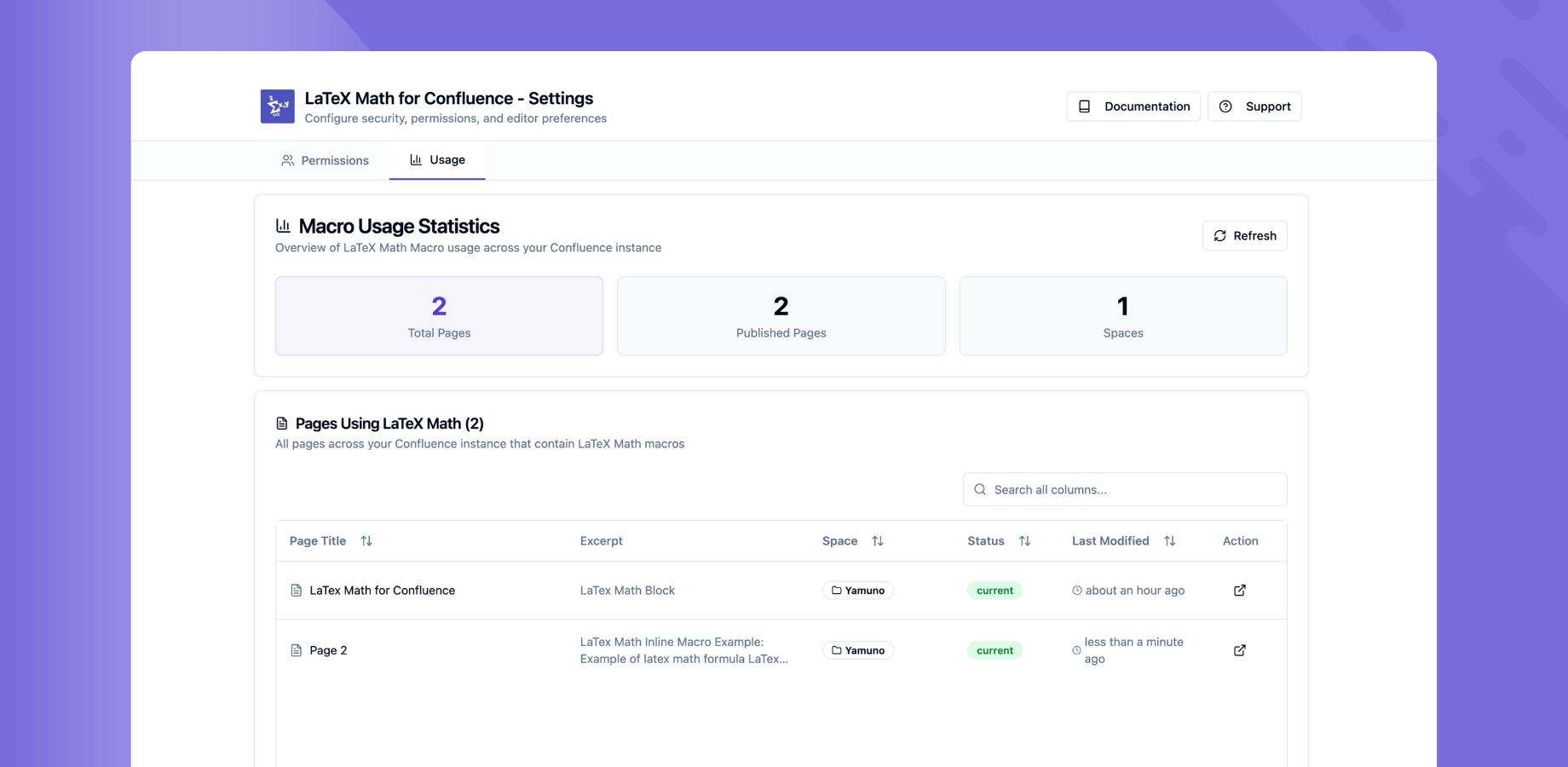
Accessing Usage Statistics
Navigate to Usage Tab
- Go to Confluence Administration → Manage Apps
- Find LaTeX Math for Confluence
- Click Configure
- Select the Usage tab
- View the list of pages using LaTeX macros
What You Can See
Pages Using LaTeX Macros
The usage statistics display shows:
Page Information:
- Page title - Name of the page
- Space - Which Confluence space the page belongs to
- View button - Click to open the page directly
How it works:
- Lists all pages that contain LaTeX macros
- Organized by space
- Easy navigation to each page
- Real-time updates when macros are added or removed
Using the Statistics
Find Pages with Equations
To locate specific pages:
- Open the Usage tab
- Scan the list of pages
- Look for the page title or space you need
- Click "View Page" to open it
Monitor Adoption
Track usage across spaces:
- See which spaces are using LaTeX macros
- Identify teams actively using mathematical equations
- Understand adoption across your organization
Navigate to Content
Quick access:
- Click the "View Page" button next to any page
- Opens the page in a new tab
- Navigate directly to pages with equations
Page List Details
Information Displayed
For each page, you'll see:
| Column | Description |
|---|---|
| Page Title | The name of the Confluence page |
| Space | The space where the page is located |
| Actions | Button to view the page |
Common Use Cases
Use Case 1: Finding Mathematical Content
Scenario: You need to find all documentation with equations
Steps:
- Open Usage Statistics
- Review the list of pages
- Click through pages in relevant spaces
- Locate the content you need
Use Case 2: Tracking Adoption
Scenario: You want to see which teams are using LaTeX
Steps:
- Open Usage Statistics
- Look at which spaces have pages listed
- Identify active teams
- Reach out to teams not yet using the feature
Use Case 3: Content Audit
Scenario: You need to review all mathematical content
Steps:
- Open Usage Statistics
- Export or note down all pages (manually)
- Visit each page to review content
- Update or maintain equations as needed
Best Practices
Regular Reviews
- Check usage periodically - See adoption trends
- Visit listed pages - Ensure equations are correct
- Monitor new pages - Track when teams start using LaTeX
- Document usage patterns - Note which spaces use equations most
Content Management
- Review equations regularly - Keep content accurate
- Update outdated content - Maintain mathematical accuracy
- Archive unused pages - Clean up old content
- Train new users - Help teams adopt LaTeX macros
Limitations
What's NOT Tracked
Currently, usage statistics do not include:
- ❌ Number of macros per page
- ❌ Macro types (inline vs block)
- ❌ Creation dates
- ❌ Last modified dates
- ❌ User who created macros
- ❌ Edit history
- ❌ Usage trends over time
- ❌ Export functionality
The feature simply lists pages and spaces where macros are present.
Future Enhancements
Planned Features
- 📊 Macro counts - Number of equations per page
- 📈 Usage trends - Track adoption over time
- 📁 Export to CSV - Download usage reports
- 🔍 Search and filter - Find specific pages
- 👤 User information - See who created macros
- 📅 Date tracking - When macros were added
- 📊 Analytics dashboard - Visual charts and graphs
Troubleshooting
No Pages Listed
Problem: Usage statistics shows empty or no results
Possible causes:
- No LaTeX macros have been added yet
- Macros were recently deleted
- App needs to refresh
Solutions:
- Add LaTeX macros to some pages
- Wait a few minutes for the list to update
- Refresh the configuration page
- Contact support if issue persists
Can't View Page
Problem: "View Page" button doesn't work
Possible causes:
- Page was deleted
- You don't have view permission
- Space permissions changed
Solutions:
- Check if page still exists
- Verify you have space access
- Ask admin to grant permissions
- The page may have been archived
Statistics Not Updating
Problem: New pages with macros don't appear
Solutions:
- Refresh the page - Reload the config page
- Wait a moment - Updates may take a minute
- Verify macro was saved - Check the page has a LaTeX macro
- Contact support - If updates don't appear after 5 minutes
Related Documentation
- 📖 Access Control & Permissions - Control who can edit macros
- 📖 Getting Started - Quick setup guide
- ❓ FAQ - Frequently asked questions
Need Help?
Last Updated: January 2025