


.png&w=64&q=75)
Adding LaTeX Macros
Learn how to add LaTeX Math macros to your Confluence pages using the slash command.
Overview
LaTeX Math for Confluence makes it easy to add mathematical equations to your pages. Simply use the /latex slash command to insert either inline or block macros.
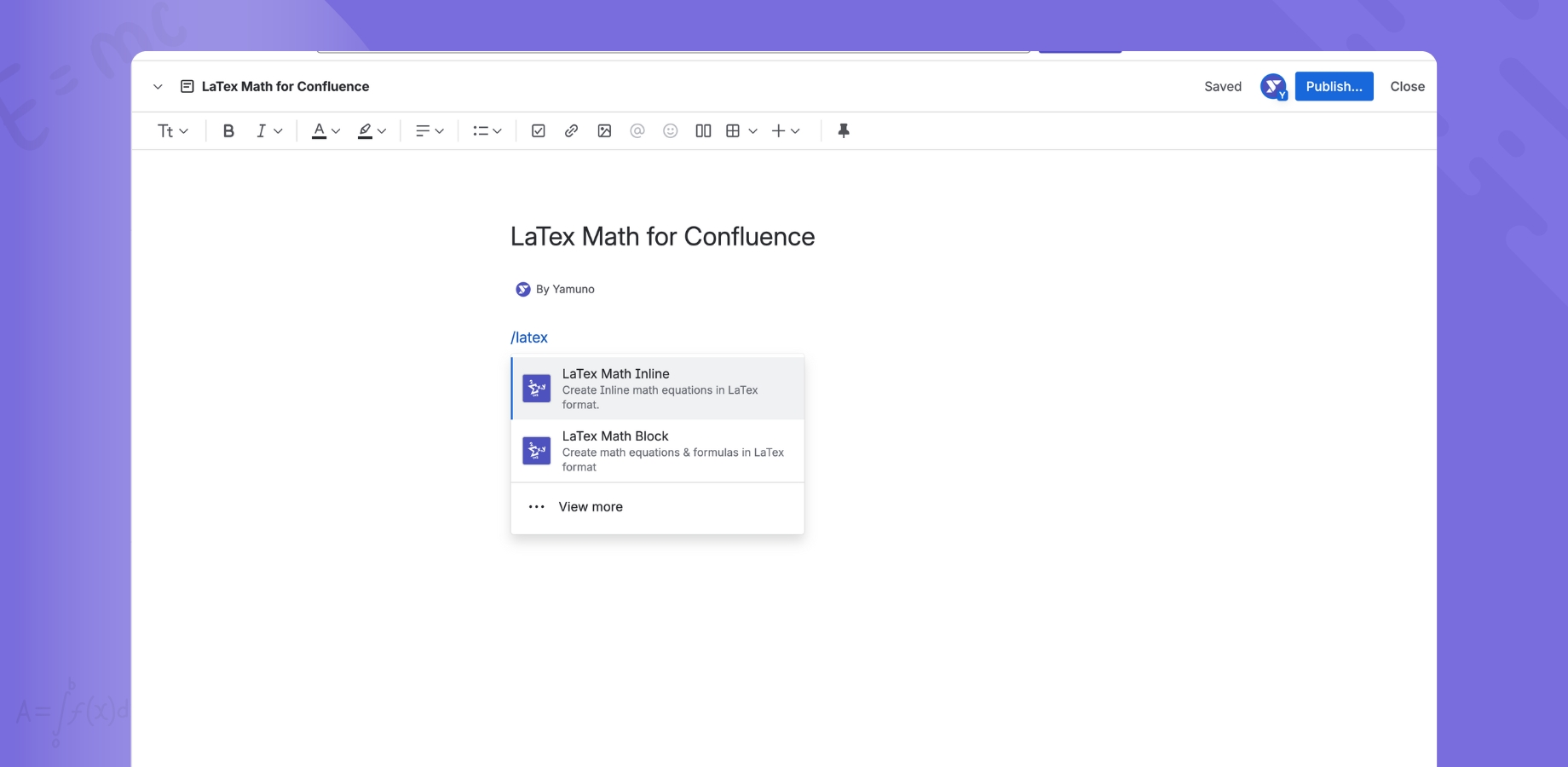
Using the Slash Command
Step 1: Open a Confluence Page
- Navigate to any Confluence page
- Click Edit to enter edit mode
- Place your cursor where you want to add the equation
Step 2: Type the Slash Command
- Type
/latexin the editor - A dropdown menu appears with two options:
- LaTeX Math for Confluence (Inline) - For inline equations
- LaTeX Math for Confluence (Block) - For display equations
Step 3: Select the Macro Type
For inline equations:
- Select LaTeX Math for Confluence (Inline)
- Use for equations within text (e.g., E = mc²)
For block equations:
- Select LaTeX Math for Confluence (Block)
- Use for standalone equations on their own line
Step 4: Enter Your LaTeX Code
- The macro editor opens
- Type your LaTeX equation
- See live preview as you type
- Click Insert or Save
Step 5: Publish the Page
- Click Publish in Confluence
- Your equation renders on the published page
- Everyone with page access can view it
Quick Examples
Adding an Inline Equation
Use case: Equation within a sentence
Steps:
- Type:
/latex - Select: LaTeX Math for Confluence (Inline)
- Enter:
E = mc^2 - Click Insert
Result: The equation appears inline with your text like this: E = mc²
Adding a Block Equation
Use case: Standalone equation with emphasis
Steps:
- Type:
/latex - Select: LaTeX Math for Confluence (Block)
- Enter:
\int_{-\infty}^{\infty} e^{-x^2} dx = \sqrt{\pi} - Click Insert
Result: The equation appears centered on its own line
Macro Types Explained
Inline Macro
Characteristics:
- Flows with text
- Smaller size
- No line breaks
- Ideal for simple equations
Best for:
- Variables in sentences (x, y, z)
- Simple formulas (a² + b²)
- Chemical formulas (H₂O)
- Mathematical notation in paragraphs
Example usage:
The Pythagorean theorem states that a² + b² = c² for right triangles.
Block Macro
Characteristics:
- Standalone display
- Centered on page
- Larger size
- Emphasized presentation
Best for:
- Complex equations
- Important formulas
- Multi-line expressions
- Equations needing emphasis
Example usage: Display the quadratic formula prominently:
x = \frac{-b \pm \sqrt{b^2 - 4ac}}{2a}
Common LaTeX Syntax
Basic Operations
| Operation | LaTeX Code | Example |
|---|---|---|
| Superscript | x^2 |
x² |
| Subscript | x_1 |
x₁ |
| Fraction | \frac{a}{b} |
a/b |
| Square root | \sqrt{x} |
√x |
| Sum | \sum_{i=1}^{n} |
Σ |
| Integral | \int_{a}^{b} |
∫ |
Greek Letters
| Letter | LaTeX Code |
|---|---|
| Alpha | \alpha |
| Beta | \beta |
| Gamma | \gamma |
| Delta | \delta |
| Pi | \pi |
| Sigma | \sigma |
Common Symbols
| Symbol | LaTeX Code |
|---|---|
| Infinity | \infty |
| Plus/minus | \pm |
| Multiplication | \times |
| Division | \div |
| Not equal | \neq |
| Less than or equal | \leq |
| Greater than or equal | \geq |
Tips for Adding Macros
✅ Best Practices
-
Choose the right macro type
- Inline for text integration
- Block for standalone equations
-
Use live preview
- Check your equation before inserting
- Fix errors immediately
-
Keep it simple
- Use clear LaTeX syntax
- Avoid overly complex expressions
-
Test before publishing
- Preview in edit mode
- Ensure equation renders correctly
-
Use standard LaTeX
- Stick to KaTeX supported commands
- Check KaTeX documentation
❌ Common Mistakes
-
Wrong macro type
- Using inline for complex equations (too small)
- Using block for simple variables (too much space)
-
Syntax errors
- Missing braces { }
- Unclosed delimiters
- Typos in commands
-
Unsupported commands
- Using LaTeX packages not in KaTeX
- Custom commands that don't exist
-
Not using preview
- Inserting without checking
- Missing errors until published
Editing Existing Macros
How to Edit
- Open the page in edit mode
- Click on the macro you want to edit
- Edit the LaTeX code in the editor
- See live preview of changes
- Save and Publish
Deleting Macros
- Open page in edit mode
- Click on the macro
- Press Delete or Backspace
- Macro is removed
- Publish to save changes
Troubleshooting
Slash Command Not Working
Problem: /latex doesn't show macro options
Solutions:
- Check you're in edit mode
- Ensure app is installed
- Verify you have edit permissions
- Check access control settings
- Try typing the full command:
/latex
Can't Insert Macro
Problem: Insert button doesn't work
Solutions:
- Fix syntax errors - Check LaTeX code
- Wait for preview - Let it render
- Refresh the page - Try again
- Check permissions - Ensure you're in whitelist (if enabled)
Macro Doesn't Appear
Problem: Macro inserted but not visible
Solutions:
- Publish the page - Save changes
- Refresh browser - Clear cache
- Check syntax - Ensure valid LaTeX
- Try different browser - Rule out browser issues
Keyboard Shortcuts
In the Editor
| Action | Shortcut |
|---|---|
| Insert macro | Enter |
| Cancel | Escape |
| New line | Shift + Enter |
Related Documentation
- 📖 Inline Macro - Detailed inline macro guide
- 📖 Block Macro - Detailed block macro guide
- 📖 Live Preview - Using the preview feature
- 📖 Getting Started - Quick setup guide
Need Help?
- 💬 Contact Support
- 📚 View All Documentation
- ❓ FAQ - Common questions
Last Updated: Nov 2025