


.png&w=64&q=75)
Live Preview
Experience real-time LaTeX equation rendering with the built-in live preview feature.
What is Live Preview?
Live Preview provides instant visual feedback as you write LaTeX equations. See your mathematical expressions render in real-time without having to save or publish your changes.
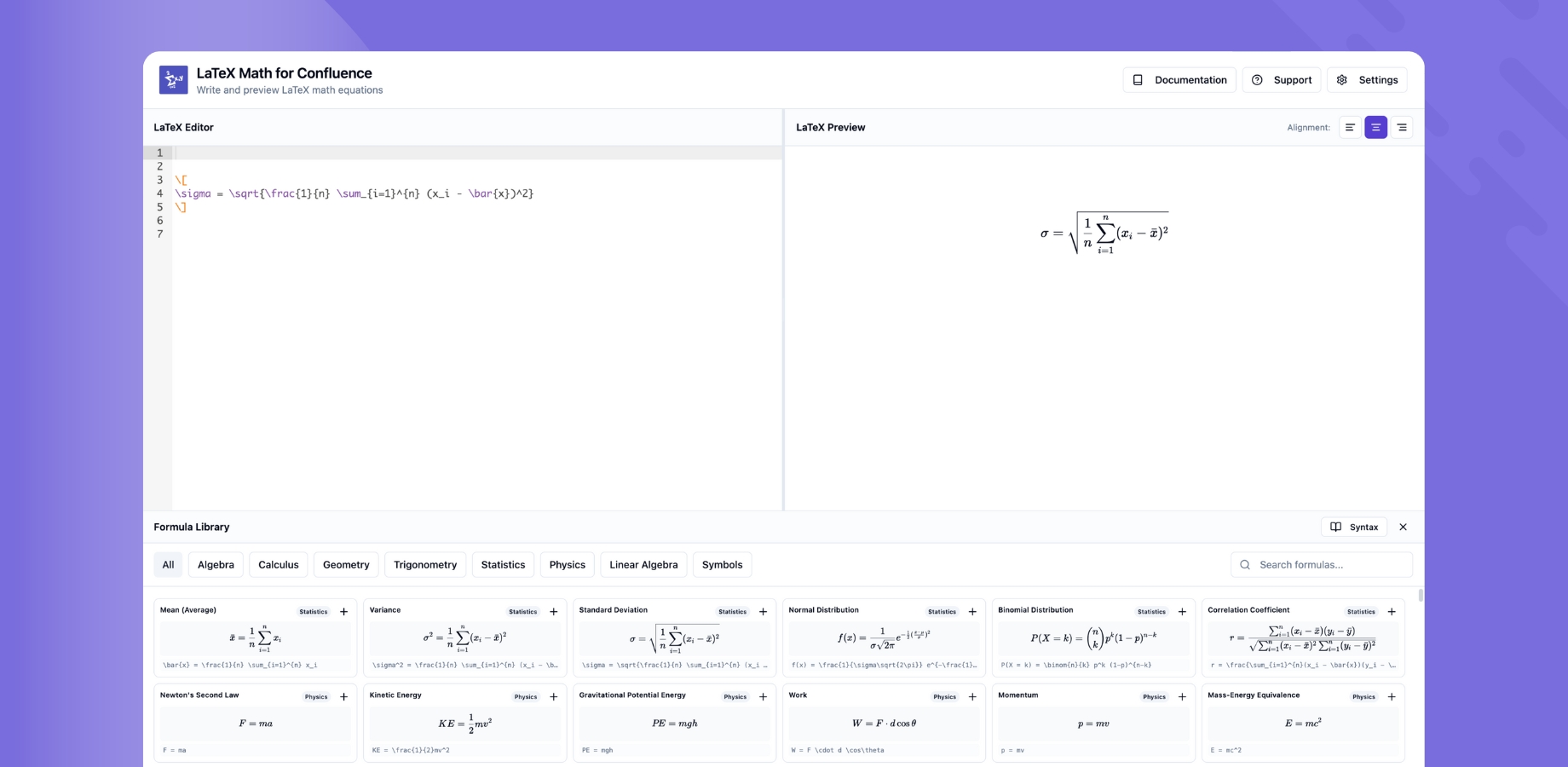
Key Features
- ⚡ Real-time Rendering - See changes instantly as you type
- 🎨 Split-Pane Editor - Code on left, preview on right
- 🔄 Auto-Update - Preview updates automatically
- 🎯 Syntax Validation - Immediate error feedback
- 📱 Responsive Design - Works on all screen sizes
How Live Preview Works
Editor Layout
┌─────────────────────────┬─────────────────────────┐
│    LaTeX Editor         │    Live Preview         │
│                         │                         │
│  \[                     │                         │
│    E = mc^2             │       E = mc²           │
│  \]                     │                         │
│                         │                         │
└─────────────────────────┴─────────────────────────┘
The Split-Pane Interface
Left Pane: LaTeX Editor
- Syntax-highlighted code editor
- Write and edit LaTeX code
- Auto-completion for common commands
- Line numbers for easy navigation
Right Pane: Preview
- Real-time rendered output
- Shows exactly how your equation will appear
- Alignment controls (left/center/right)
- Instant error messages
Using Live Preview
Opening the Editor
- Insert a LaTeX macro on your page
- The editor opens automatically with live preview
- Start typing your LaTeX code
- Watch the preview update in real-time
Writing Equations
As you type:
\int
Preview shows: ∫
Continue typing:
\int_{-\infty}^{\infty}
Preview updates: ∫₋∞^∞
Complete the equation:
\int_{-\infty}^{\infty} e^{-x^2} dx = \sqrt{\pi}
Preview shows the full rendered equation.
Editing Existing Equations
- Click on any LaTeX macro
- The editor opens with your existing code
- Make changes in the left pane
- Preview updates automatically
- Click Save when satisfied
Preview Features
Alignment Preview
Test different alignments in real-time:
Left Align
- Click the left align button
- Preview updates immediately
- Equation aligns to left margin
Center Align (Default)
- Click the center align button
- Preview centers the equation
- Most common for display equations
Right Align
- Click the right align button
- Preview aligns to right margin
- Useful for specific formatting needs
Error Detection
The preview helps catch errors immediately:
Syntax Error:
\frac{1}{2
Preview shows: ❌ Error: Missing closing brace
Unknown Command:
\unknowncommand
Preview shows: ❌ Error: Undefined control sequence
Fixed Code:
\frac{1}{2}
Preview shows: ½ ✅
Resizable Panes
Adjusting Pane Width
- Hover over the divider between panes
- Drag left or right to resize
- Release when satisfied
Presets:
- 50/50 split (default)
- 60/40 (more code space)
- 40/60 (more preview space)
💡 Tip: Give more space to the pane you're focusing on.
Editor Shortcuts
Keyboard Shortcuts
| Shortcut | Action |
|---|---|
Ctrl/Cmd + S |
Save equation |
Ctrl/Cmd + Enter |
Save and close |
Esc |
Close without saving |
Ctrl/Cmd + Z |
Undo |
Ctrl/Cmd + Y |
Redo |
Editor Features
Auto-Indentation
- Automatic code formatting
- Proper nesting for environments
Syntax Highlighting
- Commands highlighted in color
- Easier to spot errors
Bracket Matching
- Matching braces highlighted
- Helps balance parentheses
Formula Library Integration
Quick Insert
While editing, access the formula library:
- Click "Formula Library" button (📚)
- Browse common equations
- Click any formula to insert
- Preview updates with new content
Categories
- Greek Letters
- Common Formulas
- Calculus
- Linear Algebra
- Statistics
- Physics
- Chemistry
Best Practices
✅ Do's
- Use the preview - Verify rendering before saving
- Test alignment - Try different alignments
- Check for errors - Watch for error messages
- Adjust pane sizes - Optimize for your workflow
- Save frequently - Don't lose your work
❌ Don'ts
- Don't ignore errors - Fix syntax issues before saving
- Don't rush - Take time to verify output
- Don't close without saving - You'll lose changes
- Don't overcomplicate - Keep LaTeX simple when possible
Preview Limitations
What Preview Shows
✅ Final rendered appearance ✅ Alignment ✅ Font size relative to page ✅ Dark/light mode ✅ Error messages
What Preview Doesn't Show
❌ Exact page context ❌ Surrounding Confluence content ❌ How it looks in different browsers ❌ Mobile view (use responsive preview)
Note: Always preview the full page after saving to see the equation in context.
Troubleshooting
Preview Not Updating
Problem: Changes don't appear in preview
Solutions:
- Wait a moment - there's a small delay
- Check for syntax errors
- Try typing in a different part of the code
- Refresh the editor (close and reopen)
Preview Shows Error
Problem: Red error message in preview
Solutions:
- Read the error message carefully
- Check for:
- Missing closing braces
} - Unbalanced delimiters
- Typos in command names
- Unsupported commands
- Missing closing braces
- Fix the error and preview updates
Panes Won't Resize
Problem: Can't drag the divider
Solutions:
- Ensure you're hovering over the divider
- Try clicking and dragging again
- Refresh the page
- Use a different browser
Preview is Blank
Problem: Right pane shows nothing
Solutions:
- Check if you've entered any LaTeX code
- Verify code has valid delimiters
- Look for syntax errors
- Try entering a simple equation:
E = mc^2
Performance Tips
For Smooth Preview
- ✅ Keep equations reasonably sized
- ✅ Avoid extremely complex nested structures
- ✅ Use proper LaTeX syntax
- ⚠️ Very large matrices may render slowly
- ⚠️ Excessive nesting impacts performance
Editor Performance
The live preview is optimized for:
- Up to 500 lines of LaTeX code
- Equations with up to 50 elements
- Matrices up to 10×10
For larger content:
- Preview may have slight delay
- Consider breaking into multiple macros
- Simplify where possible
Mobile Experience
Tablet View
- Split-pane layout maintained
- Panes stack vertically in portrait mode
- Horizontal scroll for wide equations
- Touch-friendly controls
Phone View
- Editor and preview in tabs
- Swipe to switch between views
- Full-width editing
- Save button always visible
Advanced Tips
1. Quick Testing
Use the preview to test LaTeX commands:
\alpha \beta \gamma
See Greek letters instantly.
2. Learning LaTeX
The preview is a great learning tool:
- Type commands
- See results immediately
- Learn by experimenting
3. Debugging
Use preview to isolate errors:
- Comment out sections
- Find the problematic line
- Fix and verify
4. Comparing Approaches
Test different LaTeX approaches:
% Approach 1
\frac{a}{b}

% Approach 2
a/b
Choose what looks best.
Accessibility
Screen Reader Support
- Editor announces changes
- Error messages are read aloud
- Keyboard navigation supported
High Contrast Mode
- Preview respects system settings
- Adequate contrast maintained
- Clear visual separation
Related Documentation
- 📖 Inline Macro - Inline equations
- 📖 Block Macro - Display equations
- 📖 Dark Mode - Theme support
- ❓ FAQ
Need Help?
- 💬 Contact Support
- 📚 View All Documentation
- 🎥 Video Tutorial (Coming Soon)