


.png&w=64&q=75)
Time in Status
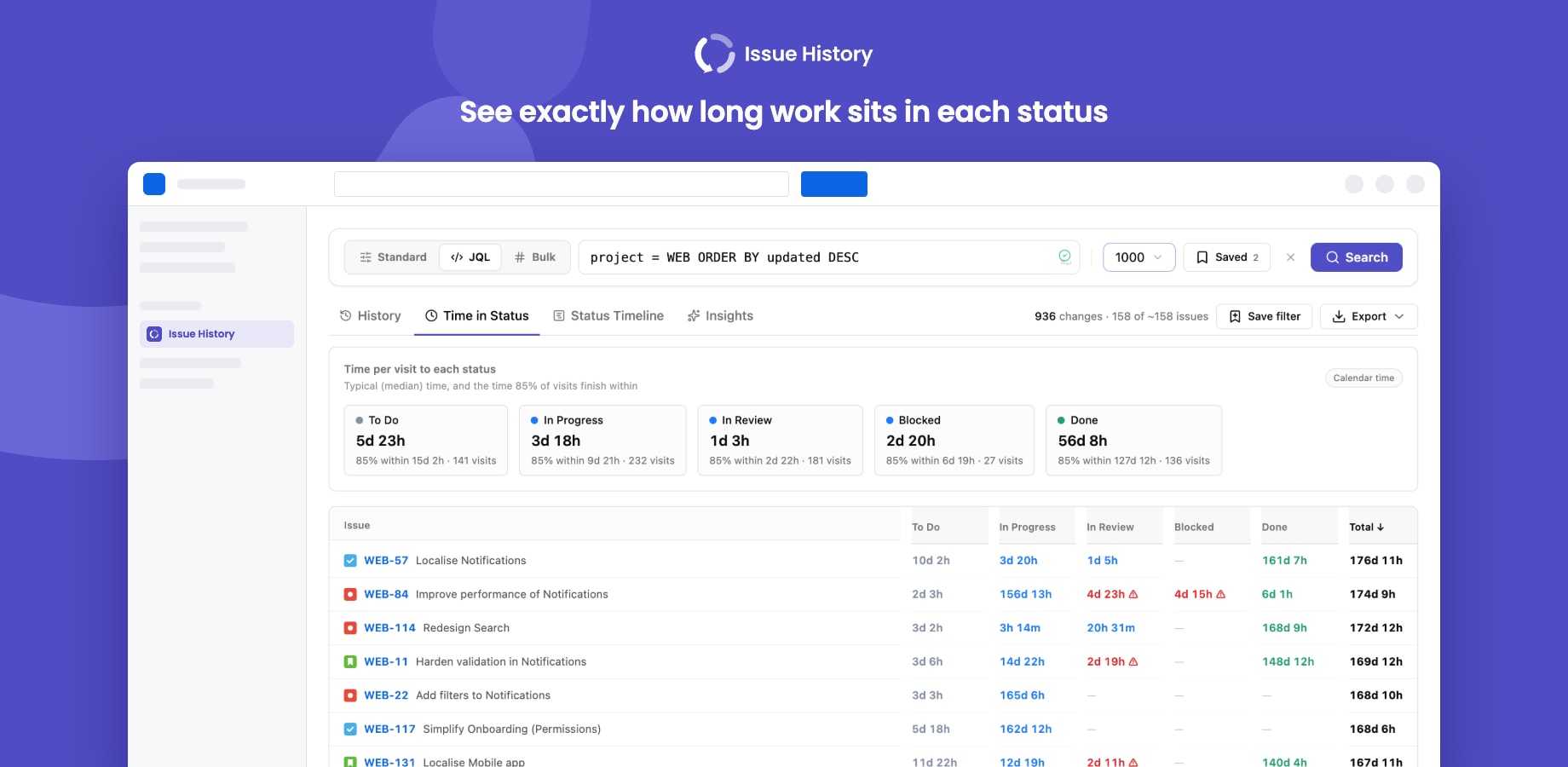
How it's measured
- Time in a status runs from when an issue enters the status until it leaves it. The first status starts at the issue's creation date.
- An issue can visit the same status more than once (e.g. In Progress → In Review → In Progress). Each stay is a visit; per-issue totals add the visits up.
- Statuses are grouped by their Jira category (To Do, In Progress, Done), so custom statuses work correctly.
The summary cards
For each status:
- Median: the typical time per visit.
- 85% within: the time 85% of visits finish within. It shows the slow tail without being skewed by one stuck issue the way an average is.
- Visits: how many times issues entered that status.
The per-issue table
One row per issue, one column per status in workflow order. Click a status header to sort by time in that status, or Total for the longest-running issues. The table shows the top 50; click Show all for the rest.
Calendar time or business hours
In Settings → Analysis, choose Business hours to count only working time, set the working day, and choose whether weekends count. Business hours are measured in each viewer's local time zone.
SLA thresholds
In Settings → Analysis → SLA thresholds, pick a status and the maximum hours an issue should spend in it. An issue breaches when its total time in that status is over the limit:
- Time in Status marks breaching cells with ⚠, and a status card turns red when the typical visit is over its SLA.
- Insights counts issues over SLA and lists the worst overruns.
- Excel and PDF exports include the SLA and the number of issues over it.