Reusable components and brand tokens for Confluence HTML
Short answer: HTML Macro+ for Confluence 7.0 adds a library: shared variables, reusable components and brand tokens that every HTML macro on your site can use. An admin writes a footer, a banner or a brand colour once, and every page that uses it picks up the change on its next view. With this release HTML Macro+ also becomes a paid app for sites with more than 10 users. It stays free for sites with up to 10 users, and until 28 February 2027 there's 25% off monthly and annual subscriptions.
This post covers what the library does, how teams use it, and what the pricing change means for sites that already have the app.
The problem the library solves
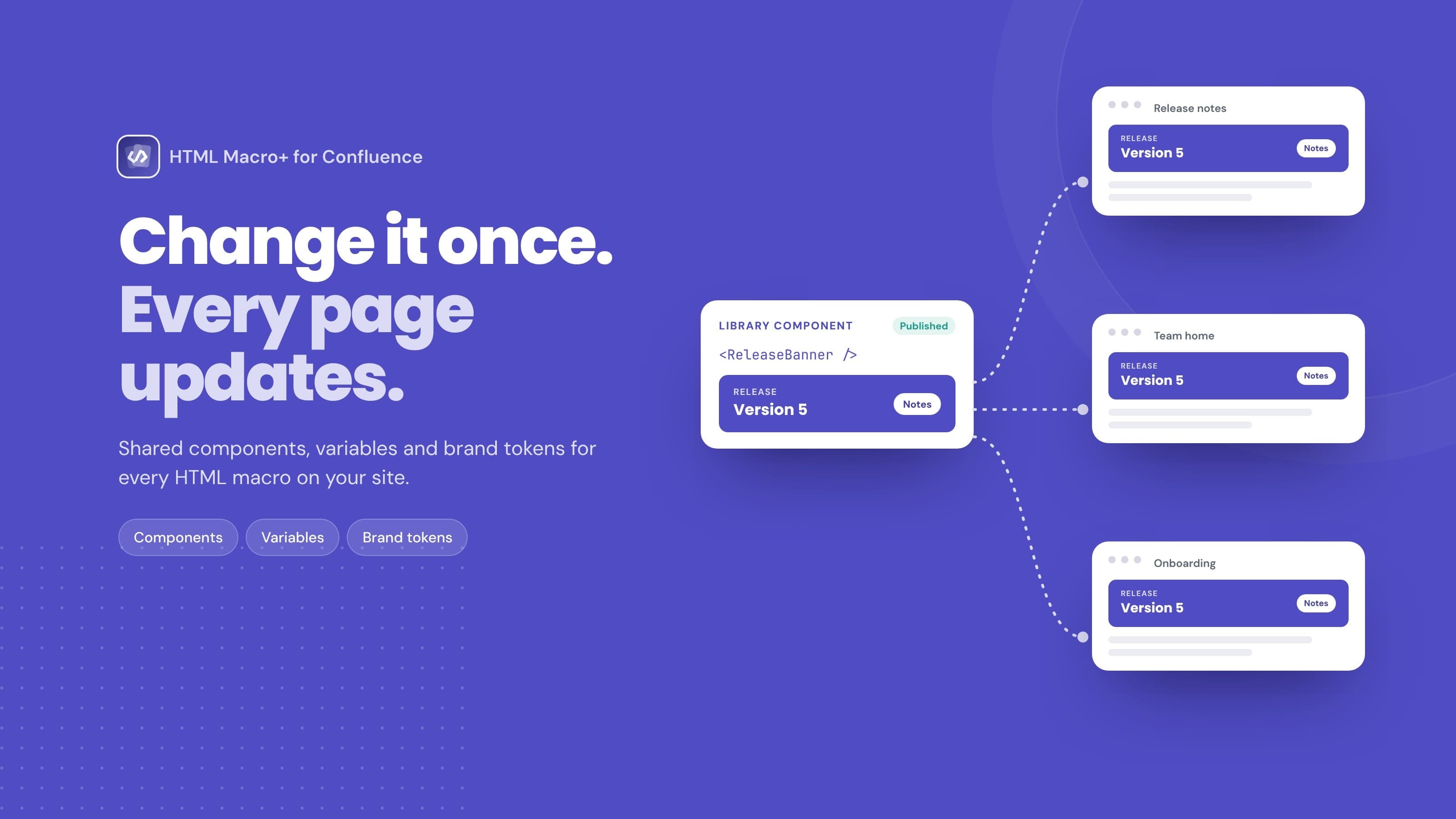
Once a team starts using HTML on Confluence pages, the same pieces turn up again and again: a page footer with the owner and review date, a status notice, a release banner, a contact card. Each copy lives inside its own macro. When the brand colour changes or the support link moves, someone has to find and edit every page by hand, and a few always get missed.
The library moves those shared pieces into one place in the app's settings. Pages refer to them by name instead of carrying their own copy. There are three parts:
| Part | What it holds | How a macro uses it |
|---|---|---|
| Variables | Named values such as a company name, a support link or a release number | {{companyName}} in HTML and CSS, window.HTMLMacro.vars.companyName in JavaScript |
| Components | Reusable HTML, CSS and JavaScript, such as banners, footers and cards | A tag such as <ReleaseBanner /> |
| Brand | Colours, fonts, shape, logo, images and your own design tokens | CSS custom properties such as var(--brand-primary), and {{brand.logo}} for images |
Only Confluence admins can change the library. Page editors use it from the macro editor but can't add, change or delete items. See the library documentation for where to find it in the app's settings.
Variables: write a value once
A variable is a named value you would otherwise repeat on many pages. Use it in HTML or CSS with double braces:
<p>Questions? Contact {{supportEmail}} or see {{companyName}}'s help centre.</p>
In JavaScript, read the same value from window.HTMLMacro.vars.supportEmail.
A few things make variables safe to use widely:
- Built-ins cover common cases with no setup:
{{today}}for today's date in the reader's language,{{page.title}}for the page's title and{{space.key}}for its space. - Values are escaped before they reach the page, so a value can't inject markup into a macro.
- Unknown placeholders are left as written, and the editor warns about them, so a typo is easy to spot.
- Variables in use can't be deleted. The library settings show which pages use each one.
When a value changes, every page that uses it shows the new value the next time it's viewed. No one has to edit or republish the pages. See Variables for names, types and limits.
Components: build a block once, use it everywhere
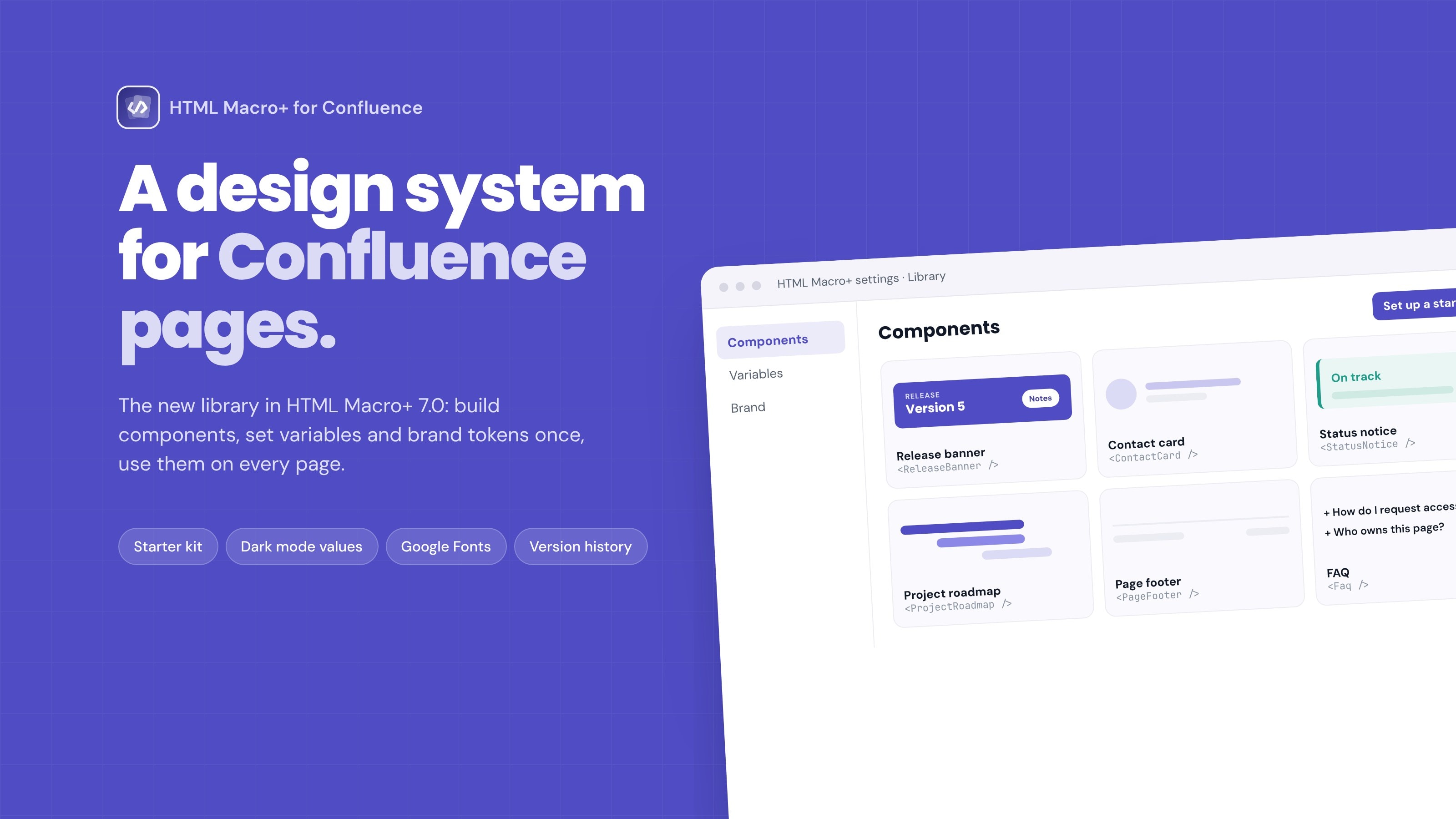
A component is a reusable piece of HTML, CSS and JavaScript. An admin builds it once in the library, and anyone writing a macro adds it with a single tag:
<ReleaseBanner title="Version 5" />
Each component can have settings (props) of type text, number, colour, link or a list of options, with a label, help text and a default. Inside the component, a setting is {{title}} in HTML and CSS and HTMLMacro.props.title in JavaScript. A component's CSS applies only to that component, so its styles never leak into the rest of the macro.
Components are built for teams that maintain them over time:
- Drafts and publishing. Save a draft without touching any page, then publish when it's ready. Every page that uses the component shows the published version on its next view.
- Version history for each component.
- Nesting up to 3 levels deep, so a project status card can include a contact card.
- Starters for a page footer, document control, status notice, release banner, contact card, project status, FAQ and project roadmap. Set up a starter kit creates all of them in one go, along with the variables they read.
- Save as component. If someone has already built something useful in a macro, an admin can turn it into a component from the editor's More menu and choose which placeholders become settings.
In the macro editor, the new Components button opens a picker with search, group filters, a live preview and a form for the component's settings. Add to my code inserts the tag at the cursor, and typing < in the HTML tab suggests component tags. See Components for the full guide and limits.
Brand: one set of tokens for every macro
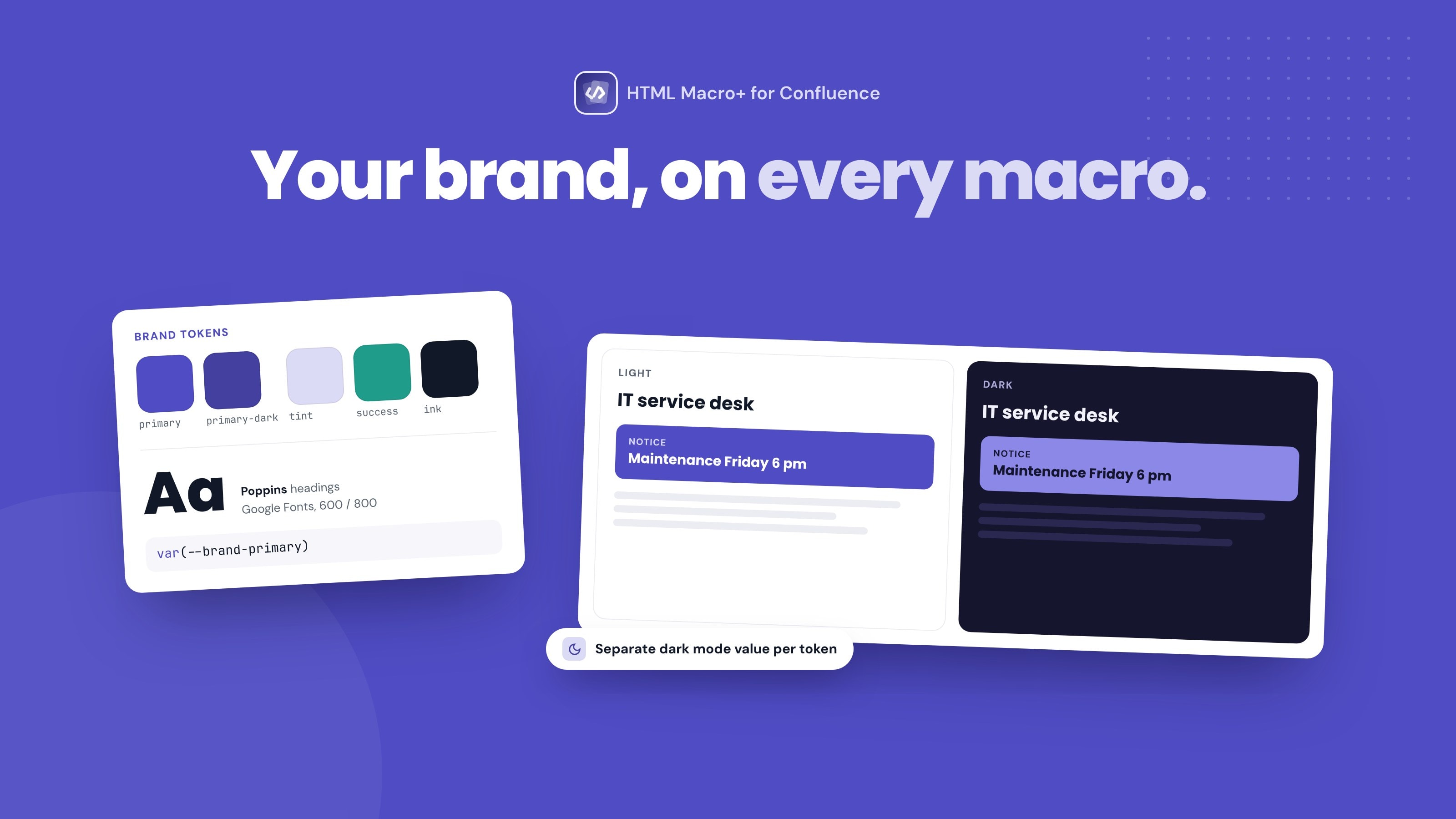
The Brand section holds your colours, fonts, shape settings, logo and images, plus your own design-system tokens. Macros read them as CSS custom properties:
.notice {
  background: var(--brand-primary);
  color: #fff;
}
What it includes:
- Dark mode values. Each token can have a separate dark mode value, and macros use the right one for the reader's Confluence theme. See Supporting dark mode.
- Fonts from Google Fonts or your own font stylesheet. A font only loads on pages whose code uses it.
- Images in PNG, JPEG, WebP, GIF or SVG, used as
{{brand.logo}}and similar names. - Token import and Copy as CSS. Paste CSS custom properties or a tokens JSON file to add many tokens at once, and copy them all back out as CSS. Up to 500 tokens.
Together with components, this is what makes a branded Confluence knowledge base practical: the branded knowledge hub use case walks through a setup. See Brand for details.
Groups and the editor menus
Groups, such as Company, IT or HR, sort variables and components into sections in the settings and in the editor's menus, so people can find the right item on a site with many of them. The macro editor header now has Variables and Components buttons, and a More menu with Save as component (admins only), Embed templates, Copy AI prompt, Documentation and Support. See the HTML editor guide and the release notes for everything in 7.0.
New pricing
From version 7.0, HTML Macro+ is a paid app for sites with more than 10 users:
- Free for sites with up to 10 users, with every feature included.
- Larger sites subscribe monthly or annually through Atlassian, from $0.30 per user per month for 11 to 100 users and less per user on bigger sites. The licensing page has the full table.
- A free 1-month trial through the Atlassian Marketplace, with every feature.
- Launch offer: until 28 February 2027, 25% off monthly and annual subscriptions. Request the code, then enter it in Atlassian Administration when you subscribe, or later under Billing.
Pages always keep showing their content, licensed or not. Without a subscription or trial, macros still render with a short notice above them, the editor opens but can't save, and the app's settings show how to start the trial.
If you already have the app
A site admin approves the paid update once:
- Go to admin.atlassian.com, choose your site, then Site settings → Connected apps.
- Find HTML Macro+ for Confluence, which shows a Paid update tag, and select View app details.
- Select Paid update, then start the free trial or subscribe.
Sites with up to 10 users go through the same steps and take the subscription at no charge. Update to the paid version has the steps with more detail.
Frequently asked questions
Is HTML Macro+ still free?
It is free for sites with up to 10 users, with every feature included. Larger sites subscribe monthly or annually through Atlassian after a free 1-month trial.
Is there a discount?
Yes. Until 28 February 2027 there's 25% off monthly and annual subscriptions. Request the code and enter it in Atlassian Administration when you subscribe, or later under Billing.
Will our pages stop working if we don't subscribe?
No. Pages keep showing their content. Without a subscription or trial, macros show a short notice that the app requires a valid license, and saving in the editor is turned off until an admin subscribes or starts the trial.
Who can change the library?
Only Confluence admins, from the app's settings. Page editors can insert variables and components from the macro editor but can't add, change or delete them.
Do pages update when a component changes?
Yes, once it's published. Drafts don't affect any page. After you publish, every page that uses the component shows the new version on its next view, with no need to edit the pages.
Can components use our brand colours and fonts?
Yes. Components and macros read brand tokens as CSS custom properties such as var(--brand-primary), with separate dark mode values where you set them.
Try it
Start with Set up a starter kit in the library to get a footer, banner, status notice and more in one step, then open the Components picker in any macro. For ideas, see 5 things you can build with HTML Macro+ and how to build a status dashboard in Confluence.