Time in Status in Jira: How to Measure It
Short answer: Jira records every status change in each issue's history, but Jira Cloud has no built-in report that adds those changes up into time per status for a set of issues. You can read it one issue at a time in the History tab, or approximate it for a board with the Control chart. For a whole project, sprint or JQL search, use an app that reads the changelog and totals the time for you, such as Issue History+ for Jira.
"How long does work sit in review?" sounds like a question Jira should answer in one click. The data is there: every time an issue moves from one status to another, Jira writes a changelog entry with the old status, the new status, who moved it and when. What is missing is the arithmetic across many issues.
This guide covers what time in status means, what Jira Cloud gives you natively, how to read the numbers without being misled, and how to get a report for a whole project.
What time in status means
Time in status is how long an issue stays in a workflow status before it moves on. For a single issue it is simple: the issue entered In Review on Monday at 10:00 and left on Wednesday at 16:00, so it spent two days and six hours in review.
Three details make it less simple in practice:
- Repeat visits. An issue can go In Progress, In Review, back to In Progress, then In Review again. Each stay is a separate visit, and the issue's total time in review is the sum of both.
- The first status. The first status has no "entered" change in the history. It starts when the issue is created.
- Calendar time or working time. An issue that enters a status on Friday evening and leaves on Monday morning spent most of a weekend there. Whether that counts depends on what you are measuring.
Across many issues, time in status tells you where work waits. If issues spend a day in development and four days in review, the review step is the bottleneck, whatever the team's velocity says.
What Jira Cloud shows out of the box
Jira gives you several partial views. Each one is useful, and each one stops short of a report you can run for any set of issues.
The History tab on each issue
Open an issue, scroll to Activity and choose History. You see every field change, including each status transition with its timestamp. You can work out time in each status by hand.
That works for one issue. For fifty issues it means fifty tabs and a spreadsheet.
The Control chart
On a company-managed Jira Software board, Reports > Control chart plots cycle time for issues across the board columns you select. It shows the trend and outliers well.
It is tied to a board and its columns rather than to statuses, it is not available in every project type, and it does not give you a per-issue table of time in each status that you can share or export.
Days in column on cards
Boards can show a small indicator of how long a card has been in its current column. It tells you an issue is sitting still now. It does not tell you where the time went before that, or how long the column usually takes.
JQL
JQL can find issues by their status history:
status CHANGED FROM "In Progress" TO "In Review" DURING ("2026-09-01", "2026-09-30")
status WAS "Blocked" ON "2026-10-01"
These are good for finding issues, for example everything that passed through Blocked last month. JQL returns issues, not durations, so it cannot tell you how long anything stayed in a status.
The changelog API
If you are comfortable with scripts, GET /rest/api/3/issue/{issueIdOrKey}/changelog returns the full, paginated history of an issue. You can fetch it for every issue in a search, walk the status changes and total the time per status yourself. Many teams do exactly this in a spreadsheet or notebook, and then maintain the script.
How to read time in status
Once you have the numbers, the way you summarise them matters more than the tool.
Use the median, not the average
Time in status is almost always skewed. Most issues pass through review in a day or two, and one issue that waited three weeks for a decision pulls the average up for everyone. The median is the typical visit: half the visits were shorter, half longer. It moves when the process changes, not when one issue gets stuck.
Add the 85th percentile
The median hides the slow tail. The 85th percentile answers a question people actually ask: "How long will this probably take?" If 85% of visits to In Review finish within three days, that is a fair expectation to give a stakeholder, and anything well beyond it is worth a look.
Count visits
A status with a short median but many visits per issue is a sign of rework. Issues bouncing between In Progress and In Review three times are not waiting long each time, but they are coming back.
Decide on business hours
If your team works weekdays, calendar time makes anything that crosses a weekend look slow. Business hours count only the working day. Pick one and use it consistently, especially when comparing teams.
Set SLAs per status
For support or operations work, a target per status is often more useful than a trend: "nothing should sit in Waiting for triage for more than 8 working hours." Then the report is a list of breaches rather than a chart to interpret.
Step by step: time in status for a whole project
Issue History+ for Jira reads the same changelog Jira already keeps and does the totals for any set of issues. It runs on Atlassian Forge with no external servers, and every request runs with the viewing user's Jira permissions.
- Open Apps > Issue History. Choose a project, a sprint, an assignee, labels, a JQL query or a list of issue keys, and a date range. Click Search.
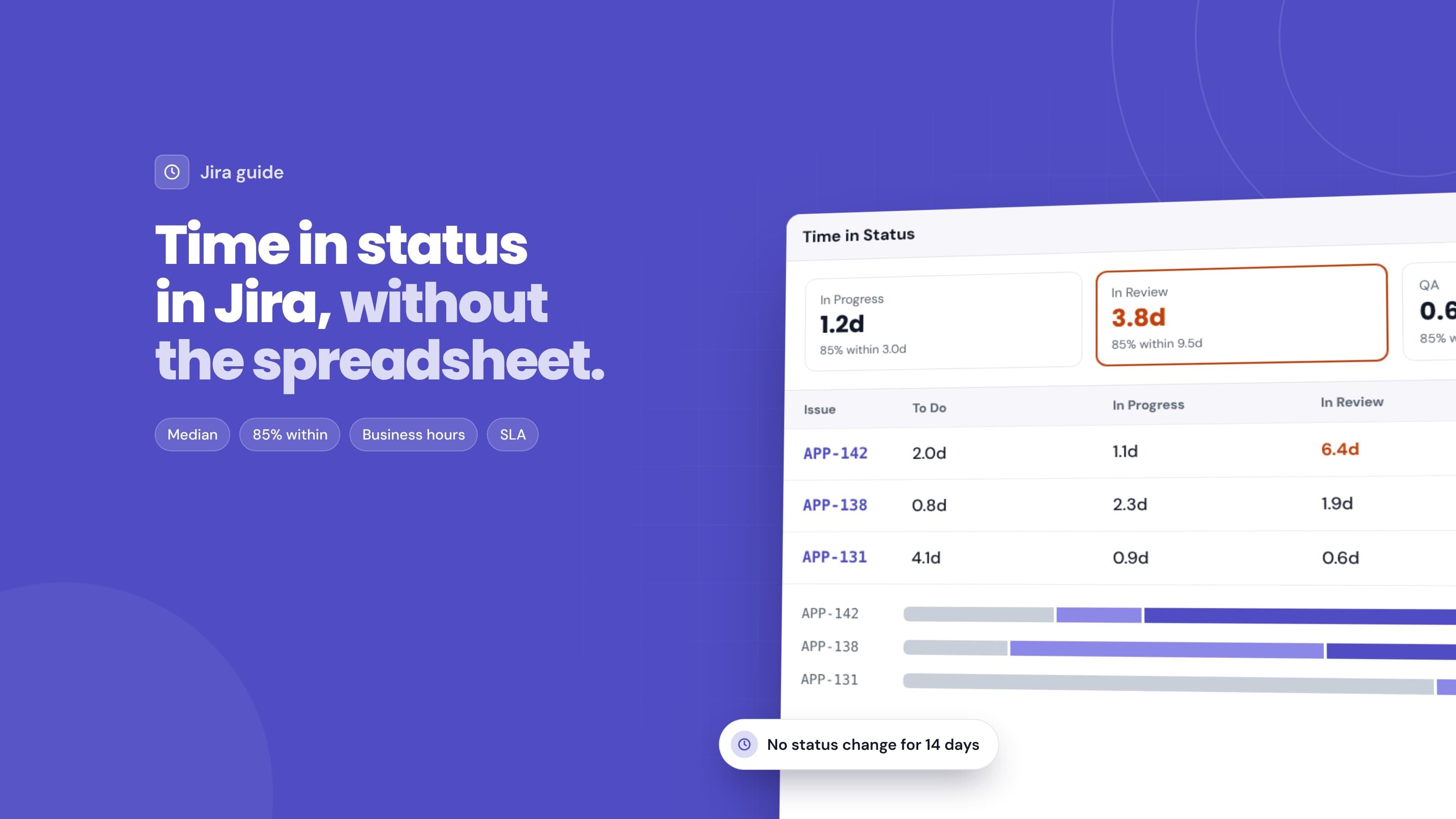
- Open the Time in Status tab. Each status has a card with its median time per visit, the time 85% of visits finish within, and the number of visits. Below is a table with one row per issue and one column per status, in workflow order.
- Sort by the slowest status. Click a status column header to see the issues that spent longest there, or Total for the longest-running issues overall.
- Switch to business hours if you need them. In Settings > Analysis, choose business hours, set the working day, and decide whether weekends count.
- Add SLA thresholds. In the same settings, pick a status and the maximum hours an issue should spend in it. Breaching cells are marked in the table, and a status card turns red when its typical visit is over the limit.
- Check the Status Timeline tab. Each issue's path through the workflow appears as one bar, coloured by status category, so repeat visits and long waits are visible at a glance.
- Export. Download CSV or Excel for further analysis, or a branded PDF with your company name and logo for people who don't use Jira.
The time in status documentation explains exactly how visits, medians and SLAs are calculated. The quick start walks through a first search.
Custom workflows work as they are. The app uses each status's Jira category (To Do, In Progress, Done), so statuses like Shipped or Won't Fix count correctly.
Three questions time in status answers
What is stuck right now?
The Insights tab has an Inactive work list: issues that are not done and have had no status change for 7, 14 or 30 days. It is a short list to bring to stand-up instead of scanning the board for old cards.
Where are we missing our targets?
With SLA thresholds set, Insights counts the issues over SLA and lists the worst overruns first. Excel and PDF exports include the SLA and the number of issues over it, which is usually what a service review needs.
How much work comes back?
Insights also shows reopened issues (anything that left Done at least once) and rework, the share of status moves that go back to an earlier category. Together with median cycle time and weekly throughput, they show whether work is flowing or circling. The Insights documentation defines each metric.
For a single issue, you don't need to leave it: an Issue Insights tab in the issue's Activity section shows its time in status, its status timeline and every change.
If you also report on Jira through dashboards, our guide to Jira reporting for product managers and building a Jira dashboard that tells you something cover the other half: where issues are now, rather than how long they took to get there.
Frequently asked questions
Does Jira Cloud have a built-in time in status report?
Not as a report for any set of issues. Jira records every status change in the issue history, and company-managed boards have a Control chart for cycle time across columns, but there is no native table of time per status per issue for a project, sprint or JQL search.
How is time in status calculated?
From the moment an issue enters a status until it leaves it. The first status starts at the issue's creation date. If an issue visits the same status more than once, each visit is measured separately and the issue's total is the sum.
Should I use the average or the median?
The median. One issue stuck for weeks can double an average, while the median shows the typical visit. Add the 85th percentile to see how long most visits take, including the slower ones.
Can I measure time in status in business hours?
In Issue History+ for Jira, yes: choose business hours in Settings > Analysis, set the working day and choose whether weekends count. Business hours use each viewer's local time zone, so use calendar time when comparing figures across time zones.
Does it work with custom statuses and workflows?
Yes. Issue History+ uses each status's Jira category, so any custom status counts correctly for time in status, cycle time and completion. It reads the standard changelog, which both company-managed and team-managed projects record.
Does my Jira data leave Atlassian?
No. Issue History+ runs entirely on Atlassian Forge and declares no egress. It stores only each user's saved searches and settings, in Forge storage. The data and privacy page lists exactly what it reads and stores.
Try it
Issue History+ for Jira is on the Atlassian Marketplace for Jira Cloud. Install it, open Apps > Issue History, pick a project and open the Time in Status tab. You will see where your work waits in the time it takes to run one search.