Script Toolkit for Jira is live on the Marketplace
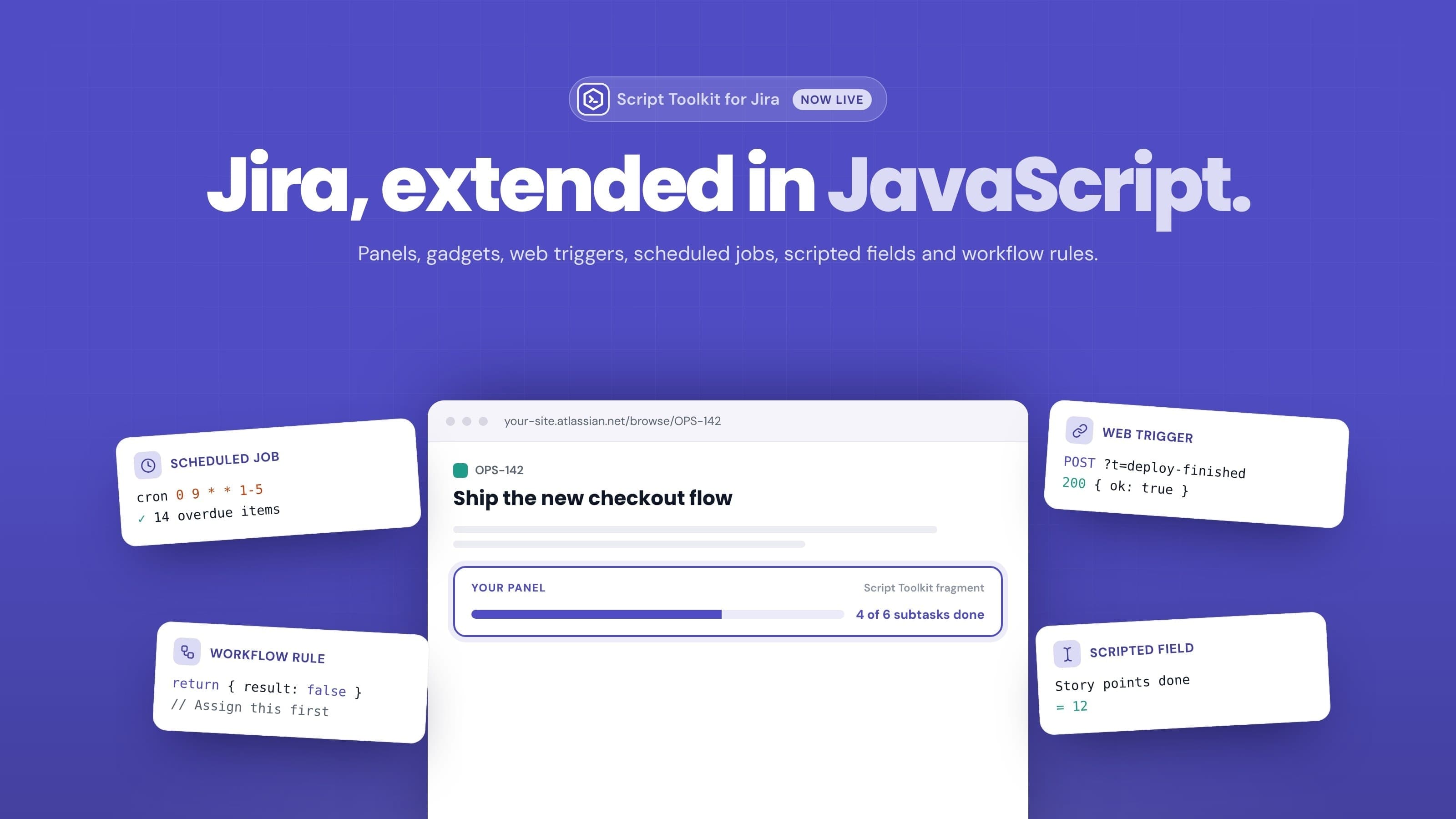
Short answer: Script Toolkit for Jira is now on the Atlassian Marketplace, and it's free. It lets Jira admins extend Jira Cloud with JavaScript: your own panels on work items, dashboard gadgets, web triggers for other systems, scheduled jobs, scripted fields and workflow validators. Everything runs on Atlassian Forge, inside your Jira site, and backend scripts are read only unless you allow writes.
Most Jira teams have a short list of small things they wish Jira did. Show the linked deployment on every work item. Post a comment when CI finishes. Count overdue work every morning. Refuse a transition when a field is empty. Each one is a few lines of code, but until now each one meant building and hosting a whole app, or living without it. Script Toolkit gives those few lines a place to run.
What you can build
Try code in the Script Console
Open Jira settings → Apps → Script Toolkit → Script Console, write JavaScript, and press ⌘↵ (Ctrl+↵ on Windows). The console runs in your browser with your own Jira permissions and saves nothing, so it's a safe place to explore the Jira REST API before you turn code into a script:
const res = await requestJira('/rest/api/3/search/approximate-count', {
  method: 'POST',
  headers: { 'Content-Type': 'application/json' },
  body: JSON.stringify({ jql: 'statusCategory != Done AND assignee = currentUser()' }),
})
const { count } = await res.json()
return `${count} open work items assigned to you`
await works at the top level, and whatever you return is shown under the editor. The Script Console guide lists every global you can use.
Fragments: your own panels inside Jira
A fragment is HTML, CSS and JavaScript that Script Toolkit shows inside Jira. Put it in a panel on every work item, in a dialog opened from the work item's ••• menu, on a project page or in project settings. Several fragments in the same place appear as tabs.
Fragments run in the viewer's browser and call Jira as the viewer, so people only ever see what they could already see. Use Atlassian design tokens and your panel follows Jira's light and dark themes. The fragments guide has a minimal example you can paste and save.
Dashboard gadgets
Gadget scripts work like fragments, but on a dashboard. Add the Script Toolkit Gadget, pick one of your gadget scripts, and each gadget on the dashboard can show a different one. Each viewer sees their own data. See Gadgets for the setup. If what you need is a standard chart rather than custom code, Charts for Jira Dashboard is the quicker route.
Web triggers for other systems
A web trigger gives a script a secure URL with its own secret. A CI pipeline, a monitoring alert or a form can call it, and whatever the script returns comes back as JSON. Calls without the right secret get a 401 before any script runs, and you can rotate the secret at any time. The web triggers guide shows a full example that comments on a work item when a deploy finishes.
Scheduled jobs
Run a backend script on a cron schedule in UTC: a morning count of overdue work, a weekly clean-up, a nightly sync with another tool. Jobs are checked every five minutes and can run for up to five minutes each. See Scheduled jobs.
Scripted fields
Create a custom field whose value a script computes when the work item is shown: text, number, user, date or date time. For example, the number of done subtasks, or a due date worked out from other fields. Field runs have their own daily limit, so heavy browsing can't use up the budget your jobs and triggers need. See Scripted fields.
Workflow validators and post-functions
Attach a script to a transition. A validator can block it and tell the user why, for example "Assign this work item first." A post-function runs after the transition, to add a comment or set a field. A validator that fails or times out allows the transition, so a broken script can never lock a workflow. See Workflow extensions.
Bulk tools for people who aren't admins
Script Toolkit also includes seven ready-made bulk tools for work items: transition, set resolution, assign, add a comment, edit labels, set priority, and copy one custom field into another. You open each tool to admins, chosen groups or everyone. People run a tool on a JQL query, up to 5,000 work items at a time, and it uses their own Jira permissions, so access to a tool grants no new rights. The tools guide covers access and limits.
Safe by default
Running code inside Jira should not mean giving up control, so the defaults are strict:
- Only Jira admins write scripts. Everyone else only sees the results, or runs the bulk tools you open to them.
- Backend scripts are read only unless you set a script's Jira access to Read and write. Any request that would change data is refused before it is sent.
- Outbound calls happen only if you allow them, either to a list of hosts you choose or to any public https host. Private and internal addresses are always refused.
- Secrets stay secret. API keys live in Forge's encrypted secret storage, can't be read back from the UI, and are masked in logs.
- Every run has limits: a time limit per run and daily limits per site, which admins can adjust within set ranges.
- Every run is logged, grouped by run and filterable by script, with a retention you set.
Backend scripts run in an isolated JavaScript sandbox inside the app, on Atlassian's infrastructure. Yamuno runs no servers for Script Toolkit and receives none of your data. The data and privacy page lists what the app stores and each permission it asks for, and our Forge security checklist explains what "runs on Atlassian" means when you compare apps.
Who it's for
- Jira admins who keep getting asked for "just one small panel" or "one more rule on this transition"
- Platform and DevOps teams connecting CI, deploys and monitoring to Jira through web triggers
- Team leads and support staff who need bulk changes without becoming Jira admins
- Anyone reporting from Jira who wants a computed field or a scheduled count instead of a manual spreadsheet; our guide to Jira reporting for product managers covers where those numbers fit
If you also need to see what changed on work items and how long they sat in each status, Issue History+ for Jira works well alongside it.
Getting started
- Install Script Toolkit for Jira from the Atlassian Marketplace.
- Open Jira settings → Apps → Script Toolkit → Script Console and click Run on the starter script.
- Open Scripts, choose Fragment, test it against a work item key in the Test tab, and save it.
- Open that work item and find your fragment in the Script Toolkit panel.
- Create a Web trigger and call it with the example command under How to call it.
The quick start walks through all of this in about fifteen minutes.
Frequently asked questions
How much does Script Toolkit cost?
It's free on the Atlassian Marketplace.
Which language are scripts written in?
JavaScript. Fragments and gadgets are HTML with JavaScript that runs in the viewer's browser. Backend scripts are modern JavaScript with top-level await, run in an isolated sandbox inside the app. There is no Node.js, so no require or file system.
Who can write scripts?
Only Jira admins. Fragments and gadgets then run for everyone who views them, with each viewer's own permissions, and bulk tools can be opened to chosen groups.
Do scripts run on external servers?
No. Everything runs on Atlassian Forge, inside your Jira site. Yamuno runs no servers for the app.
Can a backend script change Jira?
Only if you allow it. Each backend script is read only by default; set its Jira access to Read and write when it needs to create or change data.
Can I test a script before it goes live?
Yes. The editor's Test tab runs the unsaved code once, against a work item key or a request body, and fragments and gadgets can be previewed under the editor before you save.
Try it
Install Script Toolkit for Jira and run your first script in the console. Questions or feedback? Reach us through our support portal. Your input shapes what we build next.