


.png&w=64&q=75)
Fragments
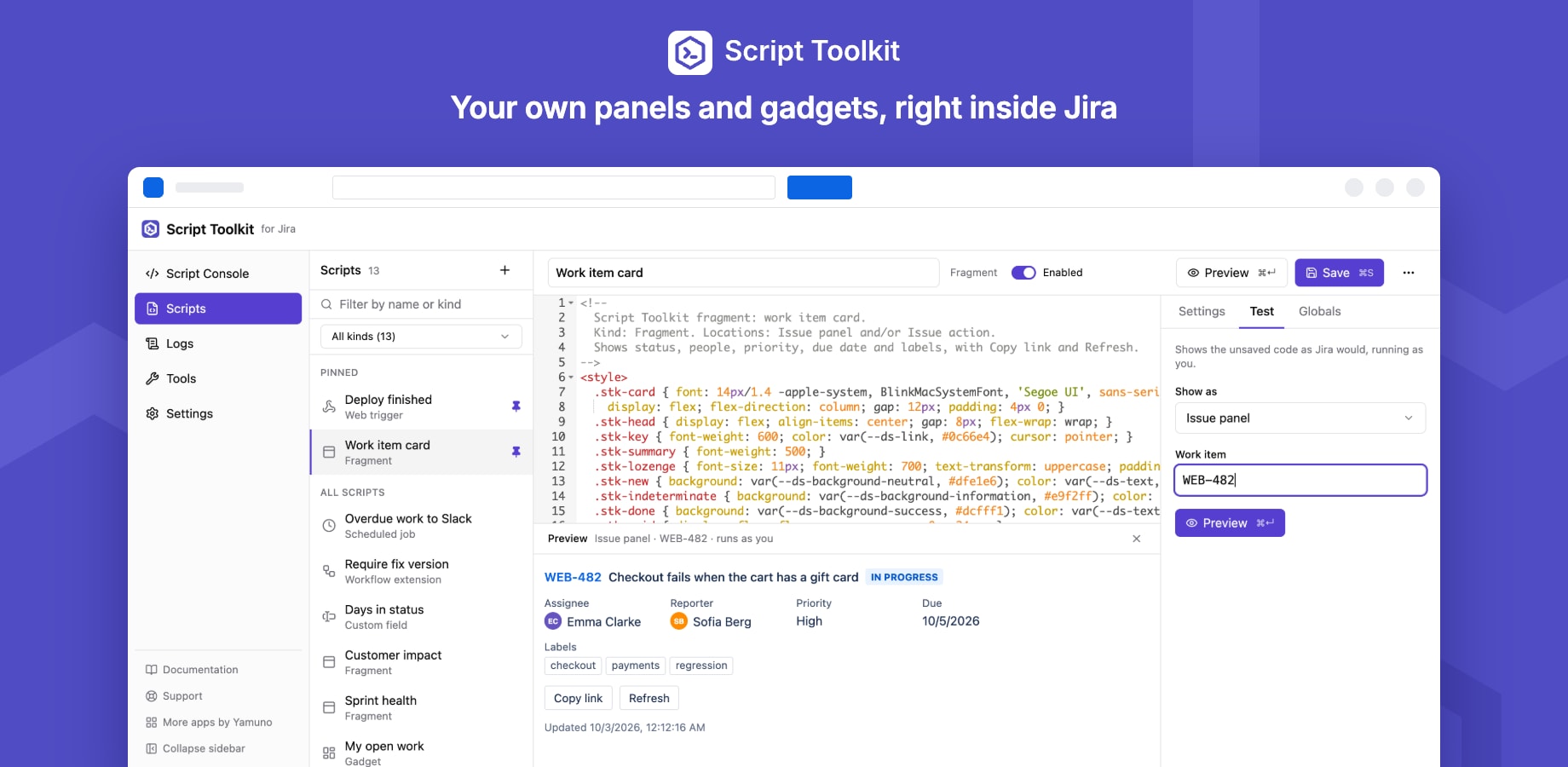
A fragment is HTML (with CSS and JavaScript) that Script Toolkit shows inside Jira. It runs in the viewer's browser and calls Jira as the viewer, so people only see what they can already see.
Locations
Choose one or more locations under Settings → Locations in the script editor:
| Location | Where it appears |
|---|---|
| Issue panel | A Script Toolkit section on the work item, below the description |
| Issue action | A dialog opened from the work item's ••• menu |
| Project page | A Script Toolkit page in the project's sidebar |
| Project settings | A page in the project's settings |
Several fragments in one place appear as tabs, ordered by name. Only the open tab's fragment is in the page, so their styles and element ids can't clash. The editor tells you which other fragments share a location.
What a fragment can use
| Global | What it does |
|---|---|
context.extension.issue |
{ id, key, type } of the work item (issue panel, issue action) |
context.extension.project |
{ id, key, type } of the project |
requestJira(path, init?) |
Calls the Jira REST API as the viewer |
setHeight('480px') |
Sizes the frame to your content; pass pixels |
showFlag(...), router.navigate(...), router.open(...) |
Flags and navigation |
theme.colorMode |
'light' or 'dark' |
events.on('JIRA_ISSUE_CHANGED', fn) |
React when the work item changes |
Use Atlassian design tokens such as var(--ds-text) and var(--ds-surface) so your fragment follows Jira's light and dark themes. The Globals tab in the editor lists everything, and clicking an entry inserts an example.
A minimal fragment
<div id="out">Loading…</div>
<script type="module">
  const key = context.extension.issue.key
  const res = await requestJira(`/rest/api/3/issue/${key}?fields=status`)
  const issue = await res.json()
  document.getElementById('out').textContent = `${key} is ${issue.fields.status.name}`
  setHeight(document.documentElement.scrollHeight + 'px')
</script>
Preview before saving
Open the Test tab, choose where to show it and enter a work item or project key, then press Preview (⌘↵). The unsaved code renders under the editor with the same globals and theme as in Jira. The preview runs as you: a viewer with fewer permissions may see less.
Good to know
- The code is sent to every viewer. Never put a secret or token in a fragment; call a web trigger instead.
- Errors are shown inside the fragment, with the line number in the editor.
- Disabling a fragment hides it everywhere at once; its code and settings are kept.