


.png&w=64&q=75)
Page Tree
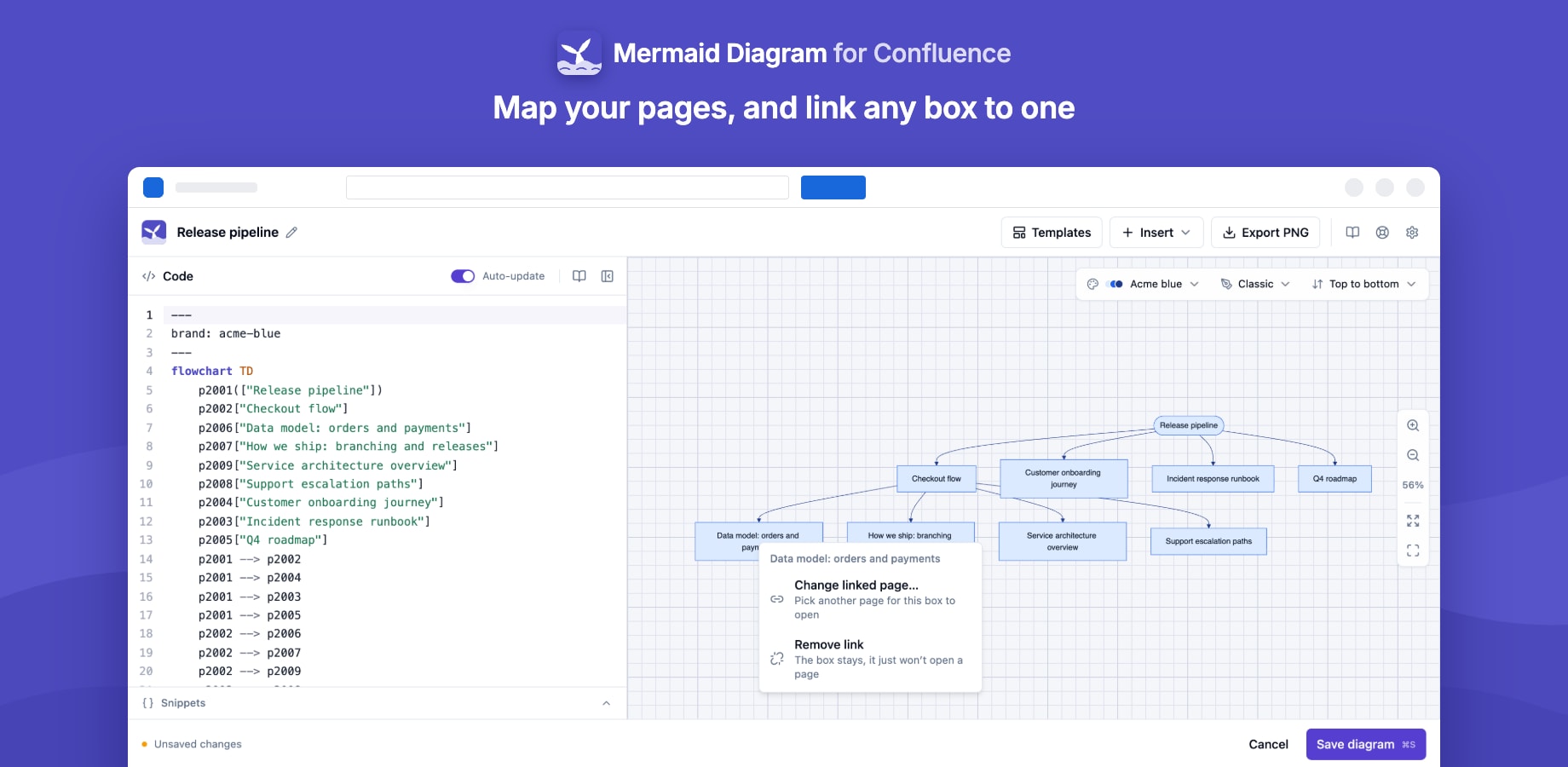
Insert → Page tree builds a diagram of a Confluence page and the pages under it. Use it to map a section of a space, an onboarding path or a project's documentation.
Building a tree
- In the editor, click Insert → Page tree.
- Start from: the page you're editing, or search for another. The search only lists pages that have child pages.
- Depth: child pages only, two, three or five levels down, or all levels.
- Draw as:
- Flowchart: a tree of boxes
- Mind map: more compact, around the starting page
- Check the summary (for example "8 pages under 'Release pipeline'") and click Insert diagram.
The tree replaces the code in the editor. It's ordinary Mermaid, so you can edit it like any other diagram.
Links
In both styles, every box opens its page on the published diagram. In a mind map the links are kept as comment lines at the end of the code (%% click p123 href "…"), because Mermaid can't link mind map nodes itself.
Large trees
- A tree includes at most 100 pages.
- Under any page with more than 8 child pages, the diagram shows the first 8 and a dashed "+ N more pages" box that opens the parent page, where Confluence lists them all.
- When a level would still be wider than 6 boxes, a flowchart runs left to right so the boxes stack like an outline.
For a large space, start from a page lower down or choose a smaller depth.
Good to know
- The tree is a snapshot: it doesn't change when pages are added, moved or renamed later. Insert it again to update it.
- It only includes pages the person building it can view.