


.png&w=64&q=75)
The Editor
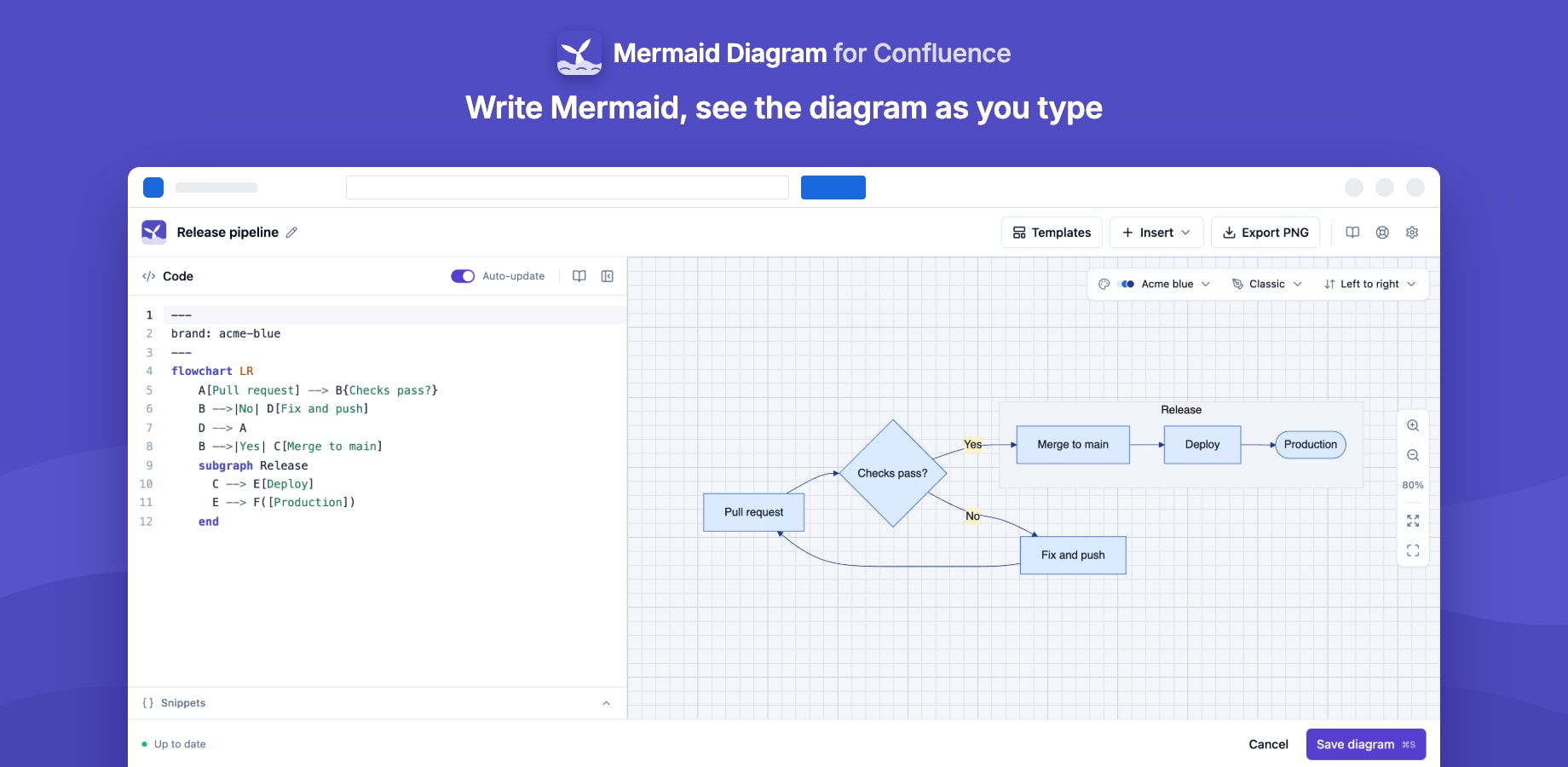
The editor opens when you add a diagram or edit an existing one. The code is on the left and the diagram on the right.
Writing code
- Syntax highlighting for Mermaid.
- Auto-update redraws the preview as you type. Turn it off for very large diagrams and press ⌘Enter / Ctrl+Enter to update when you're ready.
- Snippets, below the code, insert common pieces of syntax, with extra ones for flowcharts and sequence diagrams.
- Syntax errors show in a strip under the preview, while the last good version of the diagram stays on screen.
- Hide the code pane to give the preview the whole width; Show code brings it back.
The canvas
- Pan by dragging, or by scrolling.
- Zoom with the buttons on the right, or ⌘/Ctrl + scroll. 100% shows the diagram at its natural size; Fit fits it to the canvas.
- Full screen for large diagrams.
The zoom you set is saved with the diagram, and the published page draws the diagram at that size (never wider than the page). Click Fit before saving to go back to the default size.
Diagram options
The toolbar above the preview sets options that are saved with the diagram:
| Option | Choices |
|---|---|
| Theme | Match Confluence, Mermaid's Default, Neutral, Forest, Dark and Base, and your site's colour themes |
| Look | Classic or Hand-drawn |
| Direction (flowcharts) | Top to bottom, left to right, bottom to top, right to left |
Saving
Give the diagram a title at the top, then click Save diagram or press ⌘S / Ctrl+S. The title and the words in the diagram are indexed, so Confluence search finds the page by its diagrams.
Export PNG in the top bar downloads a high-resolution image of the diagram.