


.png&w=64&q=75)
Getting Started with Mermaid Diagram for Confluence
Mermaid Diagram for Confluence adds a macro that turns Mermaid text into diagrams on your pages. You write the diagram as code, see it as you type, and publish it with the page. It runs entirely on Atlassian Forge, so your diagrams never leave Atlassian.
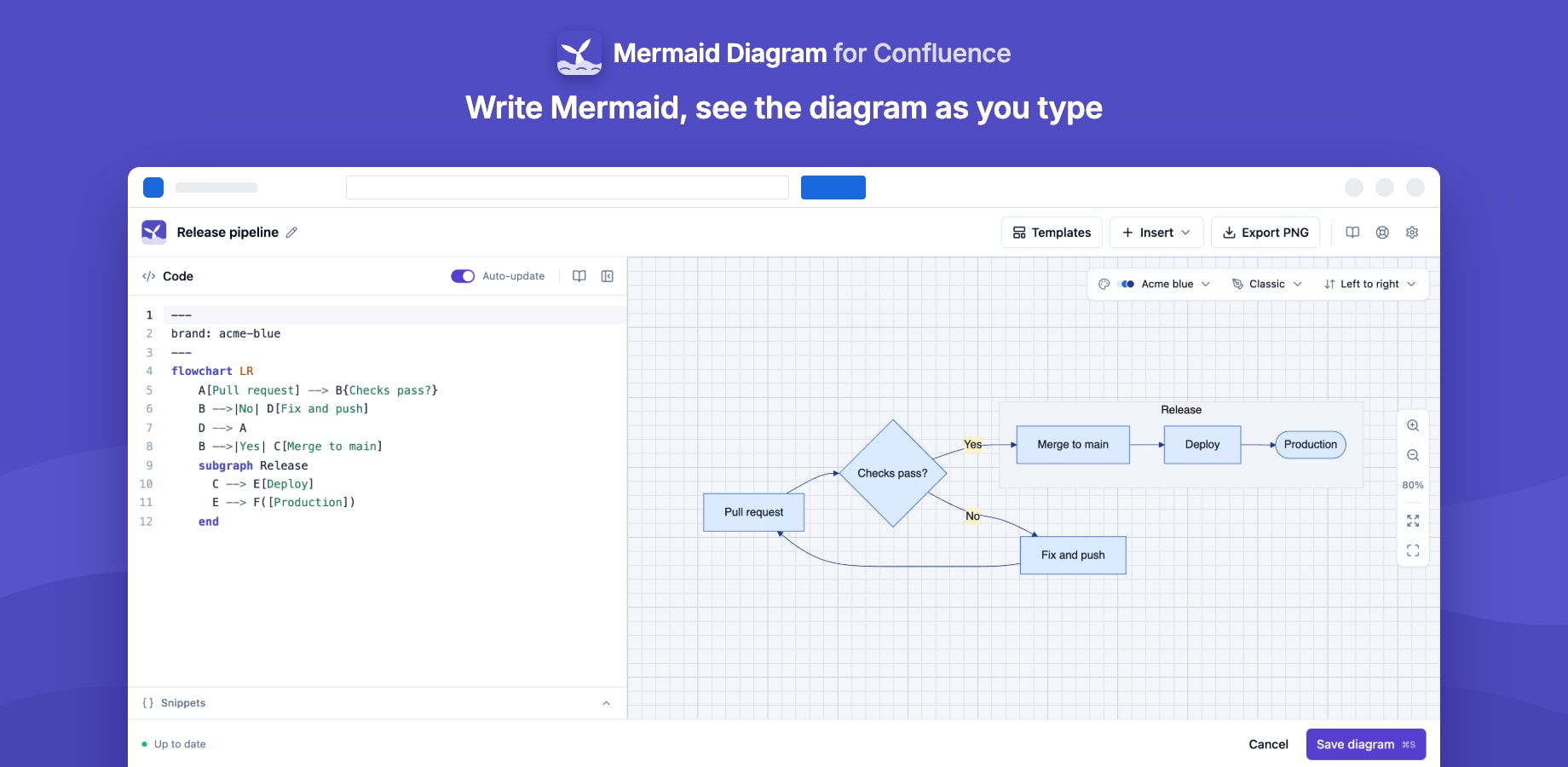
Where to find it
After installation the app appears in three places:
| Where | What it's for |
|---|---|
| The page editor → type /mermaid | Adds a Mermaid diagram to the page |
| Confluence settings → Mermaid Diagram settings | Colour themes for the whole site, and every page that uses a diagram (admins only) |
| Apps → Manage apps → Get started | A short welcome page with examples and first steps |
Your first diagram
- Edit a page and type /mermaid, then choose Mermaid Diagram.
- The editor opens with a starter flowchart. Change the code on the left and watch the preview on the right.
- Give the diagram a title at the top, then click Save diagram (or press ⌘S / Ctrl+S).
- Publish the page.
To start from something other than a flowchart, click Templates and pick one of 12.
Permissions and data
- Anyone who can view a page can see its diagrams. Only people who can edit the page can change them.
- Diagrams are stored in the app's Forge storage for your site, inside Atlassian. Small diagrams are also saved in the macro itself so the page draws them instantly.
- Only Confluence admins can create or change colour themes.
Next steps
- Quick start: a guided first ten minutes
- Features: everything the app can do
- Data and privacy: what the app stores and where