


.png&w=64&q=75)
Diagrams on an Issue
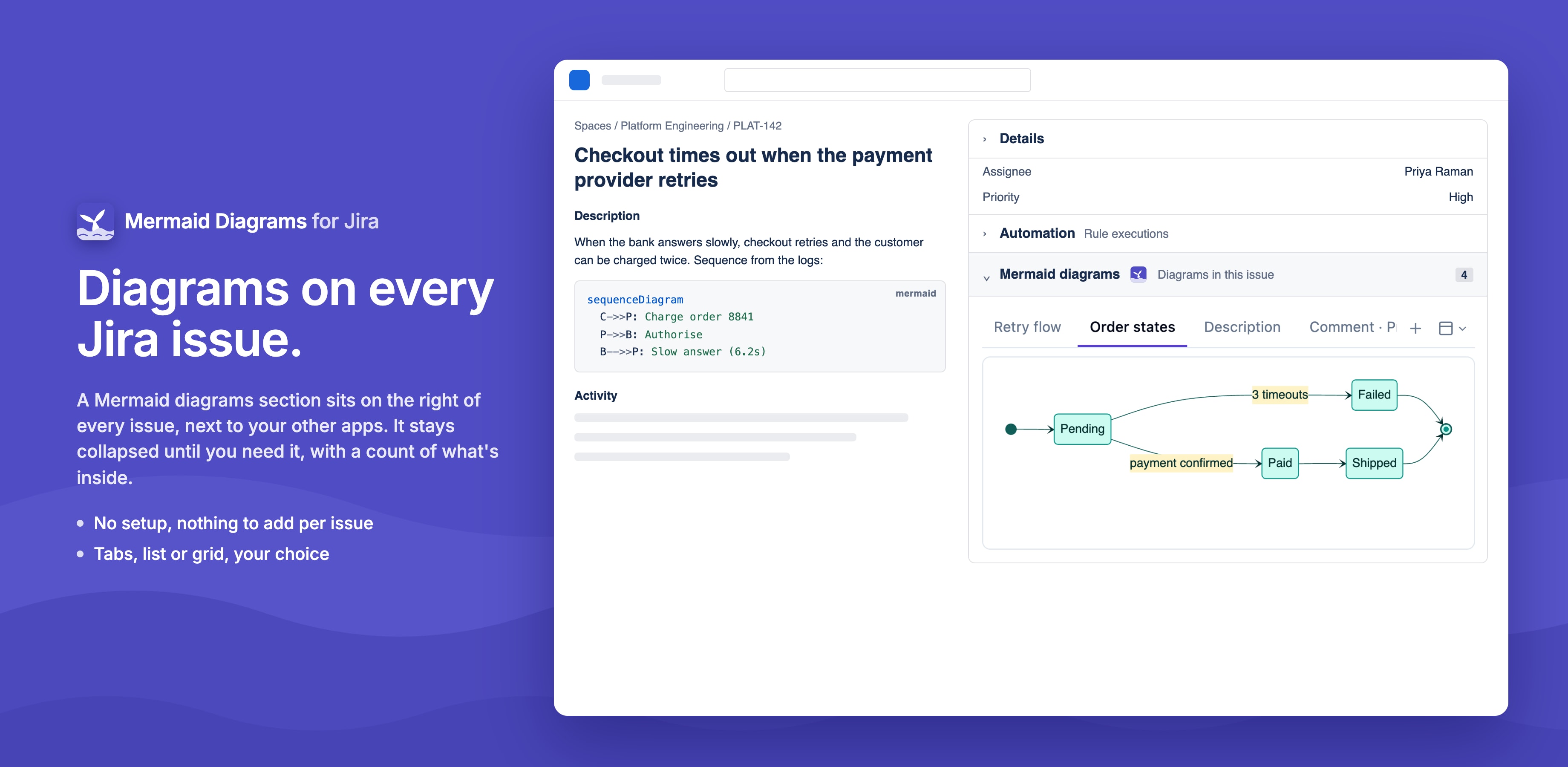
Every issue has a Mermaid diagrams section in its right-hand column, next to your other apps. It's collapsed by default and shows how many diagrams the issue has. Expand it to see them.
It holds two kinds of diagram:
- Saved diagrams, added with the editor. People who can edit the issue can change or delete them.
- Code blocks from the description and comments, drawn read-only. See Mermaid code blocks.
Saved diagrams come first, then the description's code blocks, then the comments', oldest first.
Views
With more than one diagram, the button next to + switches the view:
| View | What it shows |
|---|---|
| Tabs (default) | One diagram at a time; tabs are the diagram titles, then "Description" and "Comment · author". Arrow keys move between tabs |
| List | All of them, one under another, each with a one-line title |
| Grid | Fixed-size thumbnails, two per row. Click one to open it full size |
Your choice is kept in your browser, so it applies on every issue.
The diagram toolbar
Hover over a diagram to show its toolbar:
| Button | What it does |
|---|---|
| − / % / + | Zoom out and in; click the percentage to go back to 100%. Your zoom is remembered for that diagram, in your browser |
| Open large | The diagram full size in a modal. Previous and next (or the arrow keys) step through the issue's other diagrams |
| Edit, Delete | Saved diagrams, for people who can edit the issue. Delete asks first |
| Go to comment | Diagrams from a comment: scrolls to that comment |
| Download PNG | A high-resolution image, on a light or dark background to match Jira |
| Code | The Mermaid code behind the diagram |

Size on the issue
Each diagram fits the column's width. If its editor saved a zoom, the diagram is drawn at that size instead, never wider than the column.