.png&w=64&q=75)


By Yamuno Team
23 Sep 2026
4 min read
What Confluence's Built-In PDF Export Can't Do
Confluence's native PDF export is fine when you need one page as a quick PDF. The moment you need more than that, a set of pages, a branded document, or a consistent format, you run into its limits fast. This is an honest list of what the built-in export cannot do, so you can tell when you have outgrown it.
None of this is a knock on Confluence. The native export is a convenience feature, not a document tool. Knowing where it stops is the fastest way to decide whether you need something more.
It Exports One Page at a Time
This is the big one. Native export is built around a single page. There is no way to select several pages, export a parent page together with all of its children, or export a whole space to PDF in one action.
If you need to turn a 40-page documentation set into PDFs, native export means opening each page and exporting it individually, then dealing with 40 separate files. For anything beyond a handful of pages, that stops being practical.
No Cover Page
There is no option to add a title page, a logo, a subtitle, or a document date to the front of the export. The PDF starts straight at the page content. For an internal draft that is fine. For a document going to a client or an executive, the missing cover is the first thing people notice.
No Custom Headers, Footers, or Page Numbers
Native export gives you no control over headers and footers. You cannot add your company name, a document title, a confidentiality line, the export date, or page numbers. Everything a formal document usually carries in the margins is simply absent.
No Watermarks
There is no way to stamp a PDF with "DRAFT", "CONFIDENTIAL", or "FOR REVIEW". For teams that share documents externally or work under compliance rules, a watermark is often a requirement rather than a nicety, and native export does not offer one.
No Reusable Templates
Every native export is a one-off. There is no way to save a format and apply it again, so two exports of the same page a week apart can look different, and two people on the same team have no shared standard to work from. Consistency has to be enforced by hand, which means it usually is not.
No Table of Contents
A single-page native export has no navigation. There is no auto-generated table of contents built from your headings, which is exactly what a longer document needs to be readable once it is a PDF.
Limited Control Over Layout
Native export gives you no say over fonts, margins, line spacing, or page breaks. Wide tables and large images are handled with whatever defaults Confluence applies, and you cannot adjust them. When the output does not fit the page well, there is no setting to fix it.
When You've Outgrown Native Export
If you only ever export the occasional single page for your own use, the built-in export is genuinely all you need, and there is no reason to add an app.
You have outgrown it the moment any of these becomes true:
- You need to export more than a few pages at once, or a whole space
- The PDF is going to someone outside your team, so it needs a cover and branding
- You are exporting for compliance or retention, so it needs watermarks, page numbers, and a repeatable format
- You want every export to look the same, which means templates
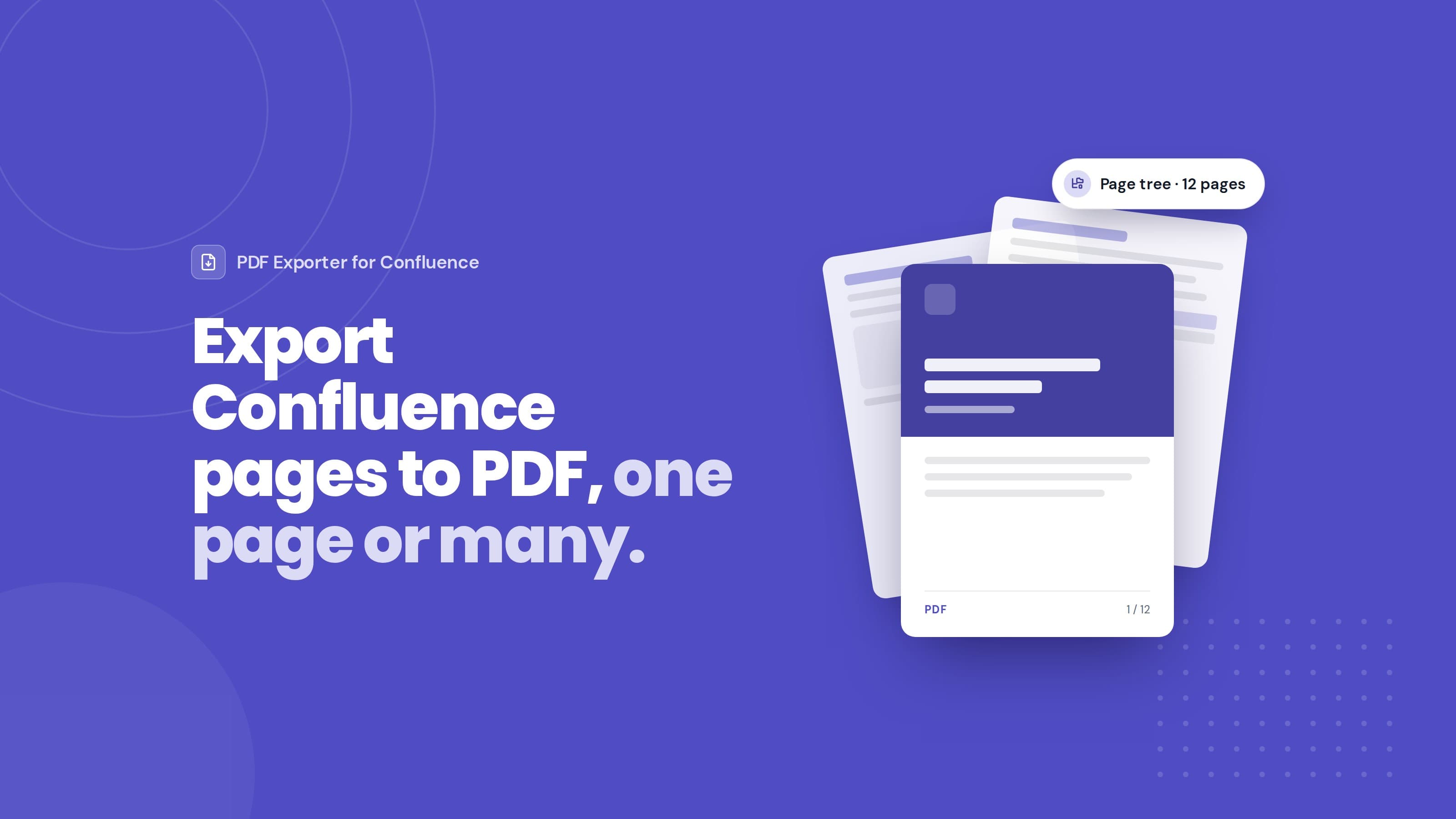
That is the point where a dedicated export tool earns its place. PDF Exporter for Confluence adds exactly what the native export leaves out: bulk export of multiple pages, page trees, and whole spaces; cover pages, headers, footers, and watermarks; a table of contents; and reusable templates so every export is consistent. It runs on Atlassian Forge, so nothing leaves your instance.
For a step-by-step walkthrough, see How to Export Confluence Pages to PDF.
Getting Started
Install PDF Exporter for Confluence from the Atlassian Marketplace.
Full documentation is at /docs/pdf-exporter-for-confluence.
Questions? Reach out via our support portal.
Featured App
Markdown Exporter
Export Confluence pages to clean, portable Markdown files in one click
Stay in the loop
Get product updates and tips straight to your inbox.
No spam, ever.

Related Articles
How Compliance Teams Export Confluence Content to PDF
Compliance and legal teams need audit-ready, consistently formatted PDF exports from Confluence — with watermarks, consistent headers, and a full record of what was exported. Here's how to set that up.
How to Bulk Import Markdown Files into Confluence
Importing one markdown file at a time into Confluence is tedious. Here's how to import dozens or hundreds of markdown files at once — with folder hierarchy, images, and frontmatter preserved.
How to Build a Custom Status Dashboard in Confluence
Confluence doesn't have a built-in project status dashboard. Here's how to build one that shows RAG indicators, progress bars, countdown timers, and key metrics — using HTML Macro for Confluence.