.png&w=48&q=75)
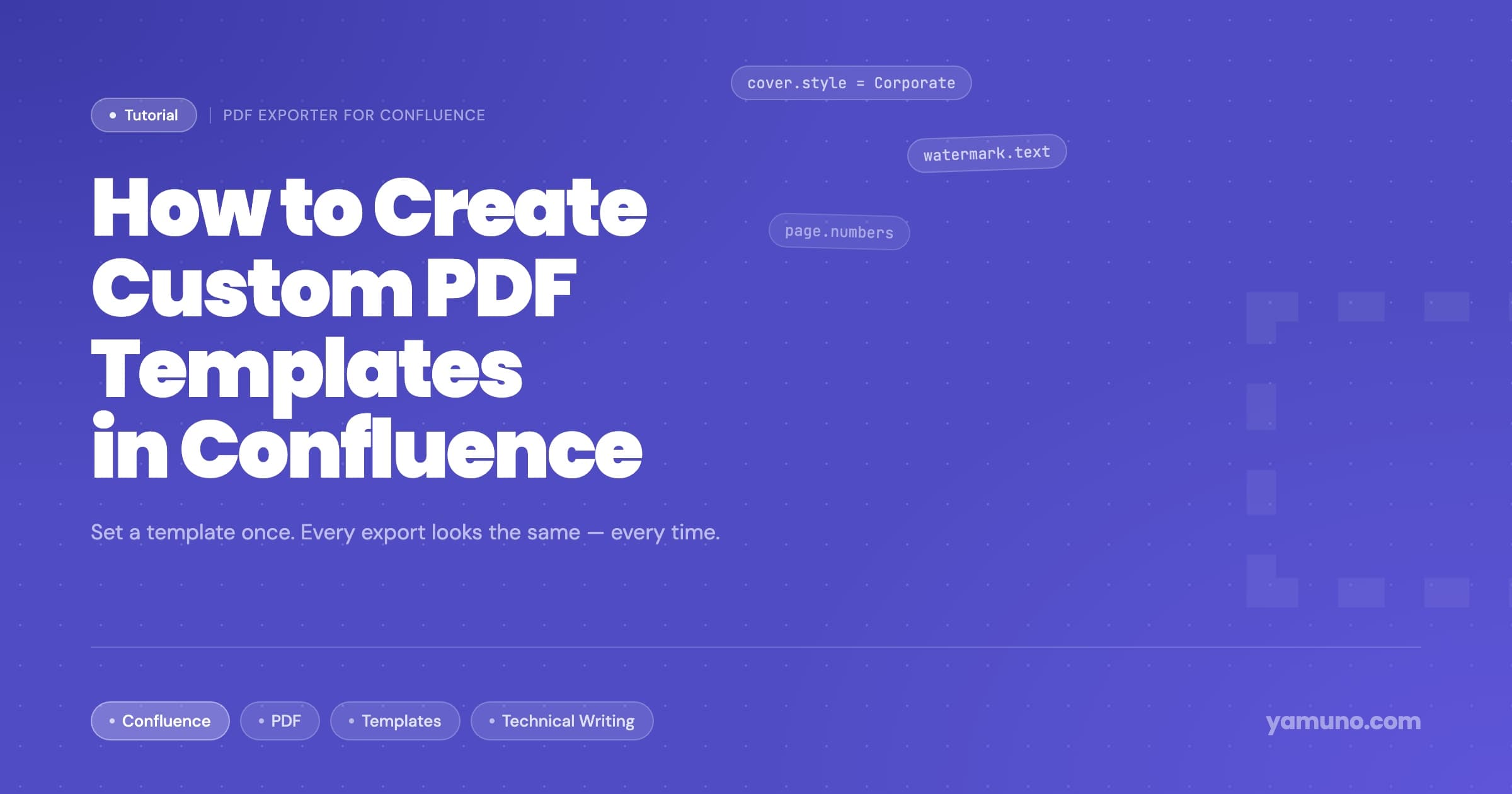
How to Create Custom PDF Templates in Confluence
Short answer: Confluence's built-in export only lets admins edit one HTML and CSS layout per space. For reusable templates, a site admin opens Confluence Settings → PDF Exporter, clicks New Template and sets the page size, cover page, header, footer, page numbers, watermark and table of contents. Users then pick a template from a dropdown each time they export.
If your team exports Confluence pages to PDF regularly, you have probably seen every export come out a little different. One person adds a cover page and another doesn't. Some PDFs have page numbers and some don't. When the documents go to a client or a regulator, they look like they came from three different companies.
The fix is a shared set of templates. An admin sets each one up once, and people pick the right one from a dropdown when they export, with no formatting decisions of their own.
This guide shows how to set up templates with PDF Exporter for Confluence. In Confluence's built-in export, the closest equivalent is editing HTML and CSS per space, which applies to space exports only (details here).
Prerequisites
- PDF Exporter for Confluence installed from the Atlassian Marketplace
- Confluence site admin access. Only site admins can create, edit, archive or delete templates.
Everyone else can use templates but can't change them.
Step 1: Open Template Management
- Go to Confluence Settings (gear icon, top right)
- In the left sidebar, under Apps, select PDF Exporter
Templates are shown as tiles with a thumbnail of each template's opening page. Three are set up on install:
- Default: page numbers, no cover, A4 portrait
- Report: Classic cover, table of contents two levels deep, page breaks before H1, PDF bookmarks
- Minimal: content only, with no header, footer or page numbers
Step 2: Create a New Template
Click New Template and give it a unique, descriptive name such as "Client Deliverable", "Internal Report" or "Compliance Archive", so people know which one to pick. Add an optional description saying when to use it.
There is no duplicate button. To make a variation of an existing template, create a new one and set it up the same way.
Step 3: Page Setup
- Page size: A4, Letter or Legal
- Orientation: portrait for most documents, landscape for wide tables and diagrams
- Font size: small, medium or large. Medium is the default.
Step 4: Cover Page
Turn on Add cover page and choose one of nine designs (Classic, Corporate, Modern, Executive, Bold, Minimal, Sidebar, Split, Academic) or Custom, which opens a drag-and-drop cover designer. Set the accent color, logo, optional background image, subtitle and author.
All the options, including the custom designer and image limits, are covered in How to Add a Cover Page to Confluence PDF Exports.
Step 5: Header, Footer and Page Numbers
Headers and footers print on every content page, not on the cover.
- Header: one line of text with one position: left, center or right
- Footer: one line of text with one position: left, center or right
- Page numbers: a separate setting with its own position. Formats are
1,1 / 10orPage 1 of 10.
A common layout: {title} centered in the header, a confidentiality line on the left of the footer, and page numbers on the right. Header and footer text is plain text, with no Markdown or HTML. You can also choose to show the header and footer on the table of contents page.
Step 6: Use Variables in Text Fields
Template text fields accept variables. Type { to pick one:
| Variable | Fills in |
|---|---|
{title} |
The page title |
{date} |
The date |
{year} |
The year |
{lastEditedBy} |
The person who last edited the page |
Variables keep templates current without editing. A footer such as © {year} Company Name or a cover subtitle such as Updated {date} never goes stale.
Step 7: Watermark (Optional)
Turn on Watermark, enter the text ("DRAFT", "CONFIDENTIAL", "FOR REVIEW ONLY") and set the opacity between 0 and 1. The default of 0.15 is visible without getting in the way; values around 0.08 to 0.12 are subtler.
Step 8: Table of Contents and Bookmarks
Turn on Table of Contents and set the depth:
- 1: H1 only
- 2: H1 and H2
- 3: H1, H2 and H3
Depth 2 suits most documents. In a multi-page export, each page's headings sit under that page's title in the table of contents.
Turn on PDF Bookmarks as well to add a collapsible outline in the PDF viewer's sidebar, separate from the table of contents page.
Step 9: Page Breaks
Turn on Break before H1 so each major section starts on a new page. Add Break before H2 for documents with long subsections.
Step 10: Styling
Each template section has styling controls for headings, body text, links, tables and code blocks. Use them to match your brand's colors and type, then check the result in a preview.
Step 11: Save and Test
Save the template. It is available to all users straight away.
To check it:
- Open a page without child pages and click Export to PDF under the page title
- Pick the new template from the dropdown
- Review the live preview of the actual PDF: cover, header, footer, watermark and styling
If something looks off, go back to Confluence Settings → PDF Exporter, edit the template and save again. Changes apply to future exports only; PDFs already downloaded don't change.
Managing Several Templates
Two or three templates cover most teams:
- Client-facing: Corporate cover, branded header, confidentiality footer, page numbers, no watermark
- Internal draft: Minimal cover, "DRAFT" watermark, page numbers
- Compliance archive: Executive cover, "ARCHIVED" watermark, page numbers, department footer
The compliance guide and the client export guide show complete setups for those cases.
Archive templates you no longer want used instead of deleting them. Archived templates disappear from the user dropdown, keep their settings, and can be restored. Deleting is permanent.
The Usage tab on the same admin page shows how many exports and pages are produced per day and which outputs people choose, which helps you see whether the templates are being used.
The Result
Once templates are set up, every user's export looks like this:
- Open the page and click Export to PDF
- Pick a template from the dropdown
- Click Export
The same cover, header and layout every time. For the full export walkthrough, including merged PDFs and page trees, see How to Export Confluence to PDF.
.png&w=96&q=75)