Document Management in Confluence Cloud: A Practical Setup
Short answer: Confluence Cloud covers most of what teams need from document management: every page keeps a full version history, each page has an owner and can carry a status, files keep their versions, restrictions control who sees what, and finished pages can be archived instead of deleted. What it doesn't do on its own is tell you which attachments nobody uses any more or keep a fixed copy of a space as it was on a given date. Those two gaps are where a small setup routine, and an app or two, help.
This guide follows a document through its life in Confluence, from where it lives to how it is retired, with the native features for each step and the habits that keep a space tidy a year later.
What document management means in Confluence
In a file-based system, a document is a file in a folder. In Confluence, the document is usually the page itself, with files attached to it. Managing documents comes down to the same questions either way:
| Question | Confluence feature |
|---|---|
| Where does it live? | Spaces, the page tree and templates |
| Who is responsible for it? | Page owner |
| Is it finished? | Page status |
| What changed, and when? | Page history and file versions |
| Who can see or change it? | Restrictions and space permissions |
| What happens when it is out of date? | Archiving |
| Can we prove what it said last March? | A dated export kept as a record |
The rest of this guide takes each row in turn.
Structure: spaces, page trees and templates
Put each body of documents in one space, owned by the team that maintains it: HR policies in the HR space, engineering runbooks in the engineering space. A space per team keeps permissions simple and gives every document an obvious home.
Inside a space, the page tree is your folder structure. Keep it shallow, two or three levels for most spaces, and give parent pages real content (a short overview and a list of what is below) rather than leaving them empty. Readers browse the tree far more than authors expect.
For documents that repeat, such as policies, meeting notes, how-to articles or decision records, create a space template with the headings you want every copy to have. Templates are the cheapest way to make documents consistent, because people start from the right shape instead of copying an old page and deleting half of it. Our documentation best practices cover naming and structure in more detail.
Ownership and status
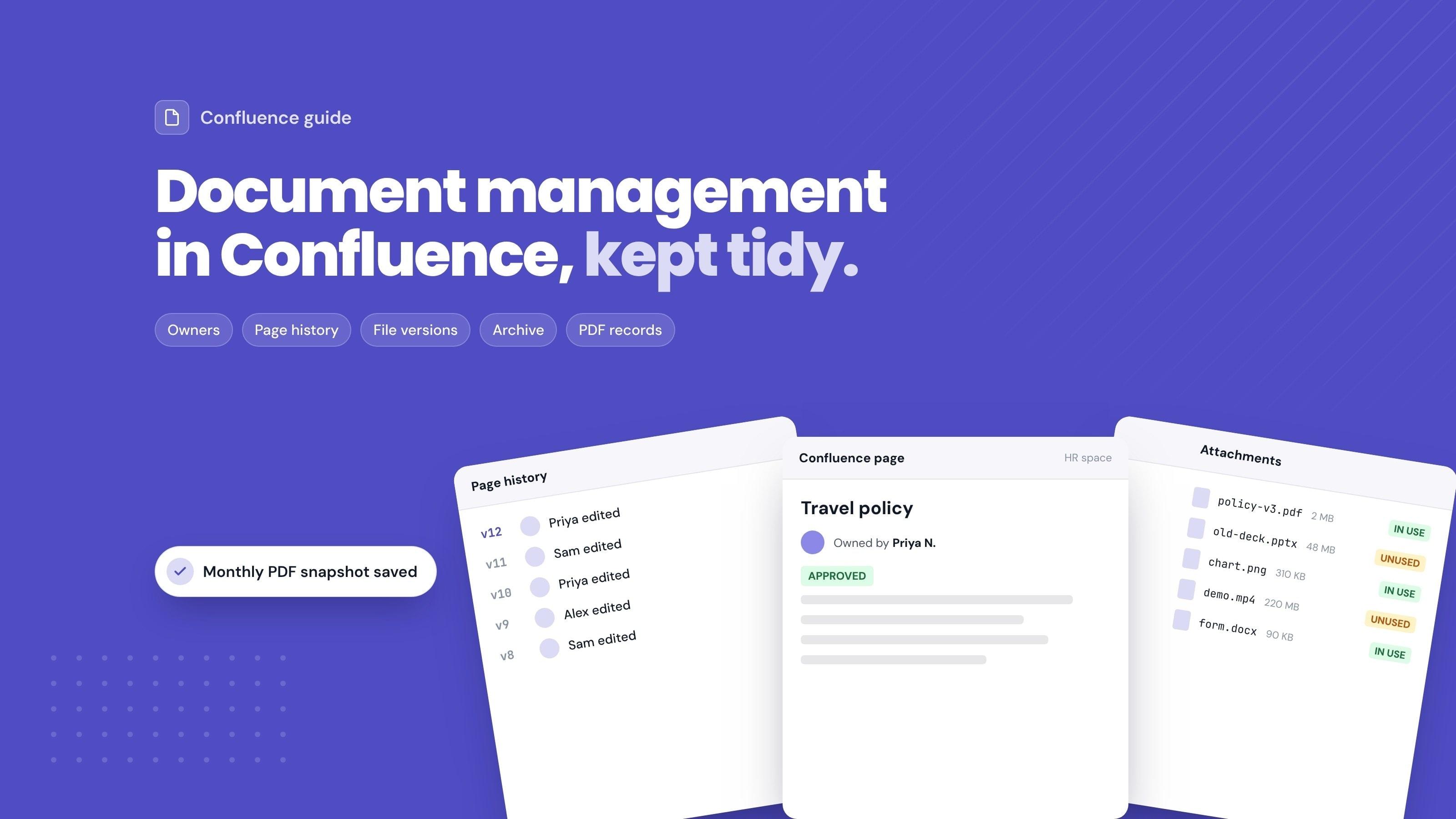
Every Confluence Cloud page shows its owner under the title. The creator is the owner at first, which is wrong as soon as that person moves teams. To hand a page over, select the owner's name under the title, choose Change owner, and pick the new owner. They need access to the space and edit rights on the page. Space and product admins can transfer ownership too.
Page status says how finished a page is. While editing, select Status above the title and choose one. The defaults are Rough draft, In progress and Ready for review. Space admins can remove the defaults or add their own, up to five per space, under Space settings > Avatars and status. A common set for documents is Draft, In review, Approved and Outdated. Readers only see a status once the page is published.
Owner plus status answers the two questions readers most often have about an internal document: is this current, and who do I ask?
Versions and page history
Confluence keeps every published version of a page. Open the page's More actions (•••) menu and go to the version history to see who changed it and when, compare any two versions side by side, or restore an older one. Restoring creates a new version on top, so nothing is lost.
A few habits make the history useful:
- Publish meaningful changes as one edit rather than ten small ones, so each version means something.
- When a change matters, such as a policy update, add a line to the page itself (for example a short change log at the bottom) so readers don't need the history to know what changed.
- Don't copy a page to make "v2". Edit the page and let the history hold the old version. Copies are how spaces end up with three versions of the same policy.
Files and attachments
Files attached to a page have versions too. Upload a file with the same name and Confluence keeps it as a new version of the same attachment, so links to the file keep working. To see earlier versions, open the page's attachments (Show details > Attachments) and expand the file. You can download an older version, but you can't revert the attachment to it; upload the old file again to make it current.
Attachments are also where spaces get messy. Screenshots from a page that was rewritten, three copies of the same slide deck, a large video uploaded once and forgotten: none of it shows up anywhere unless you go looking, and the space's attachment list only covers one space at a time.
Advanced Attachment Manager, our free app, lists every attachment across your spaces in one place. Filter by type, uploader, space or upload date, sort by size, and filter for files that are no longer used in any page content. From there you can bulk delete what is truly unused, download a set as a ZIP, or export the list to CSV for a review, and every deletion goes into an audit log. Our guides to managing attachments at scale and Confluence storage cleanup walk through a first cleanup.
Access and restrictions
Space permissions decide who can see and edit a space. Page restrictions narrow that for individual pages. In Confluence Cloud you set them from the Share dialog under General access: anyone can edit, anyone can view, or only specific people can view or edit.
Two rules are worth knowing before you rely on restrictions:
- View restrictions are inherited, edit restrictions are not. A page hidden from a group hides its child pages too. A page locked for editing does not lock its children.
- Restrictions are not available on the Free plan.
Use restrictions for the exceptions, such as a draft policy or an HR document, and keep the rest of the space open. A space full of restricted pages is hard to search and harder to maintain.
Archive what's finished
Outdated documents that stay in the page tree are the main reason people stop trusting a space. Confluence Cloud lets you archive pages instead of deleting them. Open More actions (•••) on the page and choose Archive. Child pages are archived with it.
Archived pages leave the page tree and quick search, but links to them still work, with an Archived label at the top, and they can still turn up in advanced search. Each space keeps its archive under Space settings > Content > Archived, and you can restore a page from there or from the banner on the page. On Premium and Enterprise, space admins can archive many pages at once from the content manager in space settings.
Archive rather than delete whenever a document might be referenced later. Deleted pages go to the trash, and the trash can be emptied.
Keep a dated record
Page history shows what a single page said on a given date, but it is awkward evidence when an auditor, a customer or a regulator asks for "the policies as they were on 1 March". They want a fixed document, not a walk through version history page by page.
The usual answer is a dated PDF of the whole set, kept somewhere it won't change. Confluence's own export can produce one when someone remembers to run it. PDF Exporter for Confluence can do it on a schedule: pick a whole space, or a page and everything under it, choose weekly or monthly, and each run attaches a dated PDF to an archive page you choose. The run history shows every export, and the app can mention people in a comment on the archive page when a run finishes or fails. The scheduled exports guide covers the options, and our post on PDF exports for compliance teams explains how teams use those snapshots.
Restrict the archive page so only a few people can edit it, and the attachments list becomes a simple record of every snapshot in order.
A monthly routine
Document management fails slowly, so a short routine does more than a big cleanup once a year. Once a month, a space owner can:
- Look for pages stuck in review and ask their owners to finish them.
- Check pages not updated in a year and either confirm them, update them or archive them.
- Fix owners for pages whose owner has left.
- Review unused and large attachments and delete what nobody needs.
- Check that the latest scheduled PDF snapshot ran.
Teams that run Confluence as the home of their technical documentation can see how these pieces fit together in our technical documentation setup.
Frequently asked questions
Can Confluence be used as a document management system?
Yes, for most teams. Pages have owners, statuses and a full version history, files keep versions, restrictions control access and old content can be archived. What it lacks out of the box is a site-wide view of attachments and fixed, dated copies of content, which apps can add.
How do I see who changed a Confluence page?
Open the page's More actions (•••) menu and go to its version history. Each version shows who published it and when, and you can compare any two versions or restore an older one.
Can I restore an older version of an attachment?
Not directly. Confluence keeps every version of an attachment and lets you download older ones, but it can't revert to one. Download the version you want and upload it again with the same name to make it the current version.
What happens to archived pages in Confluence?
They leave the page tree and quick search but are not deleted. Links still work and show an Archived label, and space admins can restore them from Space settings > Content > Archived.
How do I find unused attachments in Confluence?
Confluence lists attachments page by page and space by space, but doesn't flag files that are no longer used. An app such as Advanced Attachment Manager can filter attachments across spaces by whether they are still used in page content.
How do I keep an official copy of a set of documents?
Export the space or page tree to PDF on a fixed date and store the file somewhere it won't change, such as a restricted archive page. PDF Exporter for Confluence can do this automatically every week or month.
Try it
Pick one space and give it an hour: set owners on the pages that matter, set up page statuses that match how your team works, and archive what is clearly out of date. Then install Advanced Attachment Manager to see what files are sitting unused, and set up a monthly snapshot with PDF Exporter for Confluence so the next audit question has a ready answer.