.png&w=48&q=75)
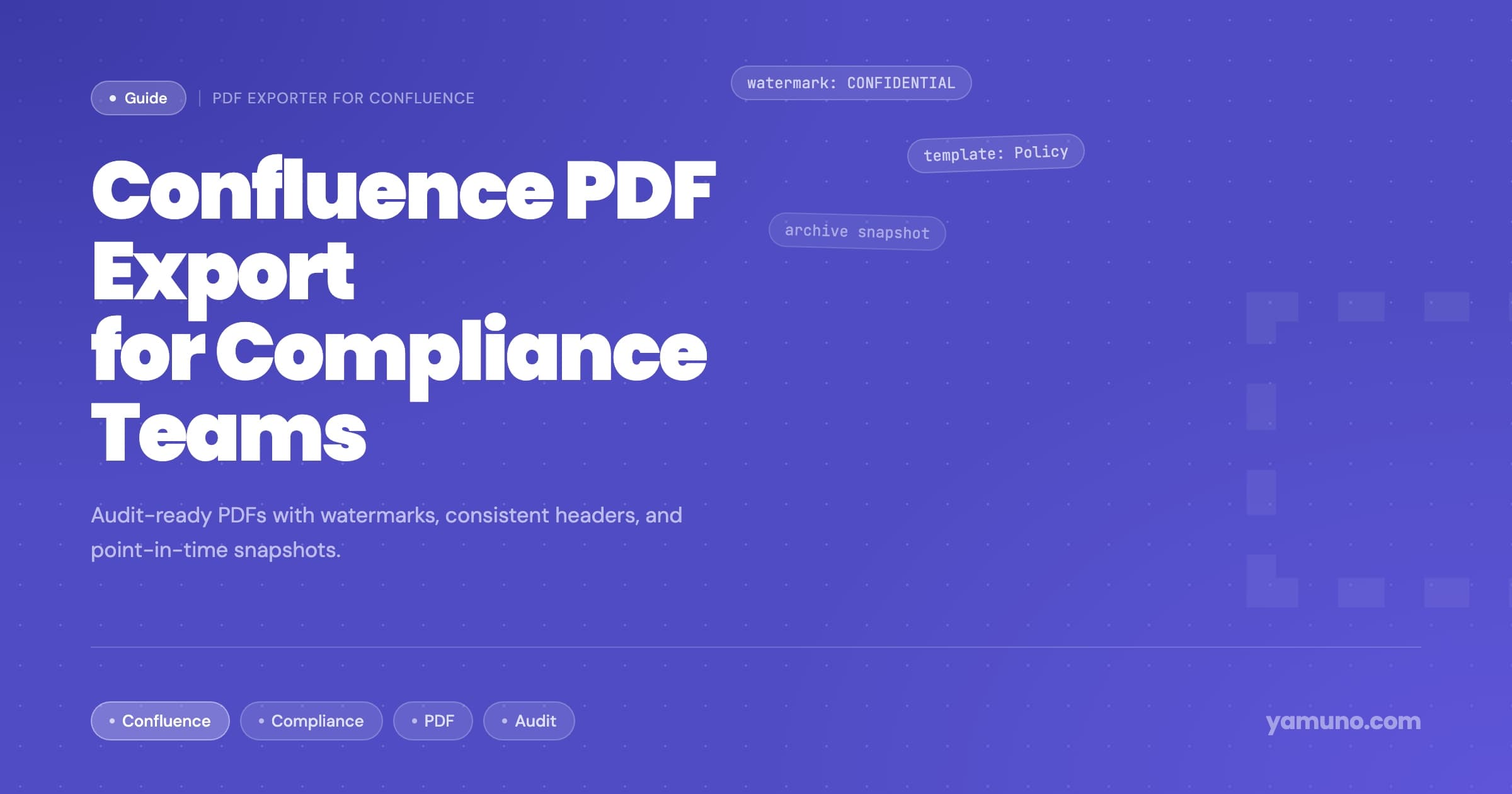
How Compliance Teams Export Confluence Content to PDF
Compliance teams keep policies, procedures and controls in Confluence because they are easy to update and review there. Auditors, regulators and legal teams, on the other hand, want point-in-time PDFs they can read, sign off and attach to a submission.
Confluence's built-in export can produce a PDF, and space admins can brand space exports with custom HTML and CSS. What it doesn't give you is a set of ready formats that anyone on the team can pick at export time, or a text watermark such as DRAFT across every page. (More on that in What Confluence's Built-In PDF Export Can't Do.)
This guide shows how to set up a repeatable export workflow with PDF Exporter for Confluence.
What Compliance Exports Need
Consistency. Every exported document should look the same. If two policy documents have different headers or layouts, an auditor may ask why.
Identification. The PDF should say what it is and what classification it carries (confidential, internal, public), in the header, footer or cover page, not only in the filename.
Status marking. Drafts under review should be marked as drafts. Superseded documents should be marked as archived.
Completeness. When a submission needs a set of documents, such as every security policy, the export should cover the whole set in one pass.
Step 1: Set Up Compliance Templates
An admin creates templates once in Confluence Settings → PDF Exporter → New Template. Users then pick the right one from the template dropdown when they export. Three templates cover most compliance work.
"Policy: Current"
For approved policies shared with auditors or regulators.
- Cover page: Executive design, company accent color and logo
- Cover author: "Compliance Team" or the department name
- Cover subtitle:
Approved version · {date} - Header:
{title}, centered - Footer:
Confidential · Company Name, left - Page numbers:
Page 1 of 10format, right - Table of contents: on, depth 2
- Page breaks: before H1
- Watermark: off
"Policy: Draft"
For documents under internal review. Same as above, except:
- Watermark: on, text "DRAFT", opacity around 0.20
- Cover subtitle:
For internal review only
"Compliance Archive"
For snapshots kept as evidence of a past state. Same as "Policy: Current", except:
- Watermark: on, text "ARCHIVED", opacity 0.15
- Footer:
Archived {date} · Company Name
The {date}, {year}, {title} and {lastEditedBy} variables fill in automatically, so nobody edits the template before each export. Check the date format in a preview the first time you use it.
For the full list of template settings, see How to Create Custom PDF Templates in Confluence.
Step 2: Export a Single Policy
- Open the policy page
- Click Export to PDF under the page title
- Pick "Policy: Current" for approved policies or "Policy: Draft" for review copies
- Check the live preview: cover, watermark and footer
- Click Export
The live preview shows the actual PDF and re-renders when you switch templates, so a wrong watermark or missing logo is easy to spot before anything leaves your hands. It is available when you export a single page without child pages.
Step 3: Export a Complete Policy Set
When an audit asks for a complete set, such as all security policies or all change management procedures:
- Open Apps → PDF Exporter for Confluence from a page in the space
- Tick the parent pages in scope in the page tree. Their child pages are included automatically.
- Untick working drafts or internal notes that shouldn't go into the submission
- Pick the "Policy: Current" template
- Choose the Output:
- One merged PDF for a single submission document, with one table of contents, continuous page numbers and working links between the exported pages
- Separate PDFs (ZIP) when each policy needs to be filed on its own. The ZIP holds one PDF per page side by side, not in nested folders, so the filenames (the page titles) do the organizing.
- Click Export
Pages are exported in page tree order, so arrange the tree the way you want the submission to read.
Step 4: Archive Point-in-Time Snapshots
Auditors often ask what a policy said on a particular date, and the Confluence page may have changed since. A simple workflow:
- When a policy is approved, export it with "Policy: Current"
- Store the PDF in your archive location (shared drive or document management system)
- Before anyone starts revising the policy, export the current approved version once more with "Compliance Archive", so you hold a copy marked as superseded. The exporter works from the page as it is now, so this has to happen before the edits.
- Once the revision is approved, export the new version with "Policy: Current"
You end up with the live policy in Confluence and a series of dated PDFs showing its state at each approval.
Step 5: Keep Your Own Export Record
PDF Exporter doesn't keep a log of who exported which page. The admin Usage tab shows only counts (exports and pages per day, and which outputs were chosen), with no user or page names. If your auditors expect a record of each compliance export, keep one yourself, for example a register page in Confluence or a field in your document management system.
It also helps to document the process itself in Confluence:
- Which template is used for which document type
- Who runs compliance exports
- Where archived PDFs are stored
- The preview check before each export
That page can be exported with the same templates, so an auditor asking about document control gets a PDF produced by the process it describes.
Common Scenarios
SOC 2 preparation: export access control, change management, incident response and business continuity policies as one merged PDF with "Policy: Current".
GDPR documentation: export the privacy policy, data processing records and DPIAs, with the footer carrying the right classification.
ISO 27001 evidence: export control documentation and procedures. For evidence of a past state, use the archived snapshots from Step 4.
Legal hold: export the relevant pages with "Compliance Archive" and store them outside Confluence where they can be produced on request.
.png&w=96&q=75)