
How to Update a Yamuno App
Most app updates install by themselves. Atlassian holds an update back only when the new version asks for a new permission, for example to read folders. A site admin then has to approve it once. Until they do, the site keeps running the app with its old permissions, and the features that need the new permission don't work.
This guide shows how to approve an update in Confluence and Jira. It takes about a minute.
Who can update an app
A site admin or organization admin of your Atlassian site. If you aren't one, send this page to your admin.
Update an app in Confluence
-
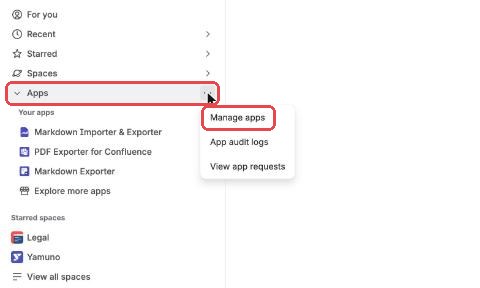
In the Confluence sidebar, point at Apps, click ••• (More actions), then Manage apps.
-
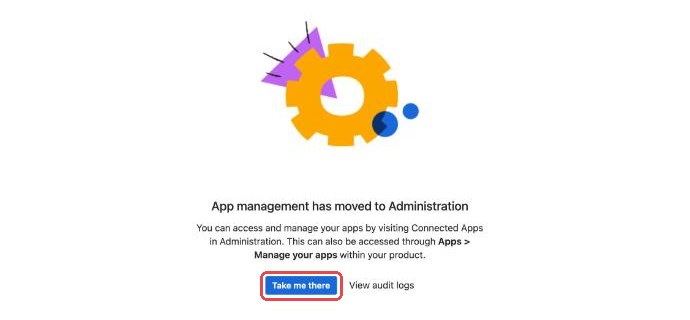
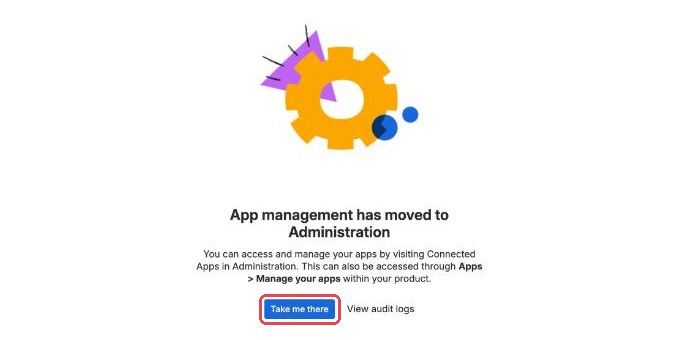
Confluence now manages apps in Atlassian Administration. Click Take me there.
-
On Connected apps, find the app. An app waiting for approval has an Update label next to its name. Click View app details at the end of its row.

-
Click Update in the top right.

-
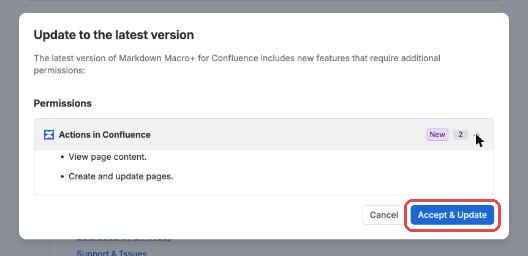
Check the new permissions in the dialog, then click Accept & Update.
The update takes effect straight away. Reload the Confluence page you're on to use the new version.
Update an app in Jira
Jira apps are updated in the same place.
-
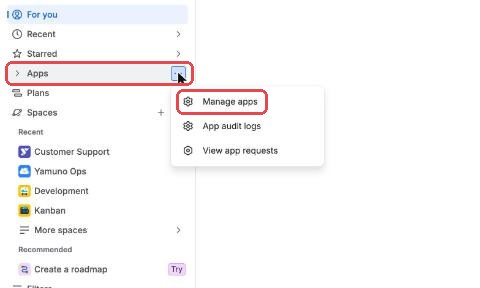
In the Jira sidebar, point at Apps, click ••• (More actions), then Manage apps. Click Take me there.
-
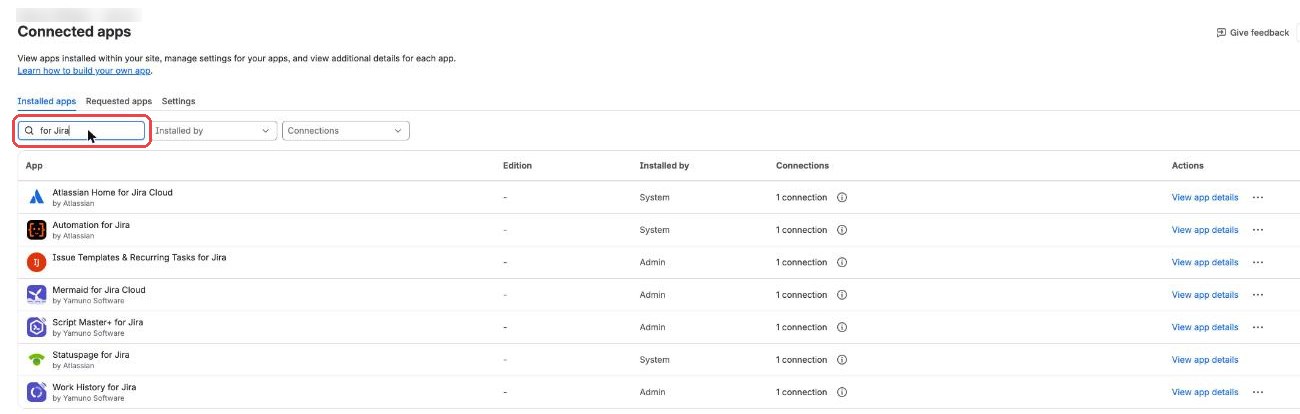
On Connected apps, search for the app by name, then click View app details.
-
Click Update, then Accept & Update, as in steps 4 and 5 for Confluence.
Shortcut
Admins can also reach it from Settings (the gear icon), then Manage apps (Confluence: under Atlassian Marketplace; Jira: under Apps), or open Connected apps directly: go to admin.atlassian.com, choose your site, then Site settings and Connected apps.
How to tell whether an app needs updating
On the app's page in Connected apps:
| Field | What it means |
|---|---|
| Version: Up to date | The site runs the latest code |
| Version: Outdated | A newer version exists. Click Update to install it |
| App access: Up to date | The app has every permission it asks for |
| App access: Outdated | The new version asks for a permission that hasn't been approved yet. Click Update to approve it |
Good to know
- Updating doesn't change your content. Pages, issues, settings and app data stay as they are.
- Nothing breaks while you wait. Until an admin approves the update, the app keeps working with its previous permissions. Only the features that need the new permission are unavailable.
- You see each new permission before you approve it. The dialog lists them, as Atlassian describes them.
Need help?
Contact Yamuno support or email [email protected]. Support comes from the people who build the apps.