
.png&w=96&q=75)
Documentation
PDF Exporter for ConfluenceBrowse
Documentation
PDF Exporter for ConfluenceExport Pages & Spaces
Export single pages, multi-page hierarchies, or entire Confluence spaces to PDF.
Accessing the Exporter
There are three ways to open PDF Exporter:
From a page:
- Open any Confluence page
- Click the ··· (More actions) menu
- Select PDF Exporter for Confluence
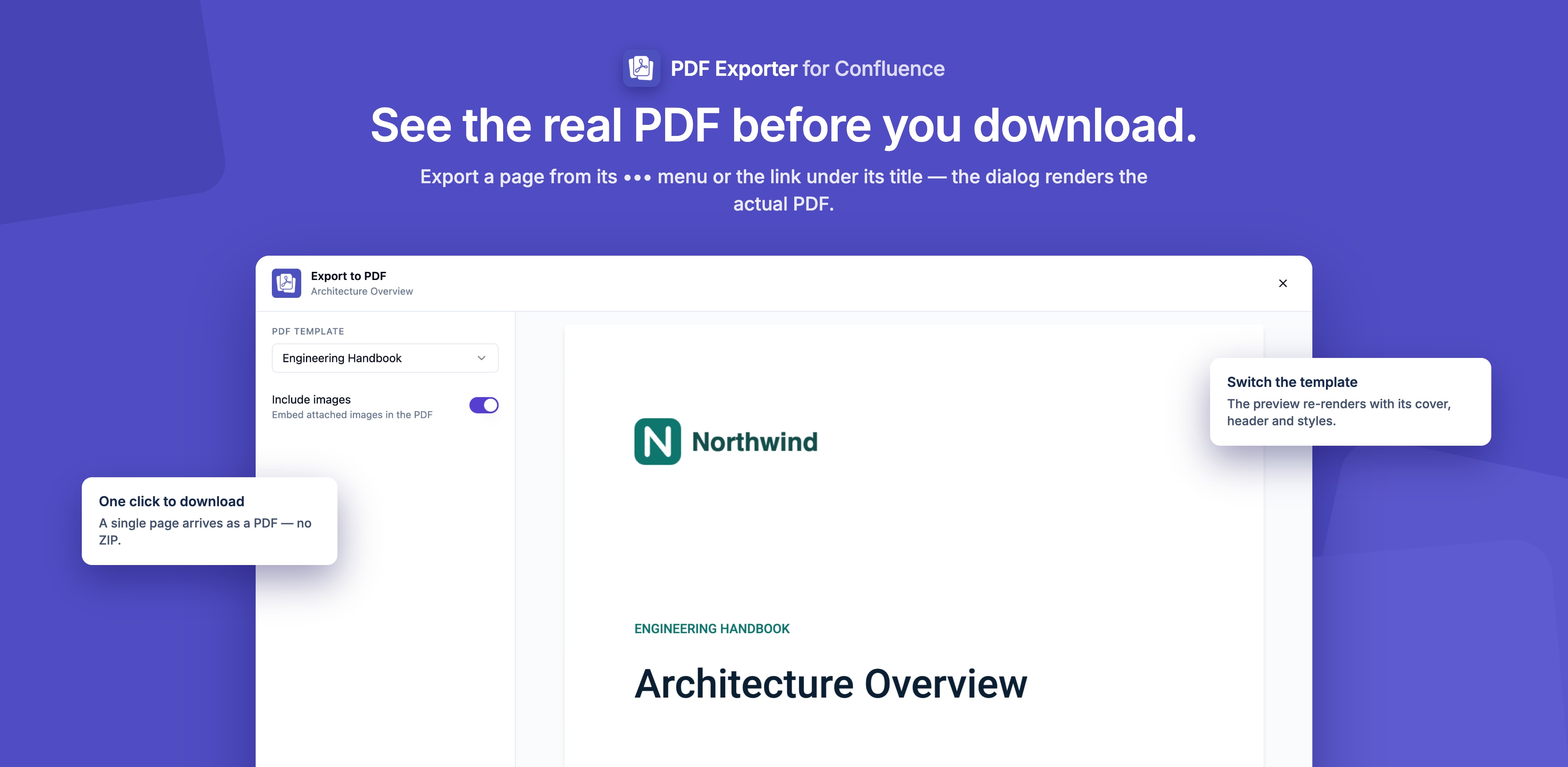
Under the page title: Click Export to PDF below the page title. A page without child pages opens a compact dialog with a live preview; a page with children opens the full exporter.
From the global Apps menu:
- Click Apps in the Confluence global navigation
- Select PDF Exporter for Confluence
Selecting Pages
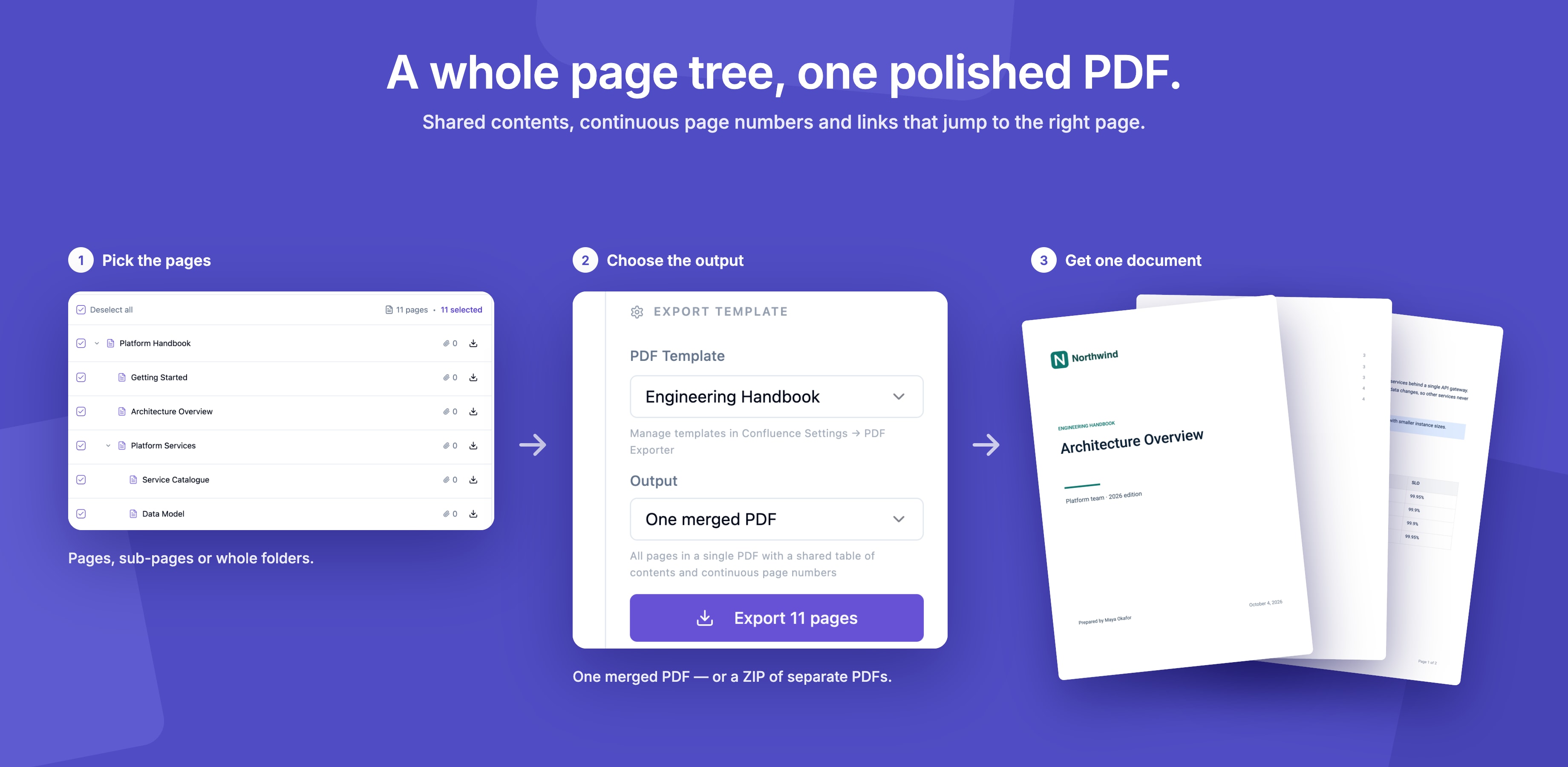
The exporter displays a hierarchical page tree for the current space. Use it to select which pages to include in your export.
Selecting a single page:
- Check the checkbox next to the page name
Selecting a page and all its children:
- Check the parent page — all child pages are automatically included
Selecting specific pages from a hierarchy:
- Expand a parent page and check individual children independently
Searching for pages:
- Use the search bar at the top of the tree to filter by page title
Choosing a Template
Select a template from the dropdown in the sidebar. The template determines the visual style of your PDF — layout, fonts, header/footer, cover page, watermarks, and more.
If no custom templates have been created by your admin, the three built-in templates are available:
| Template | Use Case |
|---|---|
| Default | General-purpose exports with page numbers |
| Report | Formal reports with cover page and table of contents |
| Minimal | Sharing content without any chrome |
Exporting
Click Export to start generation. The app:
- Fetches all selected pages and their assets (images, attachments)
- Converts content to PDF using the selected template settings
- Packages the output
Single page: Downloads directly as a .pdf file.
Multiple pages: choose the Output next to the template:
- One merged PDF — every selected page in a single document, with one table of contents, continuous page numbers and links between pages that jump to the right place
- Separate PDFs (ZIP) — one PDF per page, bundled into a
.ziparchive
An empty page — for example a parent page with no content of its own — is exported too, as a page with just its title.
Hierarchical Exports
When exporting a page with children, the exported ZIP preserves the hierarchy:
export.zip
├── Parent Page.pdf
├── Child Page 1.pdf
├── Child Page 2.pdf
└── Grandchild Page.pdf
Parent-child relationships and internal links are maintained in the output where possible.
Asset Handling
Images and attachments embedded in Confluence pages are automatically fetched and included in the PDF. You do not need to manually download or re-embed assets.
Live Preview
When you export a single page, the dialog shows the actual PDF as it will be downloaded, and re-renders it when you switch templates. Use it to check the cover page, template settings and layout before exporting.
Guides for PDF Exporter for Confluence
Stuck on something this page does not cover? Ask the developers.