
.png&w=96&q=75)
Documentation
PDF Exporter for ConfluenceBrowse
Documentation
PDF Exporter for ConfluenceCover Page
Add a title page to your PDF exports. Pick one of nine ready-made designs, or design your own cover by dragging elements onto the page.
Enabling the Cover Page
Cover page is configured per template. To enable it:
- Go to Confluence Settings → PDF Exporter
- Open a template to edit (or create a new one)
- Open the Cover Page section and turn on Add cover page
- Pick a design and customize it
- Save the template
Every export that uses this template starts with the cover page.
Ready-made designs
| Design | Description |
|---|---|
| Classic | Centered layout with a horizontal rule |
| Corporate | Left-aligned with a solid accent bar |
| Modern | Large title beside an accent block |
| Executive | Thin accent line and refined typography |
| Bold | Dark accent banner with white text |
| Minimal | Title, subtitle and author only |
| Sidebar | Full-height accent stripe down the left edge |
| Split | Accent block across the top with the title, details below |
| Academic | Formal title page framed by double rules |
| Custom | Your own layout, built in the cover designer (below) |
A live preview updates as you change settings.
Designing a custom cover
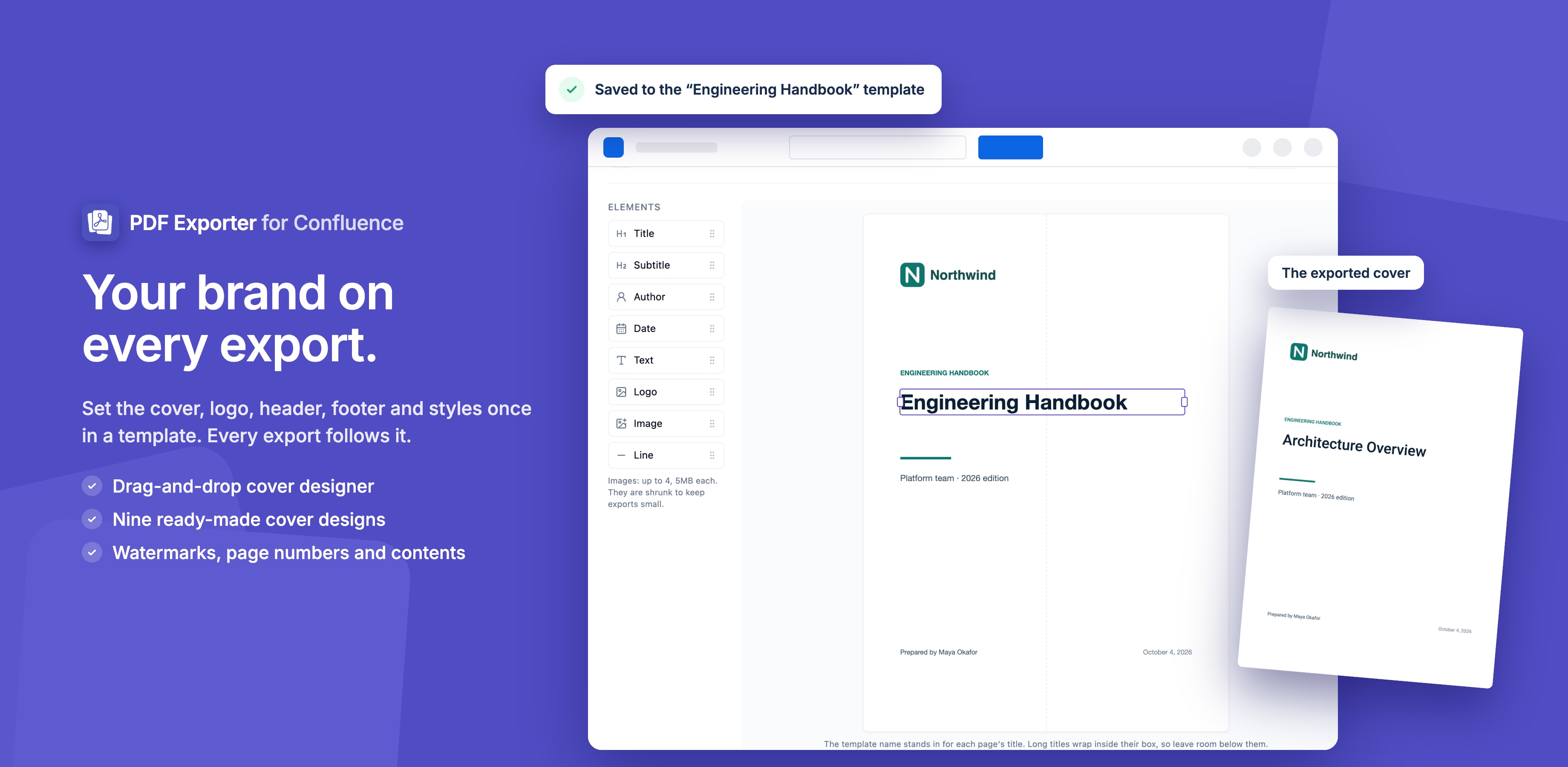
Choose the Custom tile and the cover designer opens. Choosing it again, or the Edit design tile next to it, reopens the designer.
The designer has three parts:
- Elements — Title, Subtitle, Author, Date, Text, Logo, Image and Line. Drag one onto the page, or click it to add it.
- The page — shown at your template's page size and orientation, with the background image behind it.
- Selected element — the settings of the element you clicked.
Placing elements
- Move an element by dragging it.
- Change its width with the handles on its left and right sides. Text wraps inside the box.
- Line things up: edges snap to the page centre and to the other elements, with a guide line while snapped.
- Nudge the selected element with the arrow keys; hold Shift for bigger steps. Delete removes it.
- Set exact values — distance from the left, distance from the top and width — in the settings panel.
Styling elements
Text elements have a size, colour, alignment and bold setting. Lines have a colour and thickness. The Text element accepts variables such as {title}, {date}, {year} and {lastEditedBy} — type { to pick one.
The Title prints each exported page's own title. Long titles wrap inside their box, so leave room below the title.
Undo and starting over
- Undo and Redo (
⌘Z/Ctrl+Z,⇧⌘Z/Ctrl+Y) - Discard changes puts back the layout the designer opened with
- Reset to default starts again from the default layout
Click Done to return to the template, then Save Changes.
Images on the cover
Add the Image element, or drop an image file straight onto the page.
- Up to 4 images per cover
- PNG, JPEG, GIF or WebP, up to 5MB each
- Images are shrunk in your browser before they are saved, so templates and exports stay light. An image too detailed to shrink far enough is refused with a message.
Customization Options
Accent Color
Sets the colour of the decorative elements in the ready-made designs. The Custom design has no accent colour — each element carries its own.
Subtitle and Author
Optional text shown on the cover. Both accept variables, for example Prepared by {lastEditedBy}.
Logo
Upload a logo to show on the cover. In the Custom design, place it with the Logo element.
Background Image
A full-page image behind the cover, for any design. Large images are reduced to a page-sized JPEG.
Cover Page in the Export
The cover page is the first page of the PDF. Headers, footers and page numbers are not printed on it.
Tips
- Use Corporate or Executive for client-facing documents
- Use Custom to match your company's brand guidelines exactly
- Check a long page title in the export preview to make sure it doesn't run into the element below it
Guides for PDF Exporter for Confluence
Stuck on something this page does not cover? Ask the developers.