


.png&w=64&q=75)
Legacy Server/DC Macros
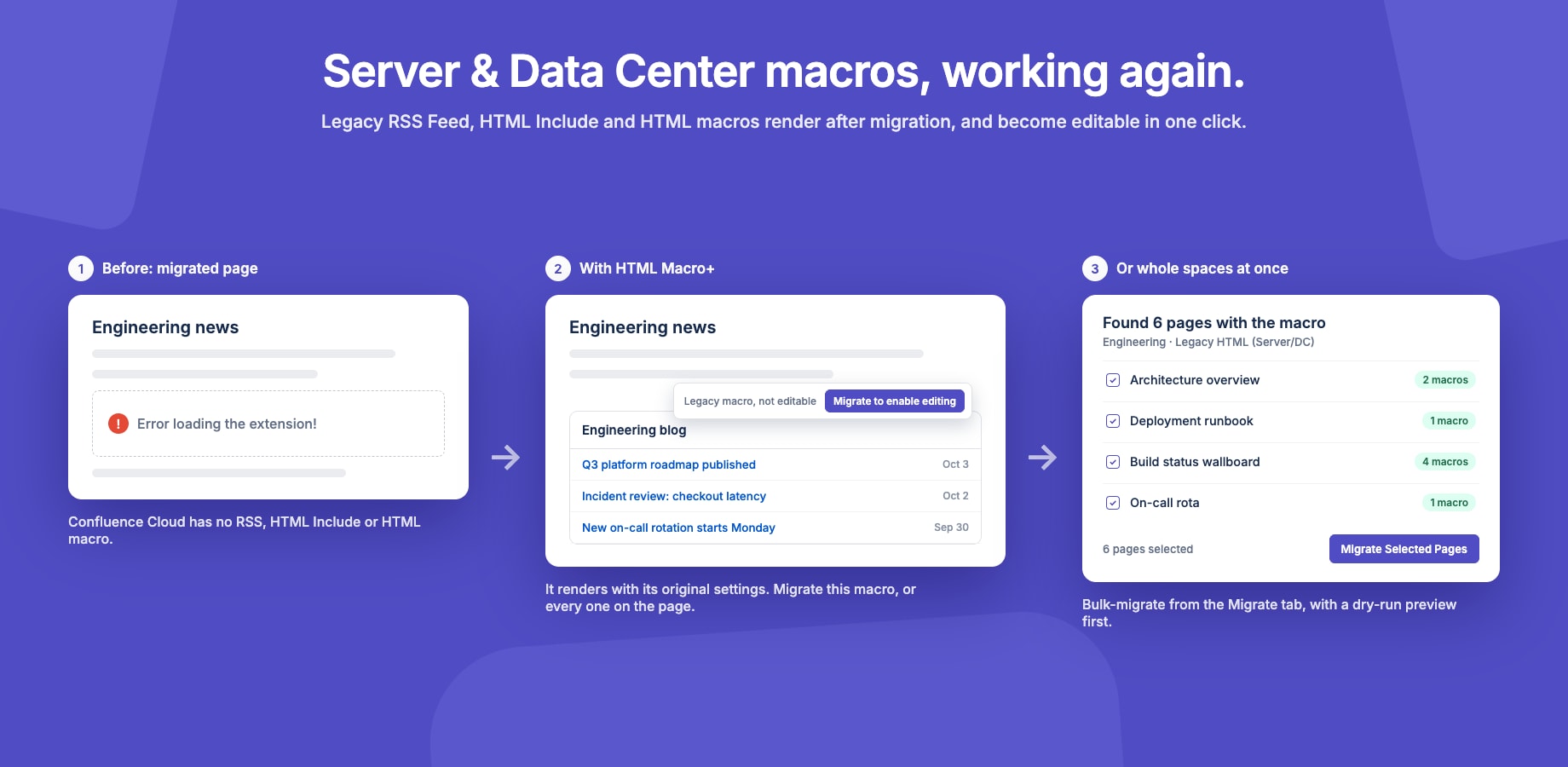
Pages migrated from Confluence Server or Data Center often contain macros that don't exist in Confluence Cloud. Without an app to handle them, they show "Error loading the extension!". HTML Macro+ renders the most common ones, with their original settings, as soon as it's installed.
Supported Macros
| Legacy macro | What you see in Cloud |
|---|---|
RSS Feed (rss) |
The feed's latest entries. Honours Maximum entries, Show feed title, Titles only and Width. |
HTML Include (html-include) |
The page at the macro's URL, shown inline. |
HTML (html) |
The HTML from the macro body. |
| Macro Toolbox HTML (Appfusions) | The HTML from the macro body. |
Nothing needs to be configured for these macros to render, with one exception: RSS Feed and HTML Include fetch content from another site. That only works for domains on your domain whitelist. A blocked domain shows Feed blocked or Content blocked with the address, so an admin knows what to add.
Making Legacy Macros Editable
Confluence's page editor can't open legacy macros as they are stored, so in the editor they still show as an error or Unknown macro. To edit one, migrate it into a regular HTML Macro+ macro. It looks the same on the page, and from then on it opens in the editor like any other.
Migrate from the page
- Open the page (view mode, not the editor).
- Hover the legacy macro. A bar appears in its top-right corner: Legacy macro, not editable.
- Click Migrate to enable editing.
- Choose what to migrate:
- Migrate this macro converts only the macro you hovered.
- Migrate all N on this page converts every legacy macro on the page at once. It appears when the page has more than one.
- The page saves a new version and reloads. The macro now opens in the editor.
Each migration is a normal page version, so you can undo it from Page history.
You only see the bar if you're allowed to edit the page. Viewers never see it.
Migrate many pages at once
Site administrators can migrate whole spaces from the Migrate tab in the app settings. See Migration.
What Gets Converted
| Legacy macro | Becomes |
|---|---|
| RSS Feed | RSS Feed (HTML Macro+), with every setting carried over |
| HTML Include | HTML Include (HTML Macro+), with the URL carried over |
| HTML / Macro Toolbox HTML | HTML Macro+ for Confluence, with the body as its HTML |
Bodies are read whether they're stored as plain text, CDATA or simple rich text. A macro whose body contains Confluence-specific content, such as page links, images or other macros, is left as it is, because converting it would lose that content. That macro keeps rendering, but it isn't offered for migration.
Pages With Unpublished Changes
If someone has unpublished edits on the page, migration is skipped. The bar shows: This page has unpublished changes. Publish or discard them in the editor, then migrate.
This protects the migration. The unpublished draft still contains the old macro, so publishing it later would quietly undo the conversion. Publish or discard the draft first, then migrate.
Requirements
Migrating needs the app to read page content. That permission was added in v1.2.0, so a site administrator must approve the app update under Settings → Apps → Manage apps. Until then, legacy macros still render, but the migrate bar doesn't appear.